View a pipeline in a collection
Review a pipeline's configuration, versions, and execution status from its collection. To change the configuration, open the pipeline editor from the detail panel.
Pipeline basics
A pipeline is an asset that defines a data-processing flow. It consists of multiple nodes. Each node references a code asset or specifies input and output datasets.
Keeping a pipeline in a collection groups it with its related datasets and code as one unit of work.
Use the dedicated Pipeline editor for detailed editing and node configuration. The collection screen shows summary information, execution history, and versions.
Pipeline screen in a collection
Select a pipeline in the collection tree to display the following tabs in the right panel.
| Order | Tab | Contents |
|---|---|---|
| 1 | Overview | Basic information and the pipeline flow |
| 2 | Data | Execution history and a link to the editor |
| 3 | Version History | Version preview and restore actions |
| 4 | Share & Permissions | User and group permissions |
Overview tab
Review the pipeline's basic information and node configuration.
| Field | Description | Editing |
|---|---|---|
| Name | Unique pipeline identifier | Cannot be changed |
| Alias | Name displayed to users | Editable |
| Tags | Used for search and classification | Editable |
| Description | Records the pipeline's purpose | Editable |
| Collection / ID / Created and modified | Collection, identifier, and author information | Cannot be changed |
The execution mode (batch / event) is not shown as a separate field on the Overview tab. Check its badge in a version preview on the Version History tab.
The Overview tab also contains a reduced pipeline flow. Each node summary shows its name and alias, language badge, and input and output counts, such as 2 in / 1 out.
Data tab
The Data tab displays the pipeline's recent execution history as a table.
- Columns: Execution ID, status, duration, and execution time.
- Status: Success, Ready, Error, Failed, Running, or Pending.
- If there is no execution history, “No execution history” appears.
- Select Open in Pipeline editor on this tab to open the editor, as described below.
Version History tab
Review the pipeline's version history as a timeline.
- Version list: Shows each version label (v1, v2, and so on), the Latest badge, author with owner preview, and modified time.
- Preview: Expand the alias, type (
batch/event), description, tags, and node list for a selected version. - Restore: Restore a previous version after confirming that “The current pipeline will be overwritten with the selected version.”
Relationship between a pipeline and collection assets
Each pipeline node references other assets in the same collection.
- Code reference: Set the name of a code asset in the collection in the node's
scriptfield. - Dataset input: Map a dataset in the collection to the node's
inputs. - Dataset output: Set the dataset that receives processing results in the node's
outputs.
Keep the pipeline and related assets in the same collection to review all components of a data-processing task together.
Open the pipeline editor
To edit the pipeline structure visually, select Open in Pipeline editor on the Data tab. When you enter from a collection or folder, the editor opens with the save location locked to that collection or folder.
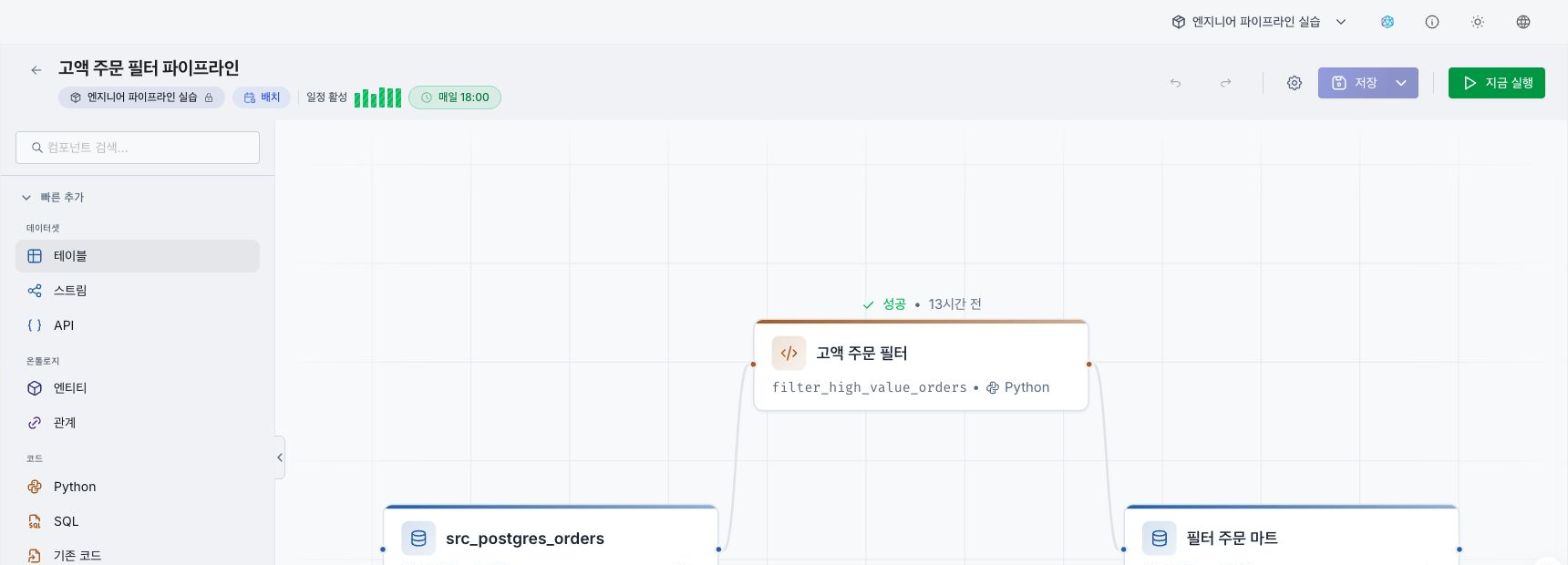
- The location badge at the top of the editor shows the collection name and folder path. Location locked appears next to a lock icon. Hover over the icon to see a tooltip explaining that the location is fixed because the editor was opened from this collection. Saving uses the displayed path without asking you to select a location.
- When you open the editor from the sidebar, select the destination collection before saving.
Add or remove nodes and connect input and output assets in the pipeline editor. See Pipeline editor for the screen layout.
Clone a pipeline
Select Clone in the detail header to open the clone dialog. Choose the destination collection and a new name, then set the alias, description, and tags.
Next steps
- Pipeline editor — Review editor areas and node features.
- Run a pipeline — Run the pipeline and check status.
- Review and restore version history — Preview or restore saved pipeline versions.