Edit collection
Instructions on how to modify the metadata of a created collection, change its name, and delete the collection if necessary.
Edit collection information
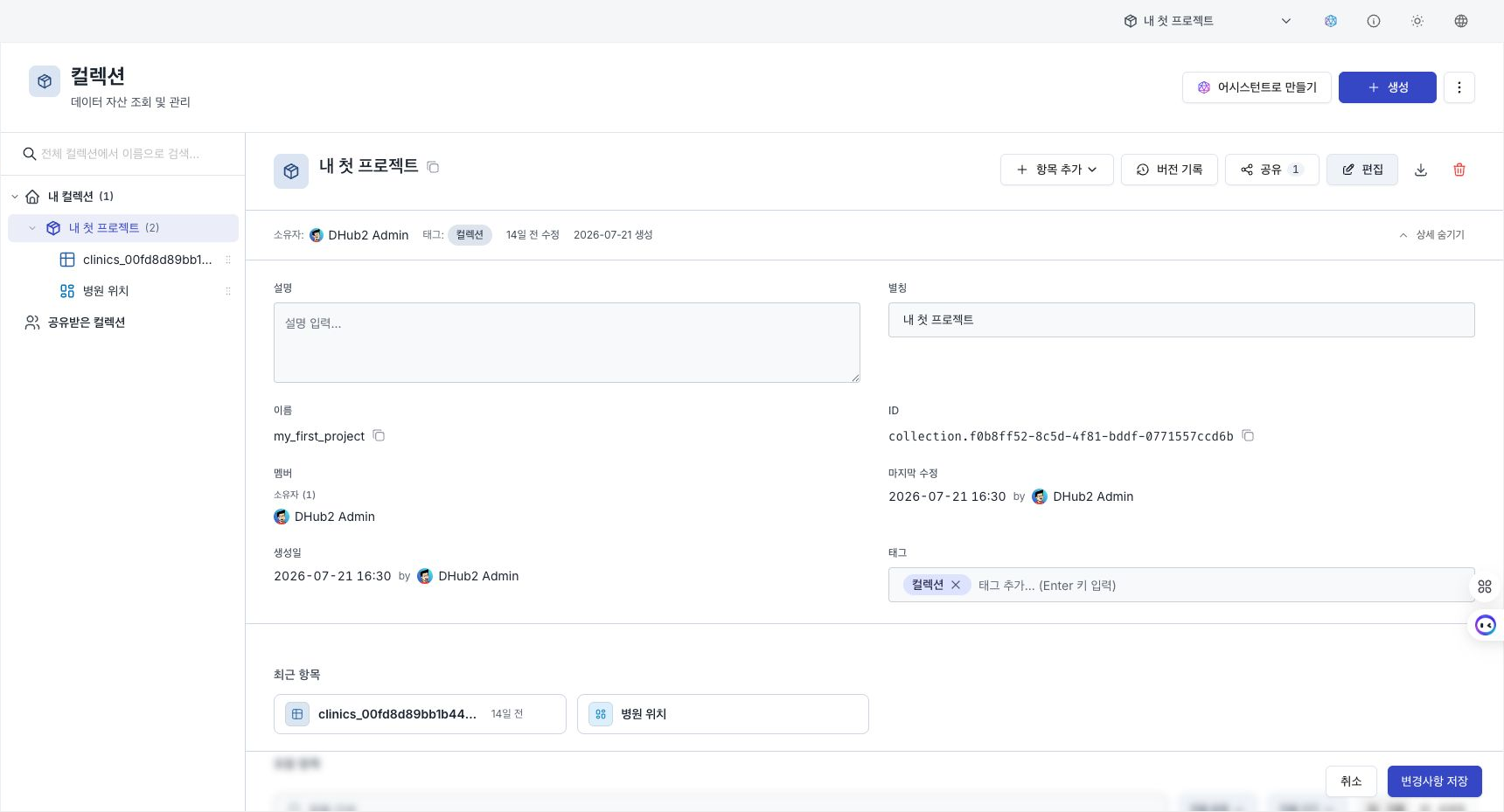
To change a collection's alias, description, or tags:
- Select the relevant collection from the tree on the left to open the details screen on the right.
- Press the Edit button (pencil icon) in the action area on the right side of the detailed header.
- When the top meta area expands into inline editing mode, edit each field directly.
- Click Save Changes on the action bar that appears at the bottom of the screen to apply them, or press Cancel to discard the modifications.
Editable fields
| field | Description |
|---|---|
| Alias | Alias that will be visible to users |
| Description | Description of the purpose or contents of the collection |
| Tags | Tags for searching and sorting |
The name (system identifier) of a collection cannot be changed after creation, so it is not subject to modification even in edit mode. To change the display name, use Alias. In trees and breadcrumbs, the alias is given first, or if no alias exists, the system name is displayed.
Even in edit mode, you can automatically receive suggestions for each item with the AI button next to the Description/Nickname/Tag input field.
Change name (Alias)
The context menu is convenient when you just want to quickly change an alias.
- Right-click a collection (or folder) in the tree on the left.
- Select
Renameand the Name Change Dialog will open. - Enter a new alias and save it.
However, the names of end items (individual items placed at the end of the tree) such as dataset, code, pipeline, knowledge, dashboard, and agent are changed from the row menu in the center list (list table), not from the tree right-click menu.
Export collection
Export the entire collection structure as a ZIP using the Export button (download icon, “Export” tooltip when you hover the mouse over it) to the right of the collection detail header. Since it is a package containing a configuration information file (manifest), the same structure can be reproduced exactly when imported into another environment.
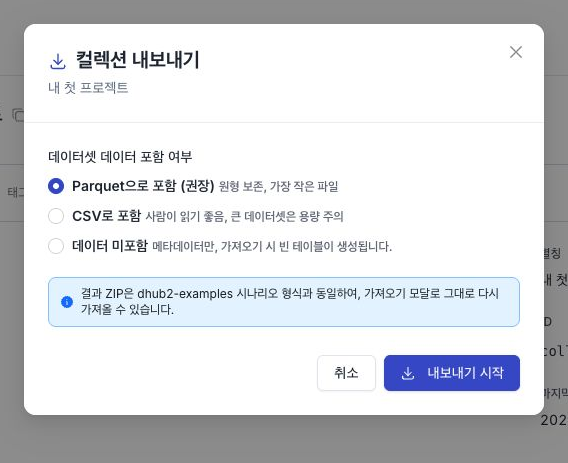
To re-import the exported ZIP, select Import from the More (⋯) menu in the top header of Explorer to open the Import dialog box.
Remove item
Removing an asset from a collection is just unlinking the collection, which is not the same as deleting the asset itself.
- In the collection detail header, select Add item ▾ → Add from existing item…. The Manage Items dialog opens (title:
Manage items: {collection name}). By default, Hide Added Items is on, so assets already included in the collection are hidden. - Turn off the Hide added items checkbox, or click the Show all items link that appears when the list is empty to display the current members.
- Select (check) the assets you want to remove. If you select an asset that is already in a collection, it will be processed for removal and you will see the
Remove {m}summary at the bottom. - Click Apply Changes to detach the selected assets from the current collection (only the datasets, code, pipelines, and knowledge will be unaffiliated; the assets will remain intact).
For the full procedure, see Adding and moving items.
There is no "Permanently Delete" option in this dialog. To completely delete the asset itself, right-click its root item in the tree and select Delete to use the delete confirmation dialog. For deletions that take a long time, such as datasets, you can check the progress in Asynchronous Cleanup Panel.
Delete collection
When you delete a collection, all assets it contains are permanently deleted. There is no option to just delete the collection and leave the assets, so if you need to save the assets, Move to another collection before deleting them.
- Select the Delete button (trash can icon) on the right side of the collection detail header or right-click the collection in the tree on the left and select Delete.
- A delete confirmation dialog box opens.
- You'll see a warning at the top: "All data it contains will be permanently deleted."
- External Reference Check is run automatically to check if other resources (pipelines, ontology relationships, etc.) reference assets in this collection. If there are no references, you'll see a list of references, along with "There are no external references. You can safely delete them." If there are references, you'll see "N external resources refer to items in this collection."
- Enter the collection's display name (and alias, if you have one) in the field to confirm. The Delete button will only be active if it matches the display name exactly.
- Select Delete, or Force Delete if external references exist. For long-running deletions such as datasets, check each asset's progress in the Cleanup panel at the bottom right.
Deleting a collection is irreversible and all child assets are removed. If you forcibly delete an external reference while it exists, the reference to that resource may be broken, so be sure to check the scope of impact.