Create collection
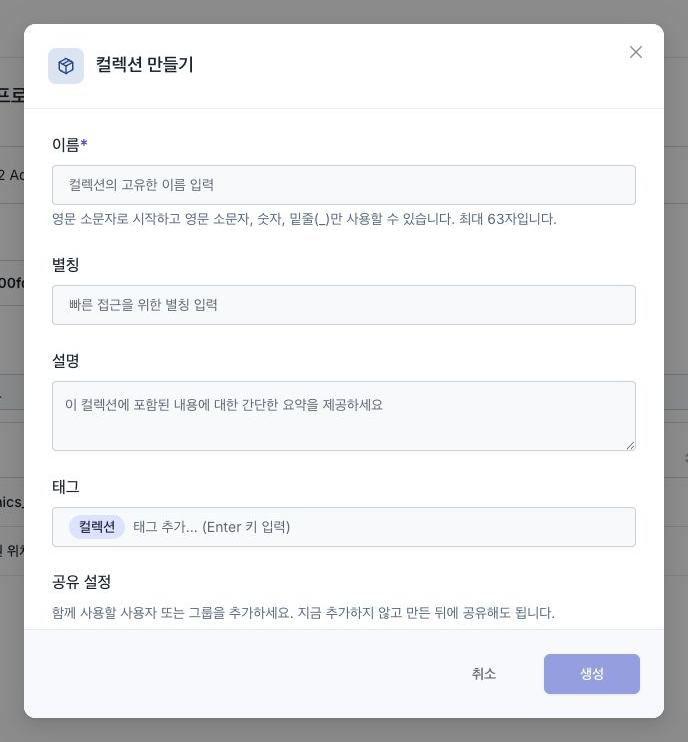
Create Collection is the flow of creating a new collection in a single dialog box. Creating a collection means preparing an empty workspace, and adding resources is done by clicking Add item on the details screen after creating the collection. Therefore, the creation dialog box only accepts name, alias, description, and tag as input and does not require item selection.
Only Administrators and Managers can create collections. For the User role, create actions are disabled and a tooltip explains the restriction. Existing collections remain selectable, and users can work with collections and assets within their granted permissions. The same restriction applies to creation from the Collection Explorer header and empty state, AI-assisted collection creation, and inline creation in collection selectors on other screens.
Open Create Collection
- Click the Create button (+ icon) on the right side of the Explorer top header (Collection area). In the More (⋯) menu next to it, there is Import. If you don't have any collections, you can start by clicking the Create Collection button on the guidance screen that appears on the right side of the screen.
- The Create Collection dialog box opens.
Input items
The dialog box accepts the following information:
- Name: Required. Must be lowercase, start with a letter, can contain numbers and underscores (
_), and up to 63 characters. If any rules are broken or a collection with the same name already exists, the creation will not proceed. - Alias: The alias that will be displayed to the user. Trees, tables, and search results are displayed front and center everywhere.
- Description: Briefly summarize the purpose or contents of the collection.
- Tags: Tags for search and classification. The tag
Collectionis included by default.
There is an AI creation button next to the Alias, Description, Tag input fields, so you can automatically receive suggestions based on the name you entered. The AI button is activated only after entering a name, and there is no AI button in the name field itself.
After completing the input, click Create to create the collection.
After creation
When creation is complete, the new collection appears in My Collections in the left tree. The collection is selected automatically and its detail screen opens. The collection is initially empty; use Adding and moving items to add datasets, code, pipelines, knowledge, dashboards, and agents.
Create a collection inline
When you need to select a collection from another screen, such as registering a dataset or creating knowledge, you can create a new collection on the spot using the Create Collection item at the bottom of the collection selection dropdown. This inline dialog is simple, requiring only a name and alias (no description, tags, or AI suggestions), and the name validation rules are the same as the Create Collection dialog. The created collection is selected immediately, and item composition continues in Add item in the collection details.
Inline Create Collection is also enabled only for Administrators and Managers. Users select an existing collection to continue.