LLM Model Management
The LLM Model screen registers and manages the LLM model to be called by the agent, workflow, and knowledge chat. If you upload an endpoint from an external provider (OpenAI compatible, Anthropic) or a model deployed inside D.Hub to this catalog, it will appear in the model selector of Agent Builder and Workflow/Knowledge Chat.
The list contains only models you can view. A user with permission on a collection can register a collection-scoped model, while only an Administrator can register an organization-wide global model.
Different from model serving
Don't confuse these two screens with similar names. They are different resources.
| screen | path | What it covers |
|---|---|---|
| LLM Model (this page) | /settings/llm-models | Interactive LLM registration and management called by agent·workflow·knowledge chat |
| Model Serving | /models | Distribution and serving of ML model assets for learning and inference |
The resources saved and used for the two screens are different. If you would like to pursue a new interactive LLM, register on this page.
Approach
In the sidebar, go to the System → Settings → LLM Model menu.
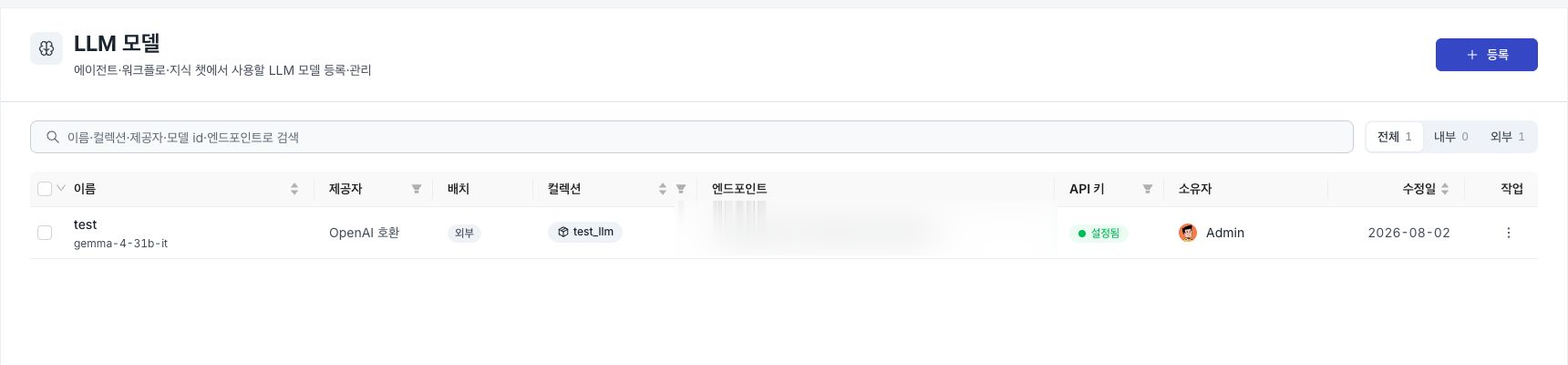
Model list
Registered LLM models are displayed in a table.
| column | Description |
|---|---|
| Name | Registered Name and Display Name. Shown below along with display label or model ID. |
| Provided by | Provider used for model calls. It will be displayed as Anthropic or OpenAI-compatible. |
| Placement | External (hosted outside of D.Hub) or Internal (distributed and managed by D.Hub). |
| Collection | A collection that summarizes this model. If not specified, —. |
| Endpoint | Base URL of the external model. The internal model is —. |
| API key | Key setting status badge for external models — Configured / Not configured. The internal model is —. |
| Owner | User who registered and owns this model. |
| Modified Date | Last modified date. |
- Search: Enter name, collection, provider, model ID, and endpoint in the search box at the top to narrow the list.
- Bulk Delete: When you select multiple models with the checkboxes in the row, a batch action bar appears at the top, and you can delete them all at once with Delete.
- Individual deletion is performed by clicking Delete in the action menu on the right side of the row.
By default, a newly installed environment will not have any registered models. You will only see a Register button with the notice “No registered LLM models” — only models registered directly by the operator will appear in the list.
If you delete an LLM model, agents and workflows that reference the model will fail to interpret the model until it is reset. Please check if it is the model you are using and then delete it.
Register external model
Click the Register button at the top right of the list to open the registration screen. Fill out the items below. Name·Provider·Model ID·Endpoint are required and the rest are optional.
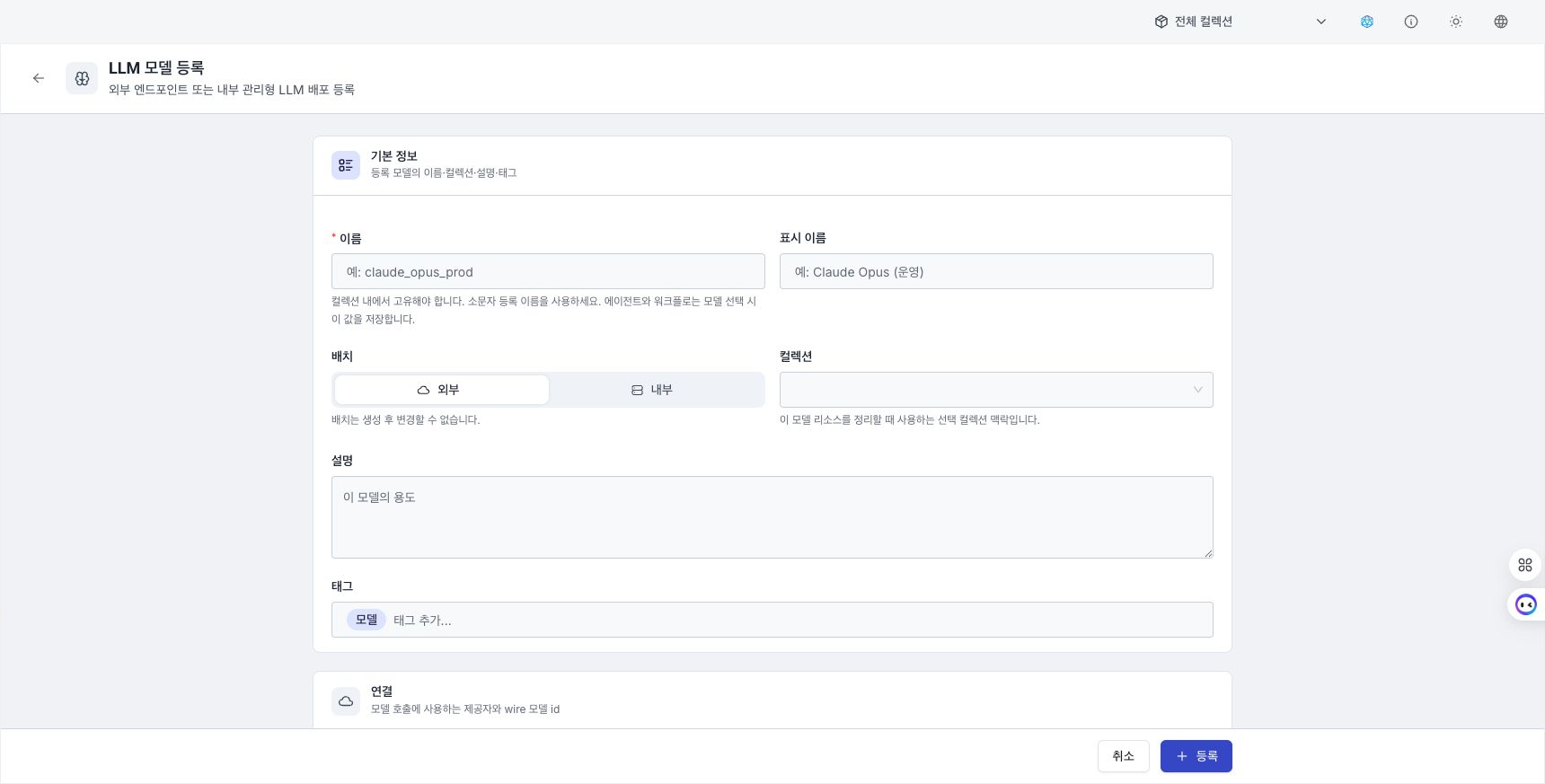
Basic information
| field | Required | Description |
|---|---|---|
| Name(name) | ✅ | A lowercase registered name that is unique within the collection. Agent/Workflow stores this value when selecting a model. 2–128 characters, starts with a lowercase letter, and can only contain lowercase letters, numbers, underscores (_), and dots (.) (no hyphens). Provider IDs with a slash (/), such as QuantTrio/..., should be entered in the model id field, not in this field. |
| Display name(alias) | A name that is easy for people to read. Example: Claude Opus (Production). | |
| Placement(type) | ✅ | Select External or Internal. |
| Collection | A collection to organize this model's resources. | |
| Description / Tag | Usage notes and tags for classification. |
Layout (internal/external) cannot be changed after creation. This item is locked as inactive in the edit screen, and if you want to change to a different arrangement, you must delete the model and register a new one.
connection
| field | Required | Description |
|---|---|---|
| provider(provider) | ✅ | Select from the list of providers registered on the server (Anthropic·OpenAI-compatible). When you select a provider, the model id and display label of the representative model are automatically filled in, and you can also manually enter models not in the list. |
| model id(model) | ✅ | Model ID passed as is when sending a request to the provider. Example: claude-opus-4-7. |
| Display label(label) | The name that appears in the Agent·Workflow model selector. If left blank, it will be replaced by your model id or registration name. | |
| Context Window (Token) | The overall context size of the model. This is a display-only value; it is only used as a context gauge for agent chat and is not enforced. | |
| Tokenizer | Enter the Hugging Face repository ID used to count prompt tokens. If blank, a shared estimator is used. You can Apply the recommendation below the model ID and check whether the repository's tokenizer.json can be loaded. |
External endpoints and API keys
| field | Required | Description |
|---|---|---|
| Endpoint (base URL)(base_url) | ✅ | External address where this model is served. Example: https://api.anthropic.com. |
| API key(api_key) | It is stored on the server and will never appear on your screen again. Leave blank for endpoints that do not require a key. | |
| Custom headers | Enter headers added to every request, such as a gateway key. Secret values are not shown again after saving. While editing, leave the value blank to retain a named header; removing its row deletes it on save. |
The API key you enter is safely stored on the server and will not be looked up again. So when editing, the key field always starts out blank.
- If you leave it blank, the existing key will remain the same.
- If you enter a new value, it replaces with that value.
Check if the key is already saved by the API key badge (Configured / Not configured) in the list.
Test connection
Before saving an external model, check connectivity and actual generation in separate stages.
- The test checks the endpoint on behalf of the manager server. This is because the browser cannot directly contact the private endpoint and does not have the keys already stored. (The model being edited uses the saved key as is, and if a new key is entered, it is checked with that value.)
- If it fails, a localized error explains the reason, for example
Authentication failed — check the API keyorUnable to connect to endpoint — check the URL and network. - If successful, it also shows the detected model limits (context window·max output token) reported by the endpoint. When you click Apply to form, the value is filled in the form's context window and maximum token fields at once.
Check connection inspects model listing and authentication. Check inference also sends an actual generation request and can add cost and latency.
For a saved external model, select Measure speed to send the same fixed prompt sequentially 10 times. Results show median output speed, per-run speed, and average time to first token (TTFT). Endpoints that omit token usage show an estimate based on character count. Select Stop measurement to stop before another run starts; an in-progress run completes first. Because the measurement includes queueing and prompt processing, compare models measured from this page under similar conditions.
An unsaved model cannot be measured. For Claude models, save Max tokens first.
Internal deployment model
If you select Internal under Placement, configure the container and runtime that D.Hub deploys. An endpoint field is not shown.
| Area | Inputs |
|---|---|
| Internal deployment | Container image, port, replicas, GPU, CPU, memory, and health-check path |
| Runtime options | Command, additional arguments, a JSON object converted to CLI flags, environment variables, and node selector |
Enter environment variables and node selectors as key-value rows. In Runtime options JSON, null becomes a flag without a value, Boolean values become Boolean flags, and other values are passed as flag values.
Technical value fields such as identifiers, paths, and numbers are displayed in a monospace font to make them easier to read.
Creation parameters
In the Generation parameters collapsible area at the bottom of the registration screen, adjust the default values to pass to the provider when calling this model. Applies to both external and internal models.
| Item | Description |
|---|---|
| temperature | Sampling temperature between 0–2. The higher it is, the greater the randomness. |
| max tokens | Maximum number of output tokens per response. |
| max retries | Number of times to retry a failed request. |
| Request timeout (seconds) | Timeout in seconds per request. |
| Streaming | One of Provider default / On / Off. To keep the default, leave it as Provider default. |
| Reasoning effort | Auto detect uses provider and model information. Under Specify manually, choose supported levels and a default. Leaving supported levels empty hides the reasoning-effort selector in Agent Builder and chat. |
| Additional parameters (model_kwargs) | A JSON object containing additional parameters such as seed·top_p·reasoning_effort. D.Hub passes the value as is to the provider without verifying it. |
| Endpoint behavior (model_options) | A JSON object such as cumulative_stream_usage that controls how D.Hub communicates with the endpoint. It is not sent as a provider request parameter. |
All items are optional. If left blank, nothing will be sent and the provider default will be used.
The input location for creation parameters such as temperature·max_tokens is this registration screen, not the Agent Builder. The values set here will apply commonly to all agents/workflows that call this registration model.
If you register the same model multiple times as separate LLM models with different parameters, you can attach different creation settings to each agent/workflow.
Next steps
| document | Description |
|---|---|
| Settings Overview | Settings area Overall configuration and user types |
| Agent Overview | Connect and use the registered LLM model to the agent |