Reports
Under Applications → Reports, create PDF or PPTX output based on collection assets. Report generation requires the assistant model activated for the organization.
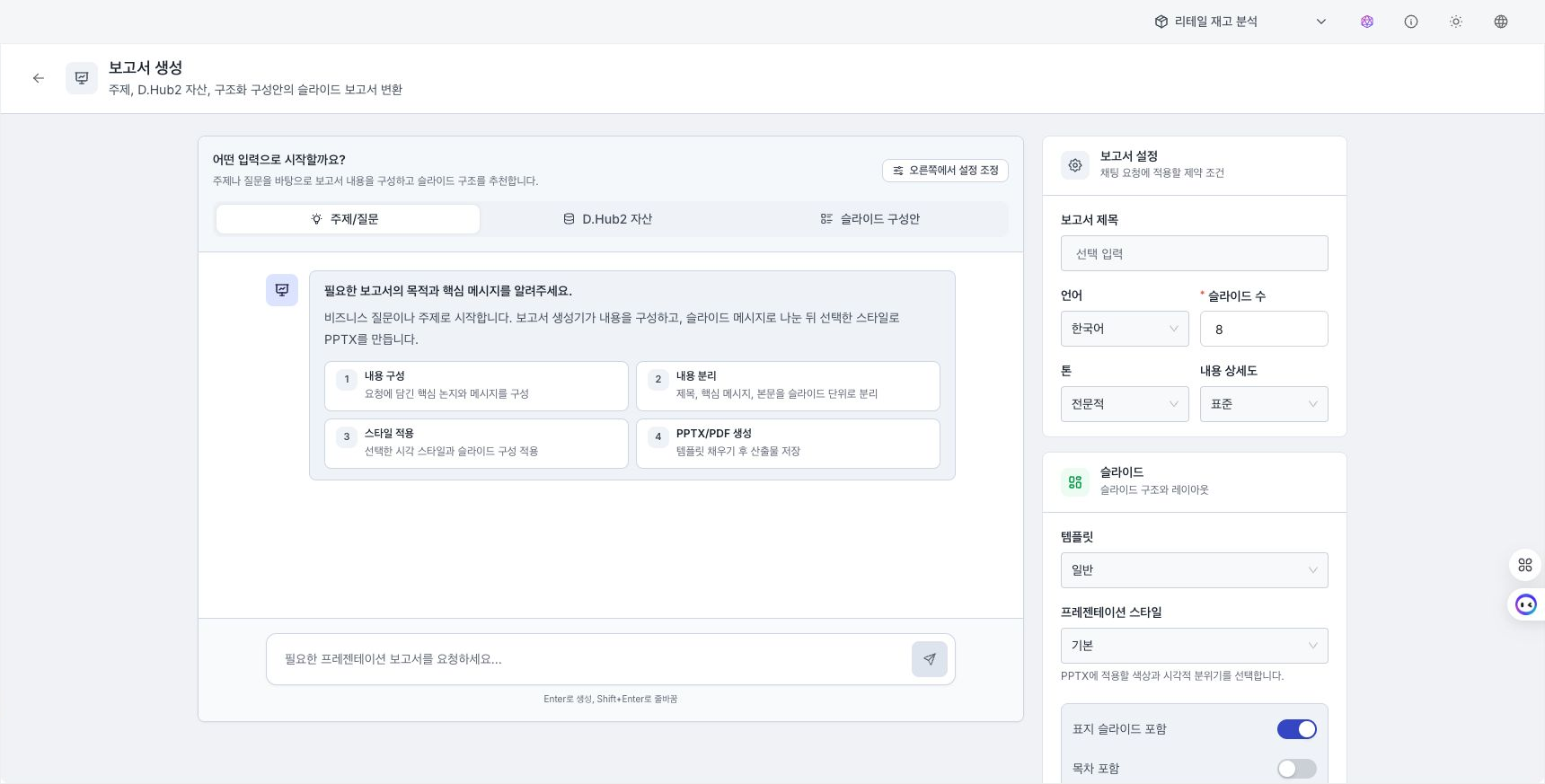
Review the list
Search reports by title, request, or identifier. Each row shows generation status, output format, language, and modification date.
Create a report
- Select Create report.
- Enter a Title that identifies the result and a Request to send to the model.
- Select the Template that defines the report structure.
- Select the result language. PPTX is always generated; turn on Include PDF when you also need PDF output.
- Select assets for the report to reference. If an active collection is selected at the top, it also limits the asset scope.
- Review the selected assets and request, then start generation.
Create from a conversation: In a deployed agent chat, D.Hub Assistant, or Knowledge AI Chat, hover over a completed answer and select Create report from its action row. The conversation through the latest completed answer becomes the evidence. The approval card locks the title, purpose, output formats, slide count, and language. Select Approve to start or Reject to cancel. You cannot send another message while approval is pending, and the pending card is restored after refreshing or reopening the conversation on another device.
A report cannot be generated without an active model. An administrator registers and activates one under System → Settings → Assistant Models. See Assistant models for the procedure.
Check progress
During generation, the screen shows the current stage, such as preparing sources, generating content, or converting output. After closing the screen, check the status again in the list.
- Completed: Download the file in the prepared format.
- Failed: Review the error, check input assets and model status, and try again.
- If you selected multiple formats, PDF and PPTX can have different readiness states.
Download results
Open a completed report or use the list row's action menu to download a ready PDF or PPTX. When one format is ready, Download saves it directly; when both are ready, choose a format from the menu. Before downloading, confirm that the format and language match your request.
Remove from Recents
Remove from Recents in the row actions only hides the report from the recent-items display. It does not delete the saved report or generated output from the server.