Register and activate assistant models
On the Assistant Models screen, register and manage LLMs used by assistant chat, AI generation (code generation and editing), and report generation. Select the one active model shared across the organization.
Only users with the Admin type can access this screen. A user without permission who opens the address directly is redirected to Home.
Compare Assistant Models and LLM Models
| Screen | Used by | Selection method |
|---|---|---|
| Assistant Models | Assistant chat, AI generation, reports | An administrator selects one organization-wide active model. |
| LLM Models | Agents, workflows, Knowledge AI Chat | A model is selected separately in each feature. |
Open Assistant Models
Select System → Settings → Assistant Models in the sidebar.
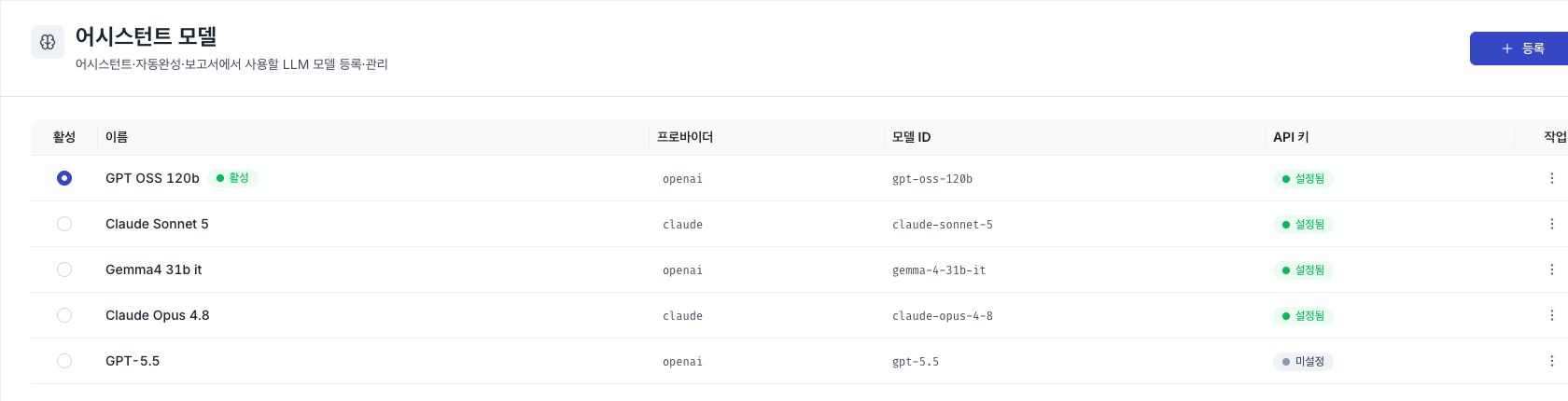
Register a model
-
Select Register at the top right of the list. The Add model dialog opens.
-
Enter the fields.
Field Required Description Provider Required Select the provider used for model calls, such as Anthropic or OpenAI compatible. Model ID Required Select from the suggested list or enter a model identifier directly. Display label Optional Name shown in the list. If blank, the model ID is used. API key Optional Key used for external model calls. The value is masked after saving and can be replaced only with Change API key. Base URL Optional If blank, the provider's default address is used. Maximum output tokens Optional When blank, Assistant, AI generation, and reports use their service defaults. Reasoning models use the same budget for reasoning tokens, so allow more than the required answer length. -
Select Check connection at the bottom of the dialog. A successful check includes response time. A failure explains the cause, such as authentication failure or an unreachable endpoint.
-
Select Add.
Select the active model
Select the radio button in the Active column to set the organization-wide model. Assistant chat, AI generation, and reports all use this model, and an Active badge appears beside its name.
The same value appears in the model display in assistant chat. Only an administrator can change it.
If no model is registered or selected as active, AI generation on each screen is blocked and displays instructions to register and select a model.
Edit or delete a model
Select Edit or Delete from the row action menu.
Model deletion cannot be undone. Deleting the active model also clears the active selection. Assistant, AI generation, and report features remain unavailable across the organization until another active model is selected.
Next steps
- Register and manage LLM Models — Register models used by agents and workflows.
- D.Hub Assistant overview — Review the assistant features that use the active model.