User Management
On the User Management screen, you can view users registered on the platform, create new local users, or register and synchronize users from an external identity provider (IdP). Deleting users and toggling them active/inactive is also done from this screen.
Only admin type users can enter. If an unauthorized user accesses this screen, they are automatically returned to home.
Approach
In the sidebar, go to the System → Settings → User menu.
User List
When you enter the screen, registered users will be displayed as Table.
| column | Description |
|---|---|
| Name | The alias and original name when an alias exists, or only the name otherwise. Service accounts also show a Service account badge. |
| User email address | |
| Type | Admin / Manager / User (color badge) |
| Provided by | Local Account or Federated Identity Provider Name (SSO) |
| Group | Group affiliation (maximum 2 + remaining numbers) |
| Active | Active/Inactive Status |
Search and filter
- Search: Search by name or email.
- Provider Filter: All / Local / SSO (when linked).
- Type Filter: All / Administrator / Manager / User.
The list loads all server pages for search, filters, sorting, and Select all filtered results. At the bottom, choose 10, 25, or 50 rows per page, and drag column boundaries to resize them.
Select/delete multiple users
You can select multiple users at once using the checkboxes to the left of the list. The header checkbox menu allows you to select all filter results in addition to the current screen (e.g. "Select all 12 filter results").
When you select more than one, a Batch Actions Bar will appear above the list. On the left is the selection number (e.g. "3 selected") and Unselect, and on the right is Delete. When you press Delete, a confirmation window will appear, and once confirmed, the selected users will be deleted all at once. Deleted users cannot be recovered.
- Currently logged in user accounts are excluded from batch deletion.
- If you change the search term or filter, the selection will be cleared. The selection is maintained when you just turn the page.
Create user
Clicking the Create User button at the top right of the list opens the creation dialog.
| field | Required | Description |
|---|---|---|
| Avatar | Preview of the avatar that will be created. You can edit or reset it directly. | |
| Provided by | Local or federated identity provider name (e.g. Keycloak). Appears only in environments where a writable ID provider is integrated. | |
| Name | ✅ | display name |
| ✅ | Email address (no duplicates) | |
| Password | ✅ | At least 8 characters |
| Type | User / Manager / Admin (default: User) | |
| Group | Group affiliation (multiple selections possible) | |
| Active | Enabled (default on) |
After entering the information, click Create to create the user.
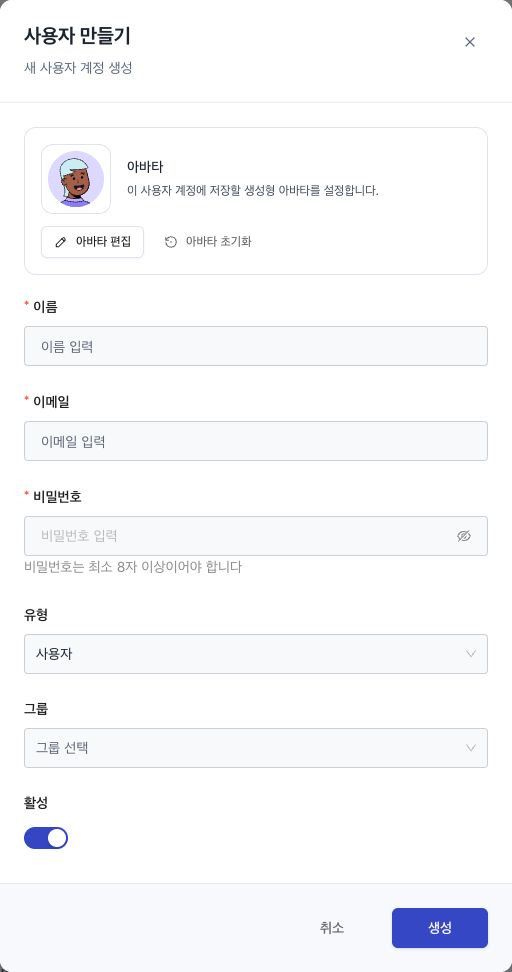
Create local users and IdP users
- Local (default): Save your account and password in D.Hub.
- Writable identity provider (for example, Keycloak): If you select an identity provider under Provider, the account is created directly in that provider and the password is stored there. D.Hub stores only the account link. Manage the user's identity-provider group membership in Group Management; this screen lists only local groups.
The Provider selection appears only when an identity provider that supports writing (e.g. Keycloak) is integrated. In an environment where only a lookup-only identity provider (e.g. Azure AD) is integrated, only local users can be created, and existing identity provider users are registered using the SSO (OIDC) user method below.
User Type
| Type | Key Permissions |
|---|---|
| Admin (admin) | All management functions including user, group, authentication, and system settings |
| Manager | Functions within the scope of operational staff, such as custom connectors and LLM models |
| user | General use of collections and assets permitted to me |
Even in an environment where SSO is configured, you can create a separate local account and use it for emergency access.
Reset password
By selecting Reset Password from the action menu in the user's row, the administrator can set a new password for that user (enter new password + confirm, minimum 8 characters). You cannot use it on your own account. This feature is available for local users and users managed by a writable identity provider (e.g. Keycloak).
When initializing a user from a writable identity provider (e.g. Keycloak), the option Require password change on next login appears. When this option is turned on, the password set by the administrator will be used as a temporary password and users will be required to set a new password themselves the next time they log in. This option does not apply to local user initialization.
SSO(OIDC) user
Once SSO is configured, users from external identity providers can be registered with D.Hub.
- Identity Provider User Registration Button (the associated identity provider name appears on the button — e.g. "Register Keycloak User"): When pressed, a registration window will open. Select users who have not yet registered from your identity provider's user list and register them at once (name, email, and registration status will be displayed together).
- Individual Synchronization: Clicking Sync in the action menu of an SSO user's row will update that user's profile information based on the identity provider. Users who have already been removed from the identity provider will be notified of this fact.
SSO users do not store their passwords in D.Hub, and their names and emails are managed by the identity provider, so they cannot be edited here. After registration, the administrator specifies the type (role) used within D.Hub.
User registration and synchronization occurs in only one direction: ID provider → D.Hub. Conversely, local users created in D.Hub are not registered with the identity provider.
Disable and delete users
- Disable: Turn off the Active switch in Edit User to block login. It will remain in the list and can be activated again.
- Delete: Select Delete from the row's action menu (your own account cannot be deleted).
- Deleting an SSO user from D.Hub does not delete it from the identity provider. The account may be restored by re-registering the user.
- Before deleting, review the organization and transfer of assets you own.
Next steps
| document | Description |
|---|---|
| Group Management | Create/delete group, register/synchronize ID provider group |
| Authentication and Access Control | Local login/SSO, access rights model |