Policies Overview
Policies is a Fine-Grained Access Control function that handles datasets in more detail. While role-based sharing/permissions determine "who can see this dataset or not", policies add column masking and row filter to this. So, even when viewing the same data set, the range and type of visible data can vary depending on the user or group.
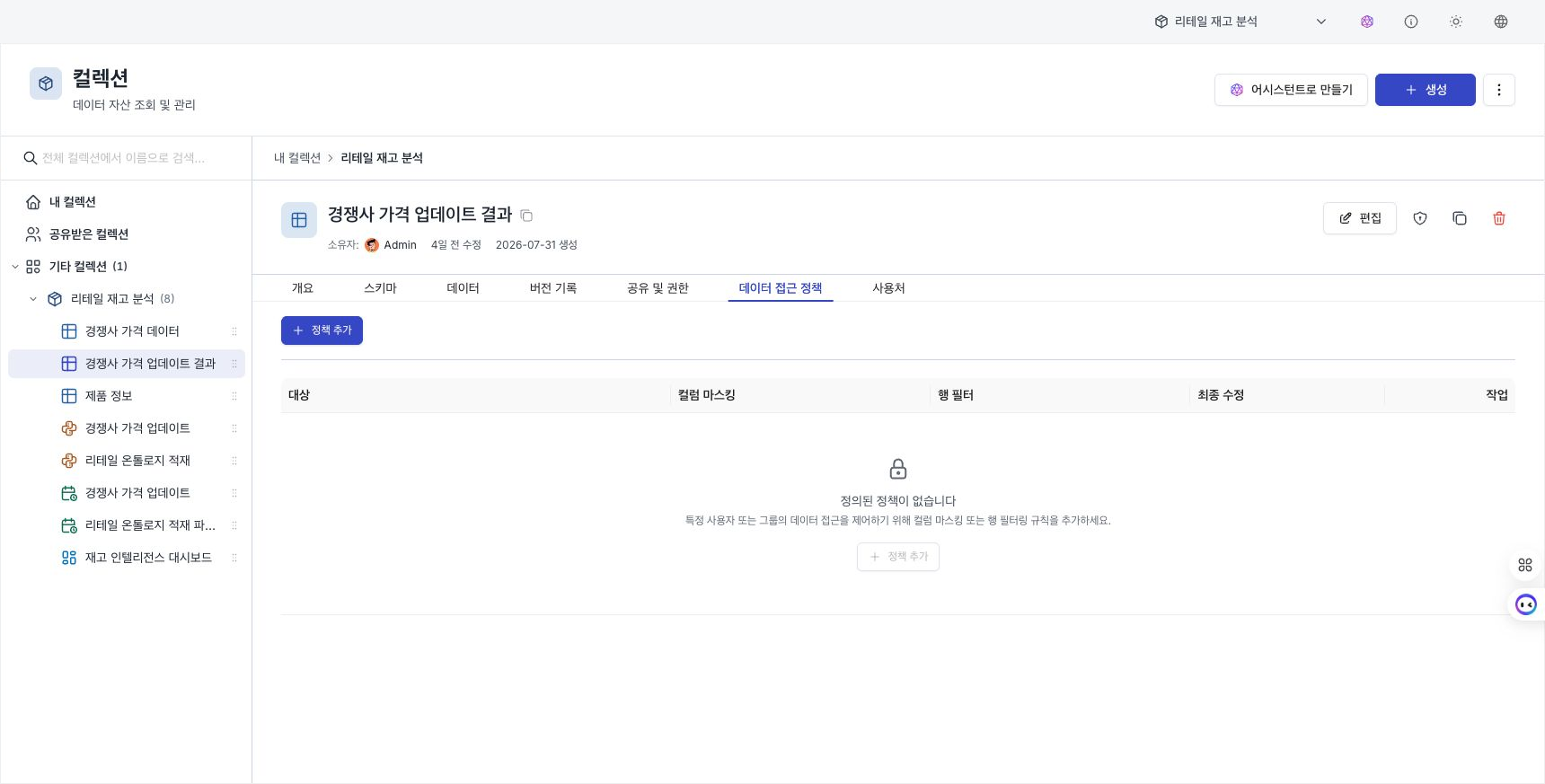
In the portal, this is covered under the Data Access Policy tab on the dataset detail page.
- Sharing and permissions (roles): Allow or block access to the asset by roles such as Owner / Writer / Reader (see Sharing and permissions).
- Policy: Control which columns and rows will be shown to users who have already been granted access.
Where do I set it?
On the dataset detail page, open the Data Access Policy tab. This tab contains a list of policies set for the dataset, along with buttons to add, edit, and delete policies.
To add, edit, or delete policies, you must be an administrator or the Owner of the dataset. If you do not have permission, the message “You have view-only access. Contact the owner to manage policies.” appears and the change buttons are hidden. See Actions without permission for permission-based behavior on other assets.
Components of a policy
One policy consists of a subject and column masking·row filter to be applied to the subject.
| element | Description |
|---|---|
| Subject | User or group to apply policy to |
| Column Masking | Hide or change the value of a specific column to show |
| Row Filter | Limiting visibility to only rows that meet conditions |
In one dataset, policies can be registered separately for each target, and the list displays the number of masked columns and row filter conditions for each target.
Column Masks
Instead of displaying the value of the specified column as is, it hides or changes it. It is mainly used when personal or sensitive information needs to be hidden.
- The table's column configuration (schema) is kept the same for all users, while only the actual values are shown differently depending on the target.
- Example: Show the original amount to the finance team and only the hidden value to other users.
You can choose how to hide the column, change it to NULL, change it to fixed text, show only the front or back part, hash, etc. For detailed types and settings for each method, refer to Fine-grained policy editing.
Row Filters
Limits the display to only rows that meet the specified conditions.
- You can group multiple conditions so that all are satisfied (AND) or only one is satisfied (OR), and you can also nest them by putting groups within groups. The list displays the total number of conditions.
- Columns are selected directly from the data set's column list, so mistakes such as typos or missing columns are reduced.
List screen
The list table on the Data Access Policies tab displays the following items:
| column | Description |
|---|---|
| Target | User/group to which policy applies (displayed with name/email) |
| Column Masking | Number of columns covered by this policy (N columns masked). If not, — |
| Row Filter | Total number of conditions in the policy (N conditions). If not, — |
| Edit | When was the policy last modified (how long ago) |
| Action | Edit / Delete (only visible if you have administrative rights) |
You can create a new policy with the Add Policy button at the top. If there are no policies, a message and an Add Policy button will appear.