Connectors overview
A connector stores the settings used to access a database, graph database, REST API, or object store. Pipelines and agent tools can reuse the registered address and credentials.
Open Data → Data Connection (/connectors) in the sidebar. The page title is also Data Connection.
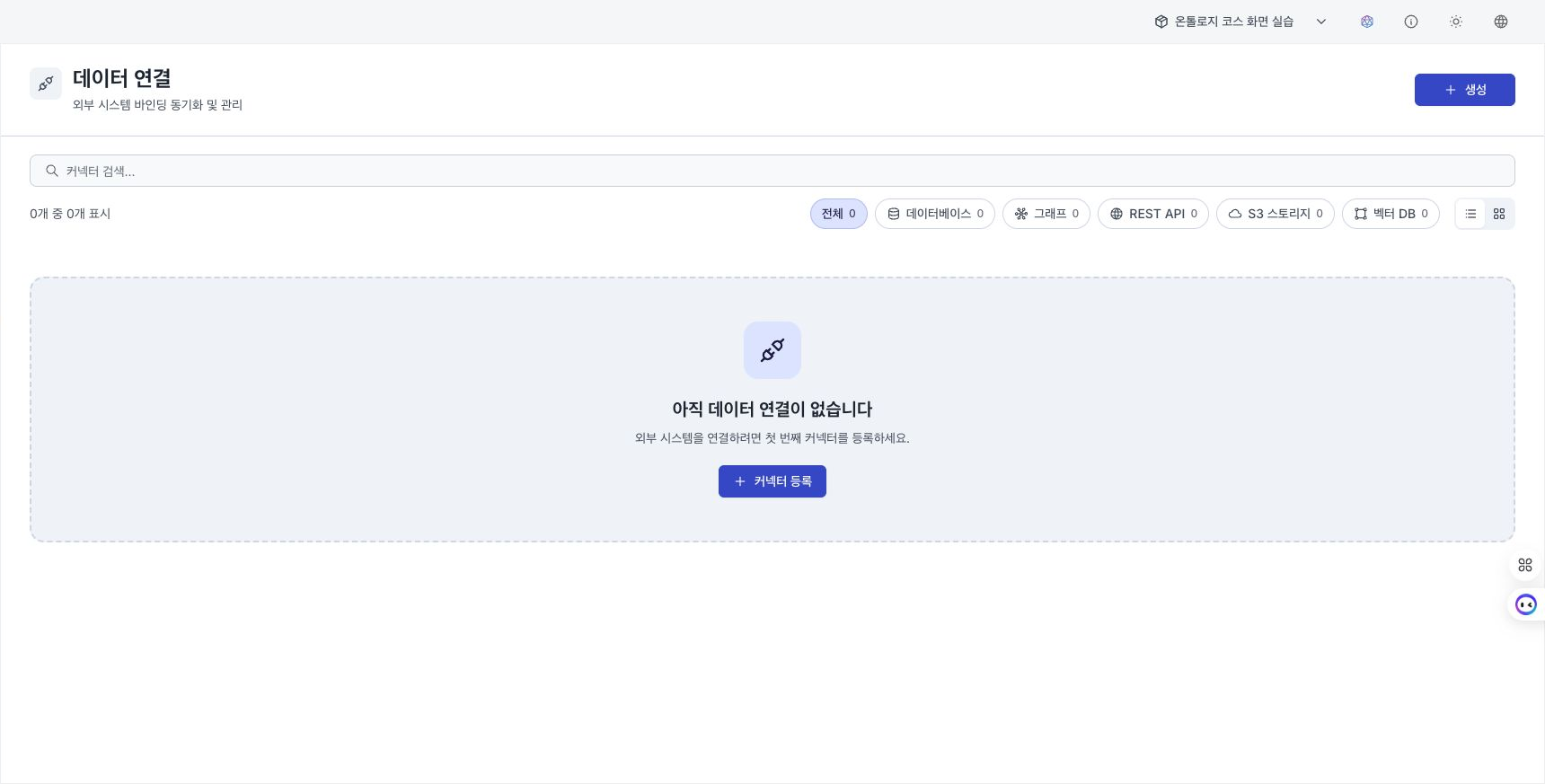
Screen layout
The Data Connection page displays registered connectors as cards. The top area contains the page title, description, and Register connector button. If you do not have registration permission, the button is disabled and an explanatory tooltip appears. Enter a name or description to filter the list. Above the list, counts show the currently displayed connectors and the All / Built-in / Custom totals.
Narrow the list with the All / Database / Graph / REST API / S3 Storage / Vector DB / MCP Server filters. Each button shows the number of connectors of that type. Cards are divided into built-in connectors and custom connectors. Each card shows an icon, name, type, target address, description, status, and action menu.
Connector types
| Type | Purpose |
|---|---|
| Database | Connect to relational or analytical databases such as PostgreSQL and DataHub. |
| Graph | Connect to graph databases such as Neo4j. |
| REST API | Call an HTTP or HTTPS REST API endpoint. |
| S3 Storage | Connect to S3-compatible object storage such as AWS S3 and MinIO. |
| Vector DB | Connect to a vector database such as Qdrant for embedding search. |
| MCP Server | Retrieve tools from a remote MCP server and import them as agent tools. |
Each type has a distinct color and icon.
Built-in and custom connectors
The list contains two kinds of connectors.
- Built-in connector: A connector template supplied by the system. It connects to internal D.Hub stores such as Data Hub, Ontology Store, Graph Store, and Vector Store. You enter connection information to use it, but editing and deletion are not supported.
- Custom connector: A connector created for your team's environment. Enter connection options and a Python connector script, and then create, edit, or delete it.
Cards show a Built-in badge and lock icon, an Editable or Read only state, and the last modified date. A custom connector may also show an environment tag such as Production / Test / Staging / Development.
Permissions
Available actions depend on the signed-in user's type.
| Action | Required user type | Screen behavior |
|---|---|---|
| View connectors | Any user | View the list and settings as read only. |
| Register, edit, or delete custom connectors | Admin or Manager | The registration button and edit or delete menu are disabled without permission. |
| Edit or delete built-in connectors | Not supported | Settings are displayed as read only. |
| Test a built-in connector | Admin | Run the test from the edit screen. |
| Test a custom connector | Admin or Manager | Run the test from the edit screen. |
Card actions
The menu (⋮) at the top right of a card contains the following actions.
- View details: Open the edit screen to review settings. It is read only without permission.
- Edit: Change a custom connector's settings. This action is enabled only for Administrators and Managers.
- Delete: Delete a custom connector. This action appears only for Administrators and Managers and opens a confirmation dialog.
Run Test connection at the bottom of the edit screen. Administrators also see the test button for read-only built-in connectors. See Configure a connector for how to review the result.
For MCP server connections and tool imports, see MCP server settings and Agent tools.
Next step
- Configure a connector — Enter connection information and test the connection.