Secrets
Under Data → Secrets, manage credentials such as passwords and API keys as key-value groups. The list contains only secrets you can view, and saved values cannot be viewed again.
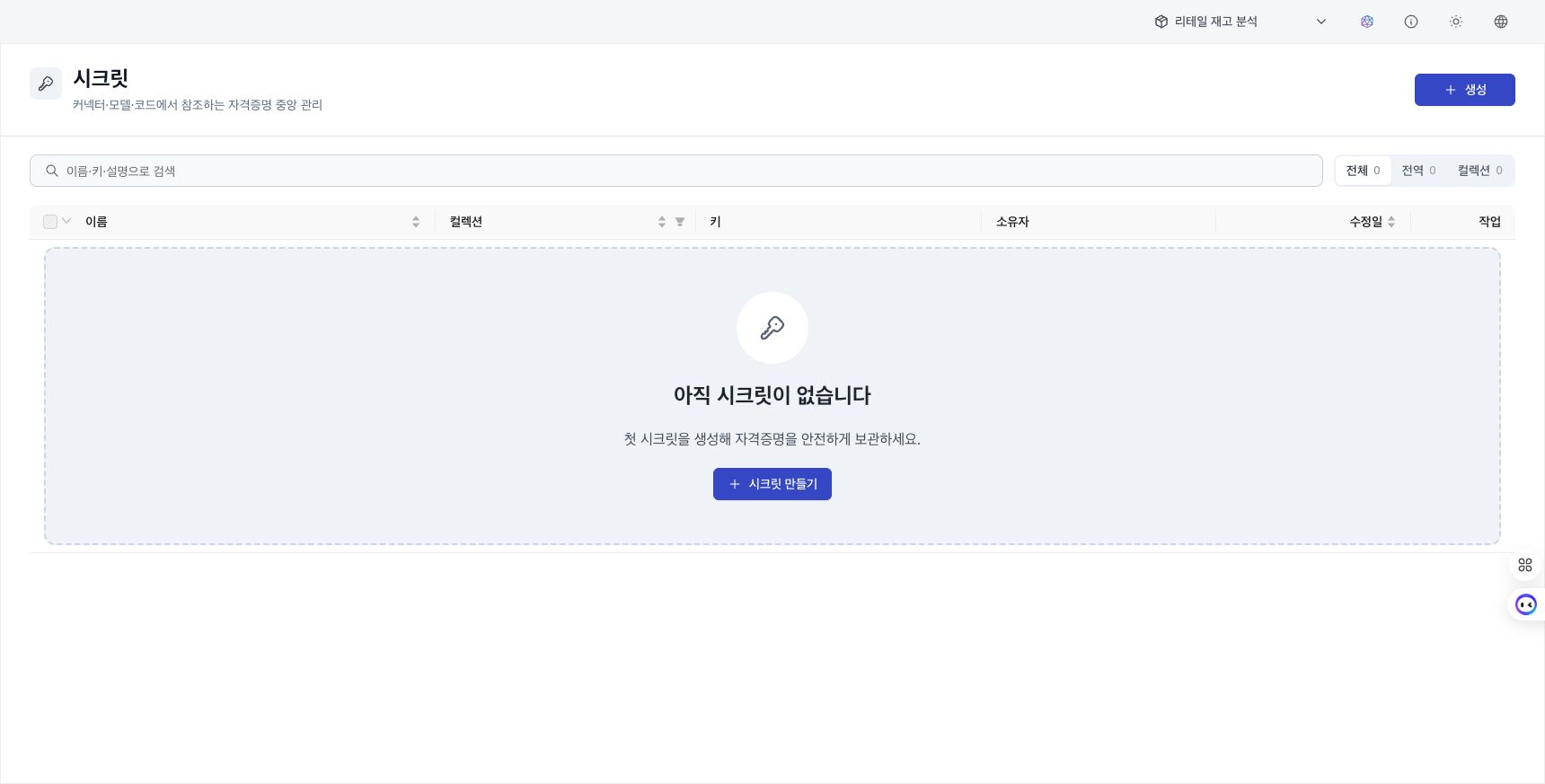
Find a secret
- Scope filter: Narrow the list with All / Global / Collection.
- Search: Search by name, description, collection, or key name. Key values cannot be searched or displayed again.
- View permission: The list shows only metadata such as the name, description, and key names of secrets the signed-in user can view. Stored values are not displayed, even with read or use permission.
Create a secret
Administrators and managers can create secrets. Only administrators can create a global secret without a collection.
- Select Create secret.
- Enter a name and description.
- For a collection-scoped secret, select a Collection. Leave it empty to create a global secret.
- Enter one or more key names and values. One secret can contain multiple keys.
- Select Create.
Store values separately in a secure location before saving. The screen retains only key names and whether each value is configured.
Manage keys
Open a secret and use Manage keys for the following actions.
- Add key: Enter a new key name and value.
- Replace value: Save a new value for an existing key to rotate credentials. The previous value cannot be viewed or restored.
- Delete key: Delete a key that is no longer used. A data connection or tool that references it can fail.
Before replacing or deleting a key, review references from data connections and tools.
Manage use permissions
Under Use permissions on the edit screen, search for users or groups and grant or revoke permission to use the secret. This permission allows a data connection or tool to reference a stored value and is separate from read and edit permission on the secret.
To use a secret in a collection, the target must own that collection or have use permission on it. If the current account can manage collection permissions, the portal first grants use permission on the parent collection automatically. See Use permission under Sharing permissions for the relationship between roles and use permission.
Automatically managed secrets
Some data connections automatically create a secret owned by that data connection when credentials are saved. Users with use permission on the data connection can use these credentials through that connection, but cannot reuse the secret as credentials for another resource. Value replacement and deletion are managed from the owning data connection. The secret cannot be edited or deleted directly from the Secrets screen.
Delete a secret
Delete a regular secret with Delete on the row or from a list bulk action. Deleted key values and references cannot be recovered, and jobs that use the secret can fail.
Next steps
- Use a saved secret when configuring a connection under Data connection configuration.
- Configure connections used by runtime resources under Tools and actors.