Overview
An agent is an asset that connects tools and actors to an AI language model (LLM) to process requests. It invokes registered capabilities as needed and incorporates their results into its response.
Open agent management from Agents in the sidebar's AI section. The same section also contains Tools, Actors, Prompts, and Semantic Layer. You can also expand the agent's collection in Collection Explorer and select the Agent item.
Components
| Component | Description |
|---|---|
| Agent | Invokes capabilities in response to an input request. Configure it in AI Agent or Workflow mode. |
| Tool | Runs search, calculation, REST calls, or custom code. |
| Actor | A Python function-like execution unit that an agent invokes. It can require human approval before execution. |
| Prompt | Stores system instructions for reuse across multiple agents. |
| Semantic Layer | Manages semantic tables, value dictionaries, and query templates for natural-language queries. |
An agent uses one of two execution modes. Select the mode in the creation dialog; it cannot be changed after creation.
- AI Agent: The LLM selects tools based on the request and uses tool results as input to the next processing step. This repeated execution pattern is called ReAct and is used in chat.
- Workflow: Connects steps, conditions, and branches in a graph. A workflow runs only through events and does not appear in chat.
List screen
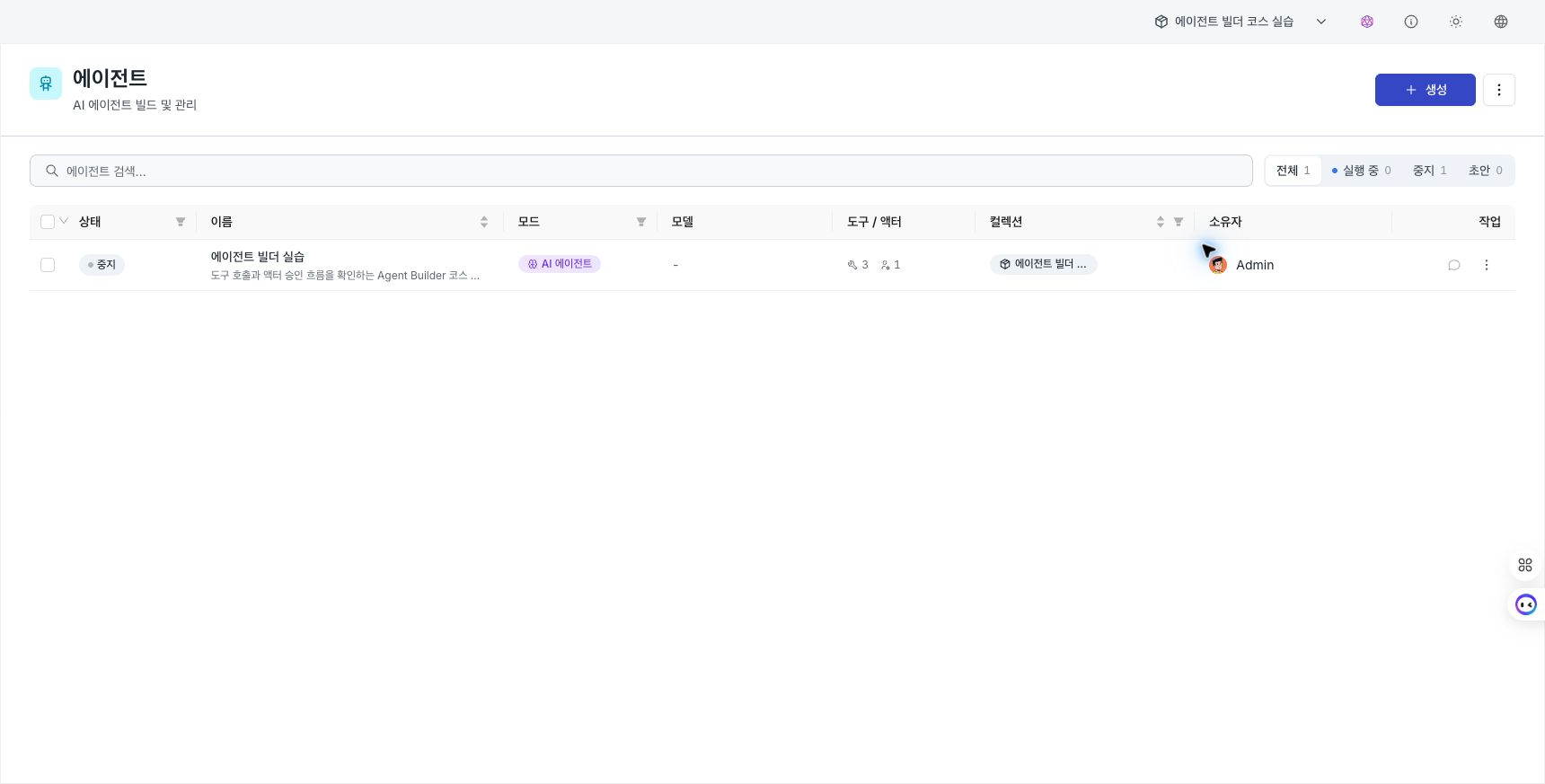
Use the agent list page to perform the following tasks.
- Search and filter: Search by name, alias, or description. Use the status count filters (All / Running / Stopped / Draft) to select which states to display.
- Alias-first display: Lists and confirmation dialogs show the alias first. Creation and deletion dialogs that require the exact system name also show that name.
- Owner column: Shows the owner's name and a hover preview.
- Check status: Each agent's deployment status appears as a Draft / Running / Stopped badge.
- Actions:
- Edit: Open the agent builder.
- Deploy / Undeploy: Make the agent executable or stop it.
- Chat: Start a saved conversation (session) with a deployed AI agent. This action is disabled before deployment and displays “Available after deployment.”
- Delete: Remove an agent that is no longer in use.
Chat and preview
There are two distinct surfaces for interacting with a deployed AI agent.
- Chat (select Chat in the list): A real chat whose conversation is saved as a session. The header displays Saved · Session history.
- Preview (right panel in the builder): A temporary conversation that is not saved, used to test behavior while editing. The header displays Temporary · Not saved. Select Open in chat to start a new, saved conversation in the real chat.
Chat and Preview show tool-call results in execution order. Tool names, inputs, and outputs are available in tooltips or cards.
After creating an agent, you can change its collection under Basic information in the builder. Connected models, tools, actors, and semantic assets do not move with it. Remove or replace references that are unavailable in the new collection before saving.
The D.Hub Assistant side panel operates separately from user-created agents. There is no setting that connects a deployed agent to D.Hub Assistant.
Workflow agents support event execution only and do not appear in chat. Opening a chat URL directly redirects to the builder. See Workflow agents and chat for behavior by surface.
Human approval (HITL)
When an actor's confirmation policy is set to Confirm, an approval request card appears before execution. Select Approve or Reject, and optionally enter a reason when rejecting. This approval pattern is called Human-in-the-Loop (HITL).
| Policy | Technical identifier |
|---|---|
| Automatic | auto |
| Confirm | confirm |
| Deny | deny |
See Create and edit tools and actors for configuration instructions.
Related pages
- Create an agent — Choose an execution mode and configure the model and tools.
- Create and edit tools and actors — Prepare the capabilities an agent can invoke.
- Deploy an agent — Deploy a saved agent and check execution status.