Prompts
Prompt is a resource that creates and rewrites the agent's system directive as a template. Instead of copying and pasting the same role/policy text for each agent, multiple agents refer to the once-registered directive and use it together. Changing a single line of a directive is reflected in all agents that reference that prompt, allowing you to manage your directives in one place.
Prompts are a first-class resource that works alongside tools and actors. Open from the Prompt menu in the AI section of the sidebar.
What is the prompt?
- Reuse Directive: Register verified system directives as prompts and use them selectively from multiple agents.
{{variable}}Template: Place the{{variable}}placeholder in the body and fill in different values for each agent to use one template in multiple places.- Render preview: When you enter a value into a variable, it shows the result actually filled in by the server. It's safe because it doesn't execute any code in your browser.
- Agent Reference: The agent takes the prompt as a stable reference. It can be used with inline directives, and can also refer to multiple prompts in sequence.
Prompt list
On the list page, you do the following:
- Search/Filter: Search by name/alias/description, and narrow by Type filter (All / Markdown / Text / XML / Graph).
- Column: Name·Collection·Format·Conversion·Variable·Owner·Modification Date. Global prompts have a Global badge in place of the collection.
- Create: The Create Prompt button takes you to the new prompt creation screen.
Create a prompt
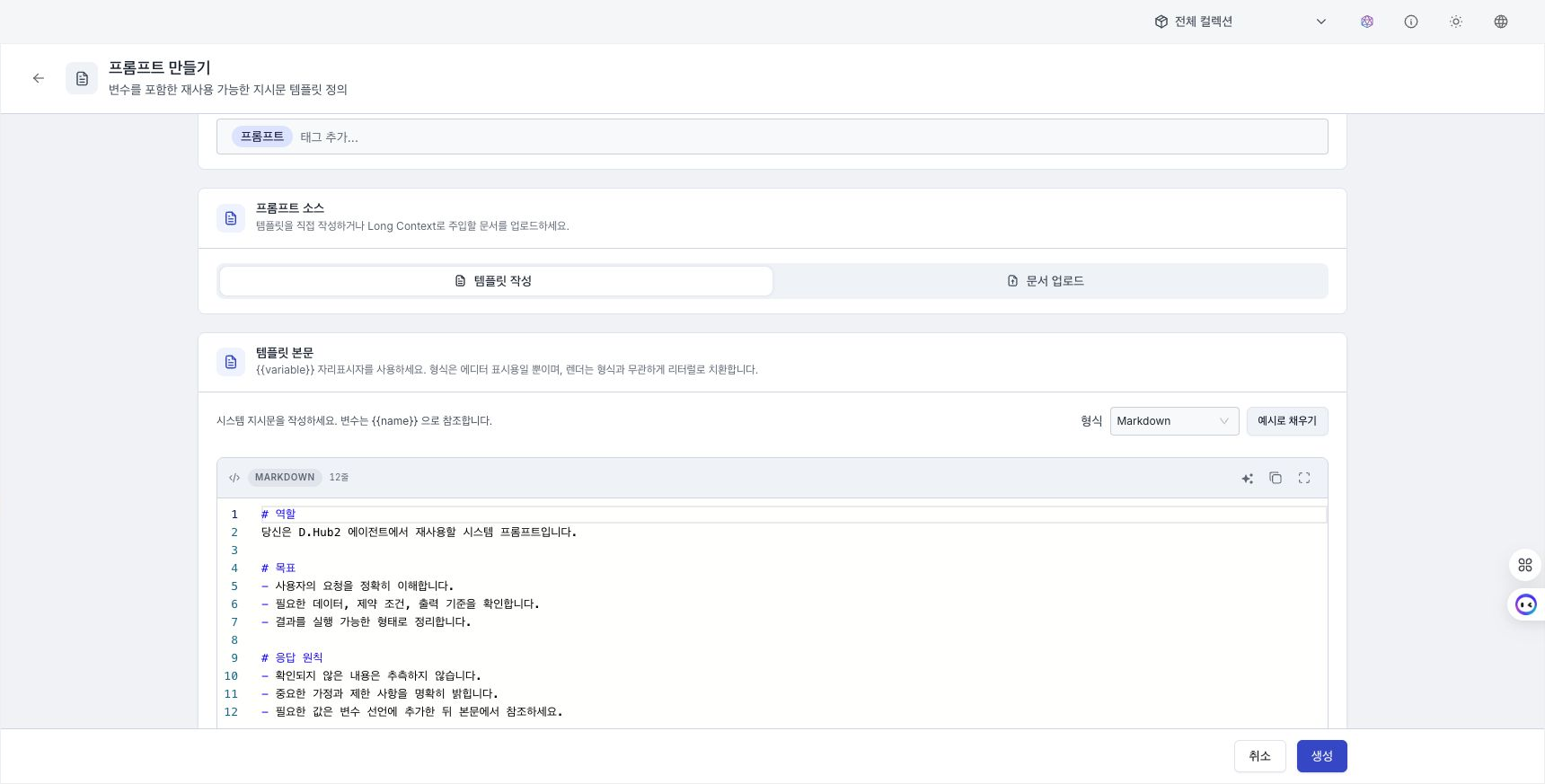
When creating a prompt, first select the Prompt source.
- Write template: Write your own directive template (most flows below).
- Document upload: Upload a file to create a prompt to be injected into Long Context (refer to Document Upload).
Basic information
Enter name, nickname, collection, description, and tag. Names must not overlap within the organization and use only lowercase letters, numbers, and underscores (_). A collection is required, and the collection the prompt belongs to cannot be changed once created. Nicknames, descriptions, and tags can be created by AI on your behalf with a twinkling (✨) icon, just like other resources.
Format and template body
Format choose from Markdown / Text / XML / Graph. The format only affects how it appears in the editor (grammar highlighting); when you actually fill in the values, you replace {{variable}} with the value regardless of the format.
Write system directives in the template body, and place repeated or agent-specific values as {{variable}} placeholders. Variables not declared in the text and variables declared but not used in the text are notified with hints.
Variable declaration
Define the value to be referred to as {{variable}} in variable declaration. For each variable, determine the name, description, default value, and whether it is required.
Render Preview
If you put a value in the variable and run Preview Render, the server will show you the render result filled in. Render previews only work on already saved prompts, so new prompts will be saved first before being previewed.
Graph prompt
The Graph format is a prompt shaped like a knowledge graph. The text is XML consisting of nodes and relationships, and you can edit it directly with a text editor or open the canvas editor with the Open Graph editor button to view and manipulate the nodes and relationships. The original text will not be changed until you press Apply in the editor.
- Import TTL: Upload the
.ttl(Turtle/OWL) file and turn it into a graph. Formal definitions such as classes and constraints are filtered out, and a simple graph is proposed, leaving only the entities and relationships necessary for analysis, and then checked and applied. - Inline Graph Preview: When previewing a Graph prompt in the agent, it will be displayed as a Knowledge Graph instead of text (graph ↔ text can be toggled).
Upload document (Long Context)
If you want to put a long document into the context of the prompt, select Upload document from Source. Upload a document and it will be converted to Markdown in the background.
- Supported formats: PDF, DOCX, PPTX, HTML, Markdown, TXT. Up to 100 MB per document.
- Conversion Status: When uploaded, the status is automatically updated to Waiting → Running → Completed (or Failed).
- Connection Guard: This prompt cannot connect to the agent until the conversion completes. If you try to connect before completion, saving and distribution will be blocked and a notice will be displayed.
Enable prompt in agent
How to reference prompts in Agent Builder is covered in Creating an Agent — System Prompts. To summarize, the main points are as follows.
- Select one or more from Add pre-made prompts. You can only select prompts from the same collection (or global).
- If you select multiple items, adjust the order by drag to change order. When actually executed, they are concatenated in list order.
- Lives with inline directives. Inline directives follow the prompt they are attached to and are always valid, so you can use prompt references and direct input together.
Create and add a prompt from the builder
Under New prompt in the prompt panel, enter a name, alias, description, format, template body, and variables. Select Create and add to create the prompt in the current agent's collection and add it to the selected list. If the body contains undeclared {{variables}}, you can add their declarations.
Quickly edit a connected prompt
Use the edit button on a selected prompt row and choose how to save.
| Method | Impact |
|---|---|
| Update original | Other agents that reference the same prompt can be affected. Running agents are not updated automatically; save and redeploy each one. |
| Duplicate and apply only to this agent | Create a copy with a new name and replace only the current agent's reference. Other agents continue to use the original. |
The displayed counts of referencing and running agents are based on the currently loaded list. After updating the original, a save and redeploy notice also appears for the current agent.
Quick editing focuses on the template body and variables. For an uploaded-document prompt, permissions, or advanced Graph editing, select Open full editor. Built-in prompts are read-only. Create new version is currently disabled and cannot be used.
Import and export
Use Import in the list header and Export on a row to move prompt definition JSON. See Import and export AI assets for file limits and reference resolution.
Delete
The prompt cannot be deleted if it is being referenced by an agent. To delete it, you must first disconnect from that agent, and it will tell you which agent it is referencing.