Deploy an agent
You must save and deploy an agent before you can use it in chat or through an external API. Check deployment status in the agent list, and redeploy after making changes.
Deploy and undeploy
Use the actions in an agent row or the action menu on the detail screen.
- Deploy: Makes the saved agent available for use. “Deploying...” appears while deployment is in progress.
- Stop: Undeploys the agent so that it can no longer be invoked.
- Redeploy: Deploy the agent again after editing it to apply the changes.
Work with multiple agents from the list
Selecting multiple row checkboxes displays the Bulk agent actions bar. Select all N agents selects every result that matches the current search, status filter, and collection scope, not only the current page. Changing the search, status, or collection scope clears the selection.
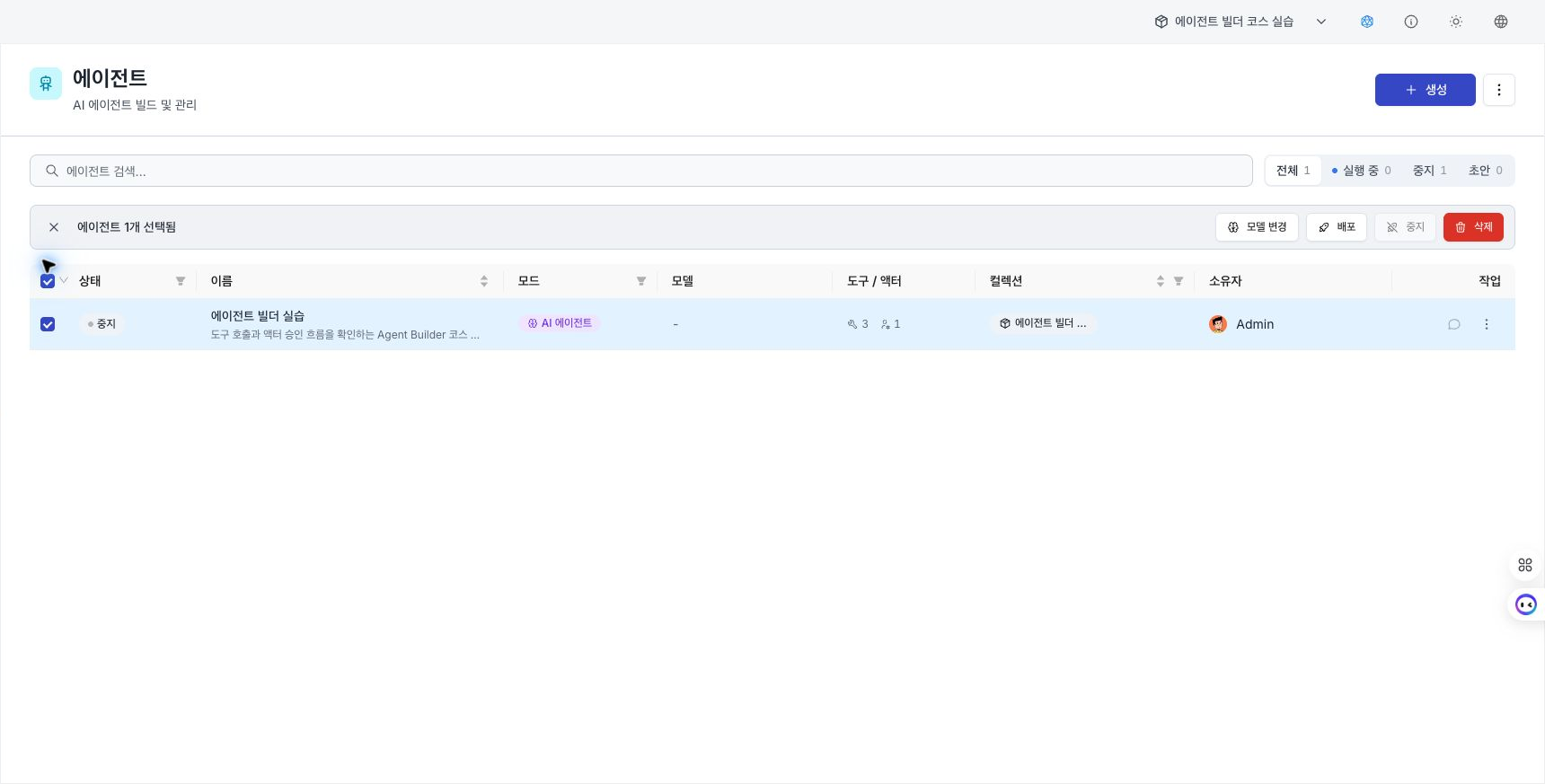
| Action | Scope and result |
|---|---|
| Deploy | Deploys eligible items one at a time. Workflow agents that fail Start and End validation are skipped. |
| Stop | Stops only items that are currently running, one at a time. |
| Change model | Applies only to AI agents that are not being deployed. Workflow agents are skipped. |
| Delete | Deletes editable items one at a time. Review the warning that a built-in agent can be recreated when Manager restarts. |
Each action continues with the remaining targets after an item fails and reports success and failure counts. A non-administrator cannot select a read-only built-in agent.
Choose whether to save only or redeploy
Under Change model, select a registered provider and model. When the deployment service is available, Save and redeploy is selected by default.
- Save and redeploy: Save the new model and redeploy agents one at a time.
- Save only: Change only the saved definition. A running deployment continues to use the previous model until the next redeployment.
Review save failures and redeployment failures separately. If only redeployment fails, the new model can be saved while the running runtime still uses the previous model.
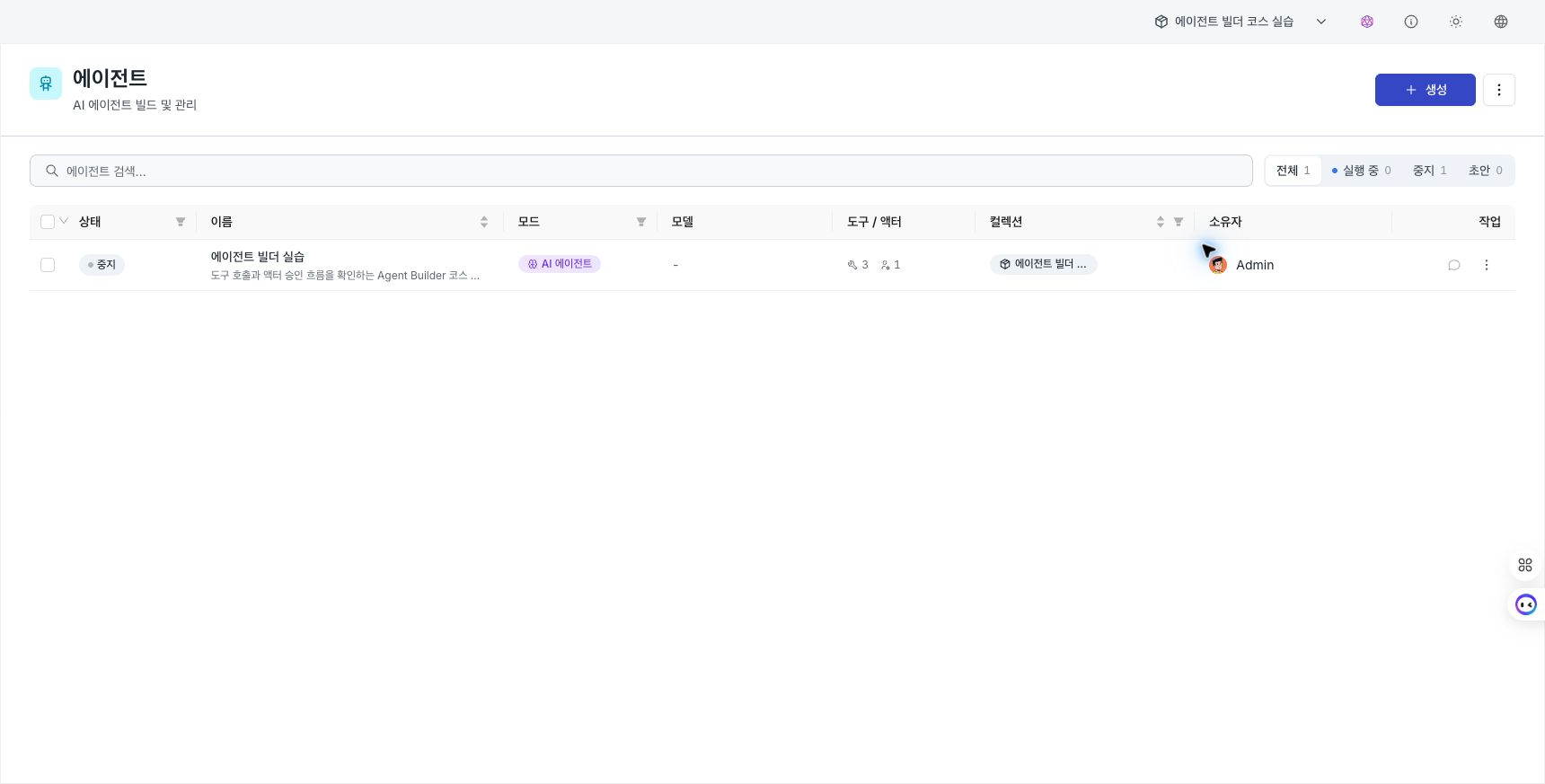
The list shows deployment status with Draft / Running / Stopped badges. You can also filter the list by these values.
Open a deployed agent
- Chat from the agent list: Select Chat in an agent row to open a real chat. The action is disabled before deployment and displays “Available after deployment.”
- Agent chat: Chat directly on the agent-specific screen. Chat is available only for agents in AI Agent mode.
D.Hub Assistant operates separately from agents that users deploy. There is no setting that connects a deployed agent to the D.Hub Assistant side panel.
Preview and chat (save boundary)
There are two ways to interact with a deployed agent, distinguished by whether the conversation is saved. The badge in the header identifies the mode.
| Surface | Entry point | Saved | Header badge |
|---|---|---|---|
| Preview | Right panel in the builder | No (temporary) | Temporary · Not saved |
| Chat | Chat in the list or the agent chat screen | Yes, as a session | Saved · Session history |
- Preview is a temporary conversation for testing the agent while editing. The conversation is not saved even if you separate it with Open preview in new window.
- Select Open in chat from Preview to start a new conversation in the saved chat.
- A real chat remains Draft · Saved when sent until you send the first message. Sending the message saves it as a session.
Workflow agents and chat
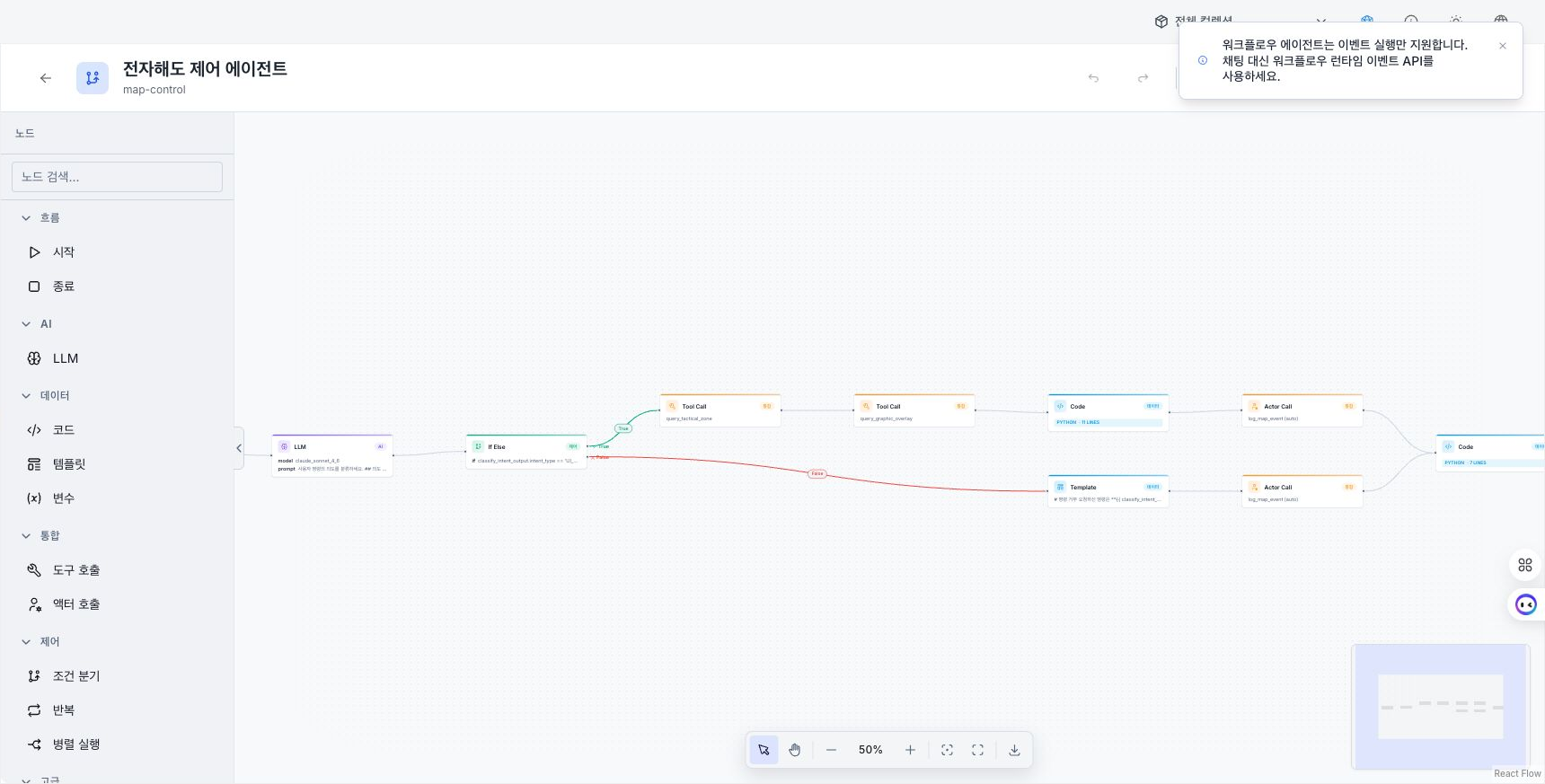
Workflow agents run only through events, so they do not appear in chat.
- The Chat action is not shown for workflow agents in the agent list.
- Opening a workflow agent's chat URL redirects to the builder and displays a message that only event execution is supported.
Human approval card (HITL)
When an agent tries to run an actor whose confirmation policy is set to confirm, an approval request card appears in the conversation. The card title is “Approval required.” See Confirmation policy for configuration instructions.
- The card shows the target actor name and its pending status.
- Select Approve or Reject. You can enter a reason when rejecting the request.
- You cannot enter a new message while approval is pending. The screen says, “Respond to the pending approval before sending a new message.”
- If you refresh or open the same conversation on another device while approval is pending, the card is restored. After it is resolved in another window, the current page reloads the latest state.
- Approving runs the actor. Rejecting skips it. The subsequent response depends on the agent configuration and model.
- This card appears only when an agent invokes an actor. Data pipelines do not have an equivalent node.
Observe execution
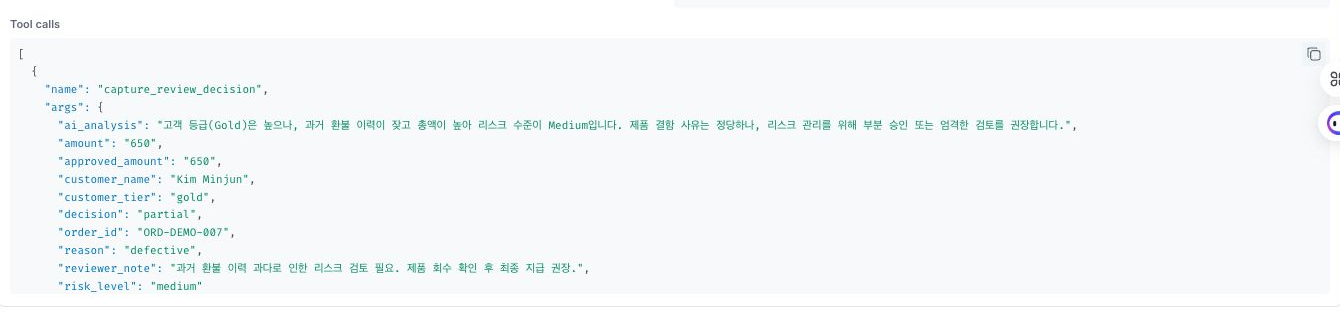
- Chat (AI Agent): When a tool or actor is invoked, a card shows its name, input, and output.
- Workflow node status: When a workflow runs, each node displays a Pending, Running, Complete, or Error state.
Turn on Tool process to show an execution timeline within each answer. Model-wait intervals appear as Reasoning steps. After completion, review total reasoning time separately from tool execution time. Expand a step to inspect status, duration, input arguments, and errors.
To create a report, hover over a completed answer and select Create report from the action row. The approval card locks the title, purpose, format, slide count, and language. The result card updates from pending to generating and then completed or failed. A completed card provides up to 64 preview pages and the available PPTX and PDF downloads.
Reasoning effort by conversation
For chats that use a model with reasoning support, Reasoning effort appears next to the input field. Keep the agent default configured in the builder (Default), or change it to Low, Medium, or High for this conversation only. This control is hidden for models that do not support reasoning.
Context gauge and conversation compaction
The chat header for a deployed agent contains a context usage gauge. It shows in tokens how much of the context budget the current conversation has used. Open it to break occupancy into Conversation history / System prompt / Used / Available.
- Automatic summary: When conversation history reaches the maximum input tokens, older messages are summarized. Configure the limit under Create an agent — Maximum input tokens.
- Compact conversation: Select Compact conversation next to the gauge to summarize older messages. If there is nothing to summarize, “Nothing to compact” appears.
Configure the automatic trigger ratio, target ratio, and summary size under Configure a custom compaction policy. Manual Compact conversation requests a summary immediately instead of waiting for the automatic trigger. After compaction, a notice records the summarized message range in the conversation and remains when the saved conversation is reopened.
Export all conversations
From Export all conversations in the conversation-list header, choose Markdown or JSON to download one ZIP containing this agent's recent conversations.
- Up to 100 recent conversations are included.
- Older conversations are omitted when the combined uncompressed size reaches 200MB.
- If some conversations fail, successful files remain and
_errors.txtlists the failed sessions. - This bundles all conversations. Execution history > Export below saves only the current conversation.
Execution history
At the top of the chat screen, switch between Conversation and Execution history. Execution history lists the turns in this conversation and shows the execution steps for the selected turn.
- Export: Save the complete execution history for all turns in this conversation as a Markdown (.md) or JSON (.json) file.
View execution step details
Select a turn to expand its execution steps in order. Each step shows the following information.
| Field | Displayed information |
|---|---|
| Step type | Technical identifier such as llm, tool, or actor |
| Status | Execution status of the step |
| Duration | Time required to run the step |
| Tokens | Number of tokens used by the step |
| TTFT | Time to first token, when supported |
| TPOT | Time per output token, when supported |
- The screen shows the model that actually generated the response. If it differs from the configured model name, both names are shown.
- Model reasoning information (
reasoning) and tool-call requests (tool_calls) appear when available. - Input, prompt, and output are shown. JSON is formatted automatically, and each block includes a Copy button.
Analyze a run with AI
Select Analyze with AI at the top of the selected turn's execution details to open the AI analysis panel next to the history. The same feature is available in a detached agent chat window.
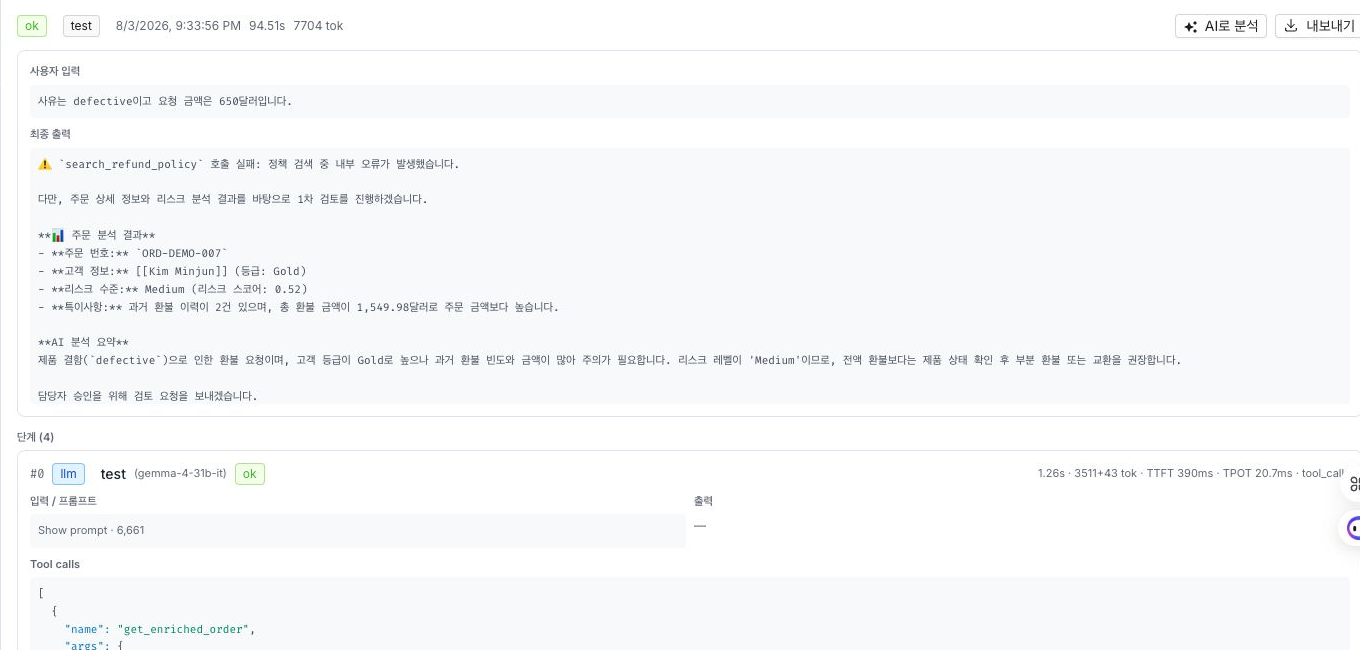
- This run: Analyze the selected run's input and output, step status, latency, tokens, and errors. This is the default scope.
- Entire session: Include the entire session's Markdown execution history in the analysis context.
- Quick analysis: Select Failure cause / Latency and tokens / Summary. The first analysis runs automatically as Failure cause for an errored run and Summary for a successful run.
- Follow-up and stop: Ask a follow-up question or stop an in-progress analysis. Changing the This run / Entire session scope or selecting another turn resets the analysis conversation.
Analysis uses the currently active Assistant Model, not the model that executed the agent. If there is no active model or assistant generation service, the button is hidden or the analysis cannot be sent.
The analysis context includes the selected execution trace and the currently saved agent definition. The current definition can differ from the deployed definition that produced the run. Long fields are truncated to a limit and the panel displays Part of the trace was truncated. The analysis conversation is not saved to execution history or the session and is discarded when the panel is closed or another run is selected. AI analysis interprets only the provided records and does not inspect infrastructure state directly.
Apply changes by redeploying
A deployed agent runs the saved definition from the time it was deployed. After editing an agent, redeploy it to apply the changes to future executions.
After changing an original prompt, tool or actor configuration, delegate agent, model, or context policy, save and redeploy the parent agent as well. Display metadata such as name and alias appears in lists and chat without redeployment because it is not part of the runtime definition.
See Delegate to another agent for the difference between a directly selected delegate and a separate Agent-type tool.
Next steps
- Create an agent — Configure the execution mode, model, and capabilities.
- Configure tools and actors — Define the work an agent can perform and its approval policies.