Profile and avatar
Here's how to manage your account's display name, avatar, and password. Quickly enter the Profile menu at the bottom of the sidebar, and edit your display name and avatar in the user area of Settings. Your changes will be saved to your account and applied to other devices and screens (e.g. recent items, sharing dialog).
Profile menu (bottom of sidebar)
Clicking on the user card at the bottom of the sidebar opens a menu.
- Display name / Email: Appears read-only at the top of the menu.
- Settings: Go to the user area of settings (edit display name/avatar).
- Privacy policy: Opens the policy document modally.
- Send feedback: Opens the feedback input modal.
- Change password: Only visible for local accounts.
- Logout
Edit display name and avatar (Settings)
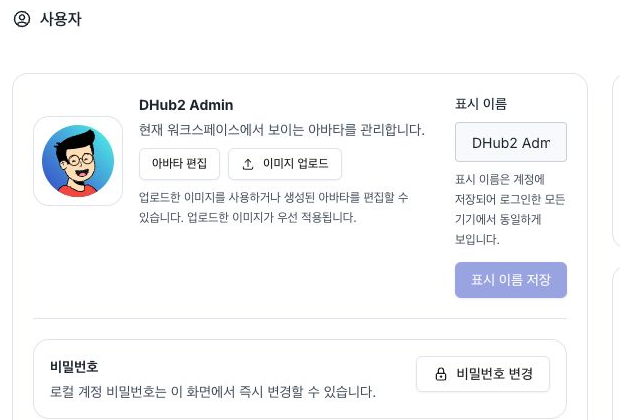
Manage the following in the Settings → Users area:
- Display name: Enter it and click Save display name to save it to your account. When you save it, it is immediately reflected on other screens, such as the sharing dialog and recent items, and appears the same on all logged in devices.
- Edit avatar: Click the button to open the avatar editor.
- Authentication Method / Role / Account identifier / Groups: Displayed together for reference only and cannot be edited. Group membership is changed by an administrator or external identity provider.
For accounts that use single sign-on (SSO), passwords and basic profile information are managed by an external identity provider. In this case, the password change item will not be displayed.
Avatar editor
The avatar editor provides combinable avatars. You can create your own avatar by combining various options such as gender, background, face, hair, accessories, and clothes.
- Save: When you save your avatar in the editor, it will be reflected in your account.
- Default Image: Your SSO profile image (if you have one) or an initials-based image will be displayed until you customize it yourself.
- Immediately reflected: When you save an avatar, the avatar on other screens, such as the user card and header, is updated without refreshing.
You can also upload a PNG, JPEG, or WebP image up to 512KB. An uploaded image takes precedence over an avatar created in the editor. Deleting it restores the saved avatar or default image. The avatar editor button is disabled while an uploaded image is present.
Change password
Local accounts can change their password through Change password in the Profile menu or in the User area of Settings. The password for your SSO account is managed by your external identity provider.
Personal prompt
Under System → Settings, use the Personal Prompt card to save instructions that apply to all of your agent conversations. Enter up to 4,000 characters for information you should not have to repeat for every agent, such as response language, tone, or user background.
- The saved content applies to all of your agent conversations and is not displayed to other users.
- It applies from the next conversation turn without redeploying an agent.
- Clear all content and save to delete the personal prompt.
- If the existing value cannot be loaded, the field is locked to prevent overwriting it. Refresh the screen and try again.
A personal prompt contains shared instructions for one user. Configure an agent's role and behavior under System prompts, and manage reusable instruction assets shared by multiple agents under Prompts.