Change theme and display settings
Change the display mode and data-query limits in Settings. Administrators can also configure logos, colors, and announcement banners on the same screen.
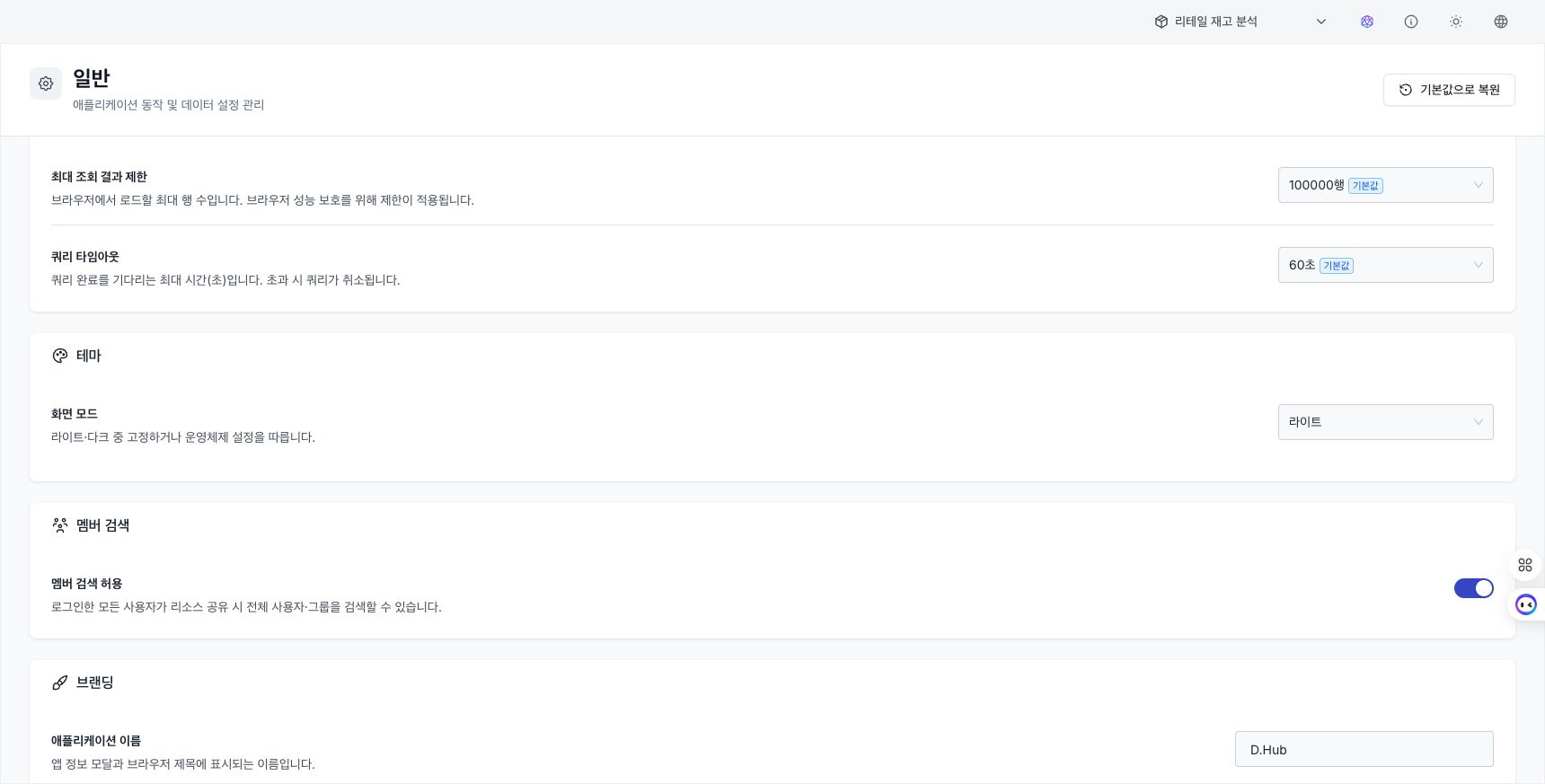
Display mode
Every user can select a display mode.
| Mode | Description |
|---|---|
| Light | Always uses light mode. |
| Dark | Always uses dark mode. |
| System | Follows the operating system's light or dark setting. |
- The selected mode is stored in the browser and retained for the next visit.
- With System, the theme changes automatically when the operating-system setting changes.
The default accent color cannot be changed.
Data query settings (personal)
Adjust how much data is loaded at once on data-query screens.
- Maximum result limit: Maximum rows loaded in the browser. This limit prevents degraded browser performance.
- Query timeout: Maximum wait for a query to finish. A query that exceeds this time is canceled.
Branding settings (Administrator only)
Administrators can edit the following under the Branding card in Settings.
| Field | Configuration |
|---|---|
| Application name / Browser tab title / Sign-in slogan | Product name and sign-in screen text |
| Copyright information / Company website URL | Copyright holder, start year, and company address |
| Logo / Favicon | Logo images for light and dark modes and a favicon |
Saving applies the settings to every user. Select Reset to defaults when needed.
What's New and banners (Administrator only)
Administrators register the Home What's New card and top banner under the What's New card in Settings.
Enter the following fields when creating an announcement.
| Field | Configuration |
|---|---|
| Title / Message | Title is optional; message is required. |
| Level | Select Info, Warning, or Error. The corresponding color and icon are applied. |
| Link URL / Label | Optional link and display text opened from the announcement. |
| Allow users to dismiss | Determines whether users can close the banner. |
| Set as banner immediately | Displays the announcement as the top banner upon creation. |
- Announcements appear newest first. Edit or delete an announcement and change its banner state from its row.
- Under Active banner in Settings, preview or disable the current banner.
Member search (Administrator only)
Under Member search in Settings, configure whether member search is available on permission-grant and sharing screens.
Related page
- Profile and avatar — Change your personal profile and avatar.