Use AI Chat
Ask questions grounded in collected documents on the Chat tab of a knowledge detail screen. Retrieved document chunks are used in the answer but do not guarantee its accuracy. Compare important information with the cited source.
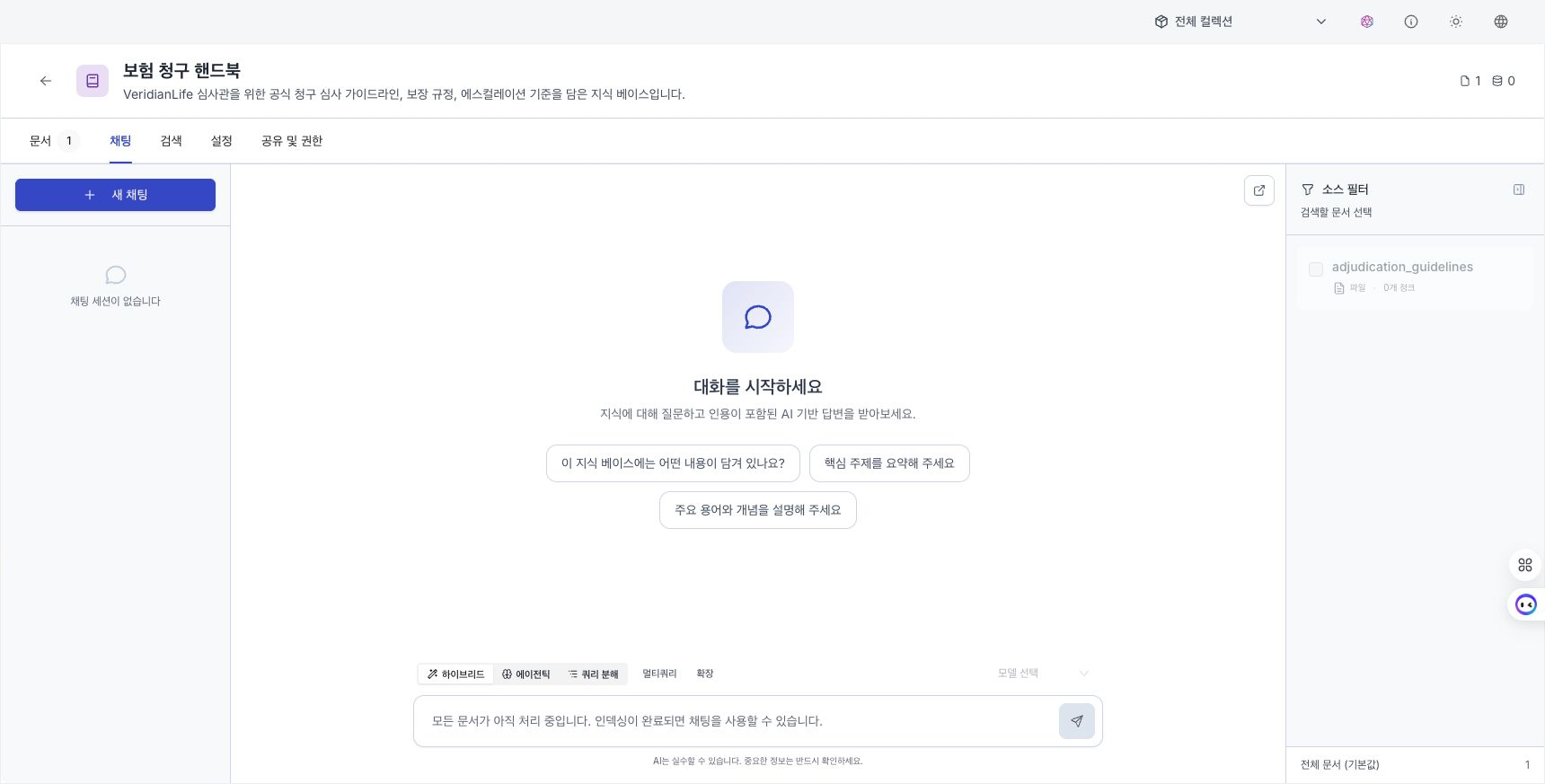
Ask a question
- Open the knowledge and select the Chat tab.
- If needed, select the documents to search in the right panel. If none are selected, every document is searched.
- Review the RAG strategy and model above the input field.
- Enter a question and press
Enter. PressShift + Enterfor a new line. - Select a citation number in the answer and review the source text.
While an answer is being generated, select Stop generating to stop it.
Limit search scope
Select the documents searched by AI under Source filter on the right. Use it when a question should target only a particular report or recent documents.
The filter applies to both semantic and keyword search. Unselected documents are excluded from results.
Choose a RAG strategy
The RAG strategy determines how related documents are found.
| Strategy | Behavior | Example use |
|---|---|---|
| Hybrid | Combines semantic and keyword search results. | General questions |
| Agentic | Refines the question, evaluates results, and searches multiple times. | Ambiguous wording or questions requiring several verification steps |
| Query decomposition | Splits a compound question into multiple searches. | Comparing multiple targets or conditions |
Results can differ by question type. Run the same question with different strategies and compare whether the cited documents support the question.
Retrieval enhancement options
Enhancement options in the input area apply together with the RAG strategy.
| Option | Behavior |
|---|---|
| Multi-query | Uses a model to generate alternate phrasings, then searches with each one. |
| Expansion | Retrieves chunks before and after a matched chunk to provide broader context for the answer. |
Multi-query adds a model call to generate queries, so it can increase response time and cost when an externally billed model is used. Expansion sends more document content to the answer model and can increase input-token usage. Enable them only when you need to compare results.
Select a model
The model list contains registered models you can view. If a required model is missing, review its registration and collection scope under LLM Models. Ask a system administrator to register a model for organization-wide use.
A changed model applies from the next message. Because answers can vary by model, follow the same citation-review process after switching.
Review citations
Citation numbers such as [1] and [2] identify document chunks referenced while generating the answer. Select a citation number to review the following information.
| Field | Description |
|---|---|
| Document name | Name of the source document. |
| Section | Section containing the chunk, when available. |
| Chunk or page number | Location within the source document, when available. |
| Source text | Retrieved document chunk. |
| Relevance score | Relevance between the question and search result. |
A high relevance score does not mean that the answer is accurate. Verify the following yourself.
- Confirm that the cited text is relevant to the question.
- Confirm that numbers and proper nouns in the answer match the source.
- If documents disagree, review their publication dates and scopes.
Manage conversations
Start a new conversation or open an earlier one in the left panel.
| Feature | Description |
|---|---|
| New chat | Starts a separate session. The previous session remains in the list. |
| Search | Finds a previous session by conversation title. |
| Select session | Restores messages, citations, source filters, and the chat settings from that session. |
| Delete session | Deletes the selected conversation history. It cannot be restored. |
When signed in with the same account, you can open saved conversations from another device or browser. If the list is temporarily empty, check again later.
Select Open in new window at the top right of the Chat tab to separate chat into another browser window. An in-progress response may not update simultaneously in the original tab and the separate window.
Answer actions
Copy an answer or leave feedback using the actions below it. Select Regenerate to create another answer with the same question and current settings. Compare the new answer with its cited source as well.
For a Markdown table with numeric columns, switch between Table / Chart. Select a numeric column under Value, then choose an available Bar / Trend / Treemap / Bubble / Pie view. Select Expand on a wide table or evidence knowledge graph to review it in a separate dialog.
A visualization with an analysis source and SQL can show Refresh / Add to dashboard / Query. Review the SQL, then add a widget to a dashboard in the source collection. These actions are hidden for results without a reproducible analysis query, such as a table derived only from knowledge-document citations.
To create a report, hover over a completed answer and select Create report from the action row. An approval card uses the conversation through the latest completed answer. Select Approve to start or Reject to cancel. The result card updates from pending to generating and then completed or failed, and a completed report provides up to 64 preview pages and the available PPTX and PDF downloads.
Currently, selecting Save as note displays a completion notification but does not save the response as a manual document. To retain the response, copy it and add it as a chunk in a manual document.