Manual document
Create a manual document by entering text directly on a knowledge detail screen. Saved contents are used in search and AI Chat as the document chunks you entered.
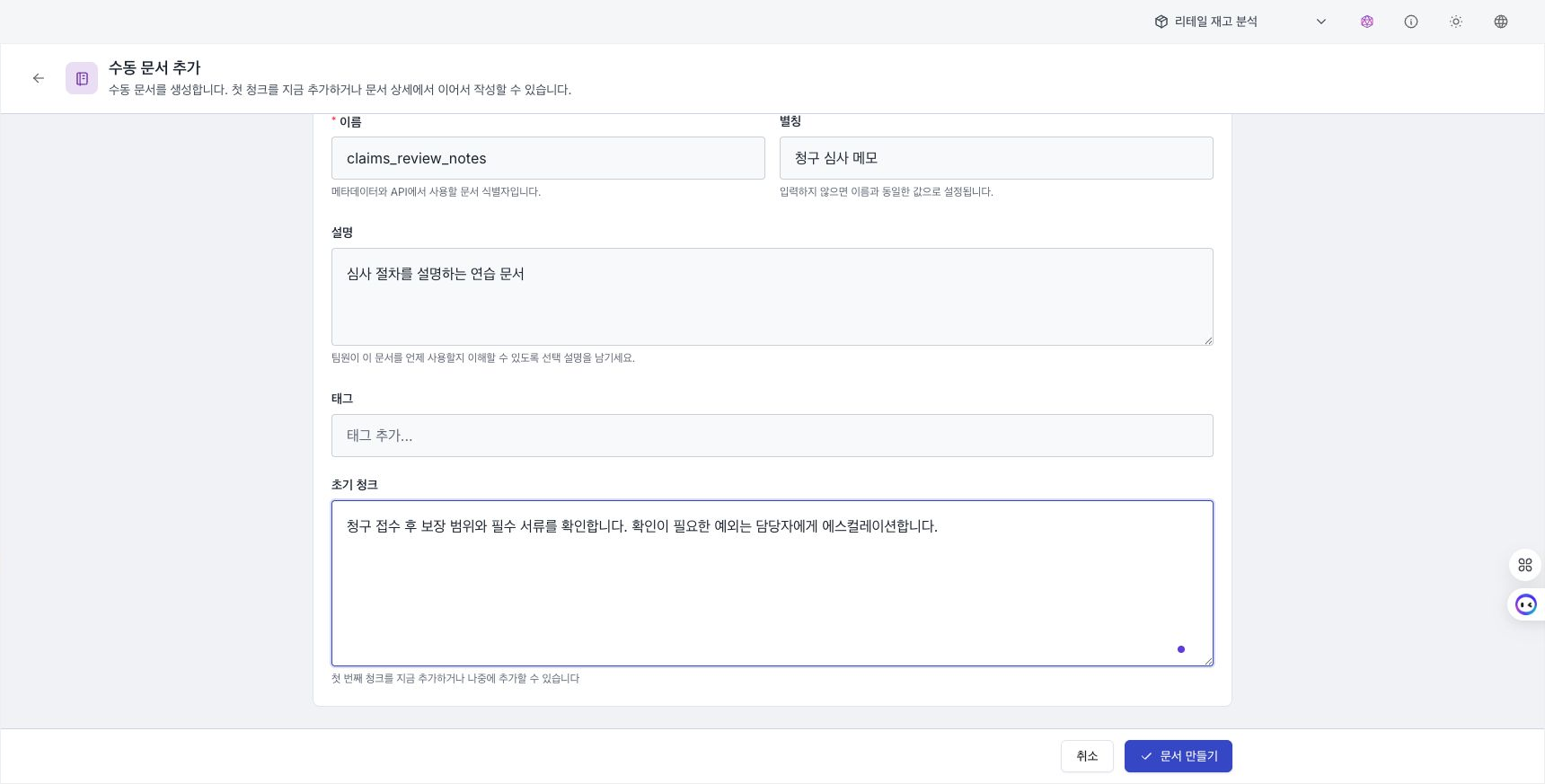
Create a new manual document
Create a new manual document at the path /knowledge/:knowledgeId/documents/manual/new. You can access this screen by selecting Add Document → Manual Document in the Documents tab of the knowledge detail page.
Entry
| Item | Required | Description |
|---|---|---|
| Name | Required | Document identifier to use in metadata and API |
| Alias | Select | The name that appears in the list. If left blank, it will be set equal to its name. |
| Description | Select | Description of the document |
| Tag | Select | Tags for classification and search |
| Initial chunk | Select | Initial text to be registered as first chunk |
Nicknames, descriptions, and tags can be filled in by entering the name and then clicking the AI automatic creation button in each field.
If you enter an initial chunk, the first chunk will be generated together when you create the document. You can leave it blank and then add chunks on the details page.
When you press the Create document button, a document is created and you go to the details page.
Manual document details
Manage the details and chunks of manual documents in the /knowledge/:knowledgeId/documents/manual/:docId path.
Document information
The top area displays basic information about the document:
| Item | Description |
|---|---|
| Type | Manual tag |
| Chunks | Total number of chunks |
| Created Date (Created) | Creation date |
| Description | Document description (inline editable) |
Description can be edited immediately without moving the page by pressing the edit button.
Chunk list
The chunks contained in the document are displayed in table form.
| column | Description |
|---|---|
| Checkbox | Multi-select (for bulk deletion) |
| *# | Chunk sequence number |
| Content | Preview chunk contents (2 lines) |
| Tokens | Number of tokens (estimated) |
| Actions | Edit, delete buttons |
Chunks are displayed 20 per page. Manual-document page size is fixed. When there are more than 20 chunks, page navigation appears at the bottom.
View chunk details
Clicking on a chunk row in the table opens the Chunk content viewer side panel on the right:
- Navigation: Move to previous chunk / next chunk (supports keyboard arrow keys)
- Content: View and copy entire text of chunks
- Metadata: Query metadata with key and value pairs
- Connected Chunks: List of links connected from this chunk to other chunks (see Chunk Links below)
- Information: Chunk ID, storage location (Vector/Text), creation/modification date and time
Chunk management
Add chunk
Clicking the Add Chunk button opens the Chunk Edit modal.
Modal input:
| Item | Description | Limited |
|---|---|---|
| Content | chunk text content | Up to 10,000 characters |
| Metadata | Metadata in key and value pairs | Can be added or deleted as needed |
The bottom of the modal displays the estimated token count of the current text in real time.
Edit metadata
Metadata consists of Key and Value pairs:
- Add new items with the Add Metadata button
- Each item consists of a Key input box and a Value input box.
- You can delete individual items with the delete button to the right of the item
- The value is automatically recognized in the type entered. For example,
true/falseare recognized as true/false values, numbers are recognized as numeric values, and strings written in JSON format are recognized as lists or structured values.
When you press the Automatically create metadata button in the metadata section header, AI creates metadata such as topics, keywords, and summaries based on the chunk contents. If the chunk content is empty, the button will be disabled (guidance: "Enter the chunk content first"), and the creation result will be merged into the existing item using the merge method below.
When modifying an existing chunk or creating metadata with AI, the metadata is updated in a merge manner. If you specify a new value for an existing key, it will be overwritten and the new key will be added.
Chunk modification
Clicking the Edit button in the chunk table or the Edit button in the chunk content viewer opens the edit modal. Existing content and metadata are pre-filled, and when modified and saved, they are immediately reflected in the relevant storage (Vector/Text).
Changing the content re-creates the semantic vector.
Delete chunkWe offer two deletion methods:
- Individual Delete: Click the Delete button in the chunk row → Confirm and delete in the confirmation pop-up
- Batch Delete: Select multiple chunks with checkboxes and click the Delete (N) button.
Deleted chunks are removed from both Vector DB and Text DB. This action is irreversible.
Chunk links (connected chunks)
Manual document chunks can be linked to other manual document chunks within the same knowledge. This is a curation function where people directly connect related chunks, and it is managed in the Connected Chunks section of the chunk content viewer.
- Direction: The link is one-way. This section only shows links pointing to the current chunk (outgoing), and does not show links to other chunks that point to this chunk.
- Link List: Each link row displays a relationship name badge, a preview of the target chunk content, and properties, and can be individually removed with the Delete button on the right. If the target chunk has been deleted, it will show "Target chunk not found".
- Add Link: Clicking the Add Link button opens the Chunk Link Connection modal.
- Search tab: Find and select chunks of knowledge with the same search term.
- Browse Document tab: Select a document and select it from the chunk list.
- Pick the target chunk, then enter the Relationship Name (required, e.g.
Reference,Cause and effect) and optional Attributes (note,weight, etc. keys and values) and press Add Link.
Links can only be targeted to manual document chunks within the same knowledge. Chunks of web crawling/file upload documents are excluded from target candidates because their IDs may change during re-indexing, and link editing is only provided on the manual document screen.
Chunk links are curations in which related chunks are manually connected by humans. It does not automatically expand search/RAG results or construct a knowledge graph.
Delete document
You can delete the entire manual document with the Delete button in the detail page header. When you delete a document, all chunks inside it disappear as well.
Deleting a document permanently deletes every chunk it contains. This action cannot be undone.
Use cases
Manual documentation is useful in these situations:
- FAQ data registration: Register question-answer pairs as individual chunks to ensure accurate search results
- Enter internal regulations/policy text: Enter policy contents directly without a separate file.
- Text data extracted from existing system: Register text copied from another system in chunks
- Save AI chat responses: Recycle useful responses from AI chat as knowledge by saving them as chunks in manual documents
- Structured data supplementation: Add short text or notes that are difficult to process through file upload
Manual documentation is suitable for small text data. For large amounts of document data, use File Upload.
Next steps
- File Upload - Document file upload and automatic processing
- Web Crawling - Automatic collection of URL-based web pages
- AI Chat - Utilize registered knowledge through RAG-based conversation
- Search Test - Check the search quality of indexed chunks