Collect web pages
Set a starting URL and collection scope on a knowledge detail screen to collect web pages. After processing finishes, collected content is available to search and AI Chat.
The crawler collects both static HTML and JavaScript-rendered pages. Collected content is divided with the configured method and registered in the search index.
Create a web-crawling job
On the Documents tab of a knowledge detail screen, select Add document → Web crawling.
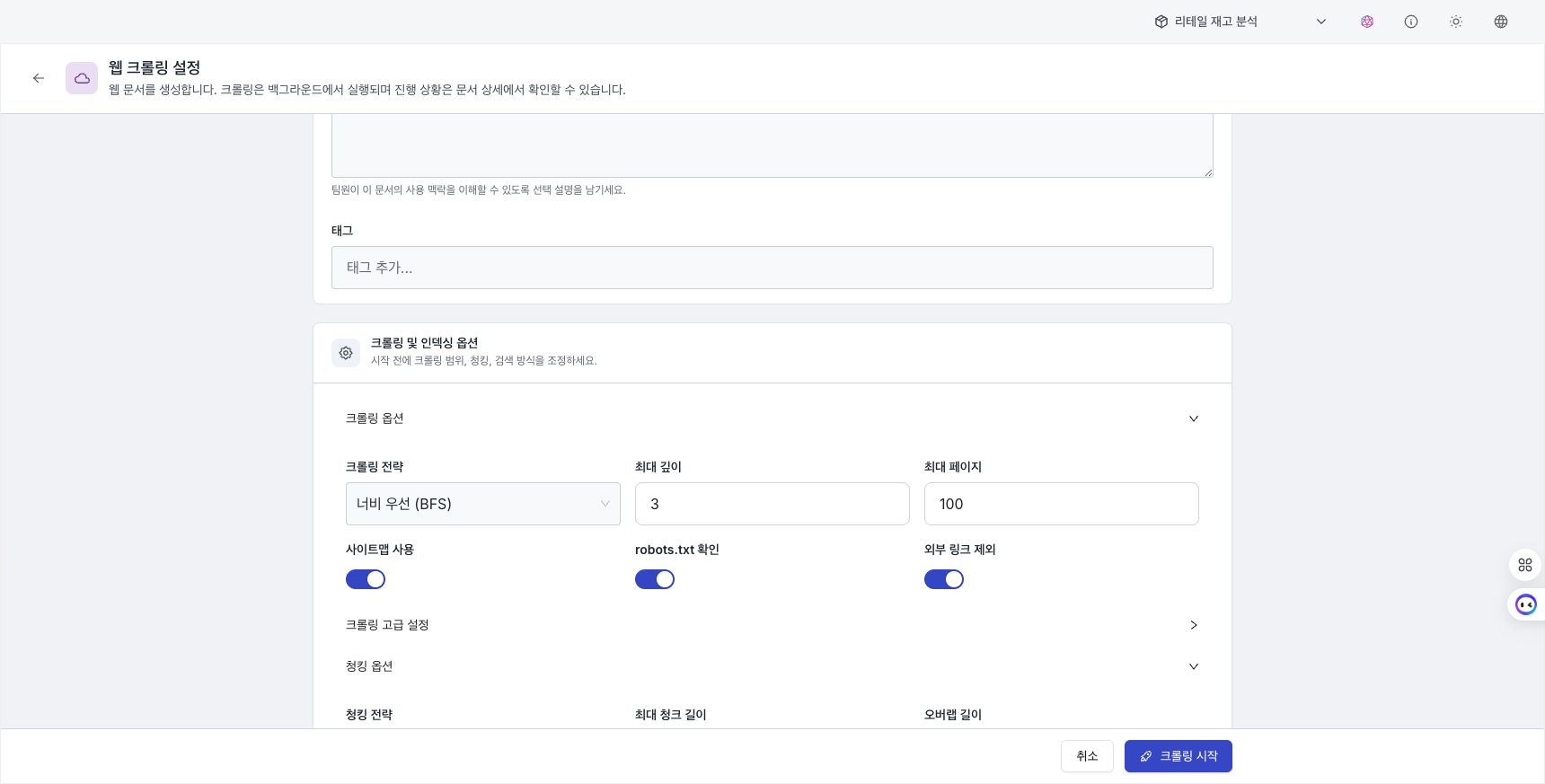
Basic information
| Field | Required | Description |
|---|---|---|
| Name | Required | Enter the document identifier used in metadata and the API. |
| Alias | Optional | Enter the name shown in the list. If blank, it is set to the name. |
| URL | Required | Enter the web-page address where collection begins, for example https://docs.example.com. |
| Description | Optional | Enter notes about the crawling job. |
| Tags | Optional | Enter tags used for classification and search. |
After entering a name, select an AI generation button for the alias, description, or tags to display a suggestion. Review and revise it as needed.
Crawling options
After entering basic information, expand Crawling and indexing options to configure collection scope.
Crawling strategy
| Strategy | Description | Use when |
|---|---|---|
Breadth first (BFS) | Collects pages at the same depth before moving to the next depth. | Collect several sections to the same depth. This is the default. |
Depth first (DFS) | Explores one path to its end before moving to the next path. | Collect a particular child path first. |
Best first (BEST_FIRST) | Collects pages in descending link-importance score. | Collect pages in score order. |
Exploration scope
| Option | Default | Range | Description |
|---|---|---|---|
| Maximum depth | 3 | 1–10 | Sets the link depth explored from the starting URL. |
| Maximum pages | 100 | 1–10,000 | Sets the maximum number of pages collected. |
Additional options
| Option | Default | Description |
|---|---|---|
| Use sitemap | Enabled | Uses the URL list from sitemap.xml for collection. |
| Respect robots.txt | Enabled | Skips paths disallowed by robots.txt. |
| Exclude external links | Enabled | Skips links on domains other than the starting URL. |
Indexing options
Select the search methods used to index collected content.
| Search mode | Description |
|---|---|
Semantic only (VECTOR) | Finds similar content with semantic vectors. |
Keyword only (TEXT) | Finds content containing the query term. |
Hybrid (HYBRID) | Combines semantic and keyword search results. |
See Chunking and search options for selection guidance. Compare results for the same query after processing.
Chunking options
These settings divide crawled content into searchable units. Expand Chunking options to review current values. See Chunking and search options for strategy and value selection guidance.
Monitor a crawling job
After the job starts, review progress on its detail screen. While active, status refreshes every five seconds.
Job states
| State | Description |
|---|---|
| Processing | Crawling is in progress. |
| Paused | A user paused the job. |
| Completed | Crawling and indexing have finished. |
| Failed | Crawling stopped because of an error. |
| Canceled | A user canceled the job. |
Controls by state
Different controls appear in the header depending on job state.
| Current state | Available buttons | Behavior |
|---|---|---|
| Processing | Pause / Cancel | Pause or stop active crawling. |
| Paused | Resume / Cancel | Resume or cancel paused crawling. |
| Completed | Re-crawl | Start crawling again with the same settings. |
| Failed | Re-crawl | Retry failed crawling. |
| Canceled | Re-crawl | Restart canceled crawling. |
Progress display
During crawling, an indexing status card appears at the top of the detail page. It contains the current state and progress message and refreshes automatically every five seconds.
When crawling finishes, close the status card and review the generated chunks.
Chunk list
After crawling finishes, review generated chunks in the paginated table.
| Column | Description |
|---|---|
| # | Chunk sequence number |
| Type | Chunk type (TEXT, IMAGE) |
| Content | Chunk-content preview |
Select a table row to open the Chunk details panel. Review the complete contents and move to the previous or next chunk.
Change the number of chunks per page below the table. Changing page size returns to the first page.
Manage the document
On the job detail page, edit the description of the crawled document or delete the document.
- Edit description: Add or change the document description.
- Delete document: Permanently deletes the document and all associated chunks and embeddings.
Deleting the document permanently removes all its chunks and embeddings. This action cannot be undone.
Next steps
- Review search results — Confirm that collected documents are retrieved as expected.
- Chunking and search options — Review criteria for document splitting and search methods.
- Use AI Chat — Ask questions grounded in retrieved documents and review citations.