Entity Management
Entity is the most basic element of ontology. This article explains how to create an entity, define its property structure and identification, and preview actual data.
Define entity properties
When creating or modifying an entity, fill in the items below.
Basic information
- Name: Entity name (required, capital letters are recommended).
- Alias: This is the alias that will be displayed on the screen. This name appears first in the List, Search, and Detail panels.
- Description: A description of the entity (created automatically by AI).
- Collection: Collection that will contain the entity (required. If not selected, it will not be saved).
- Owner: Owner (mouse over to preview user or group).
Schema
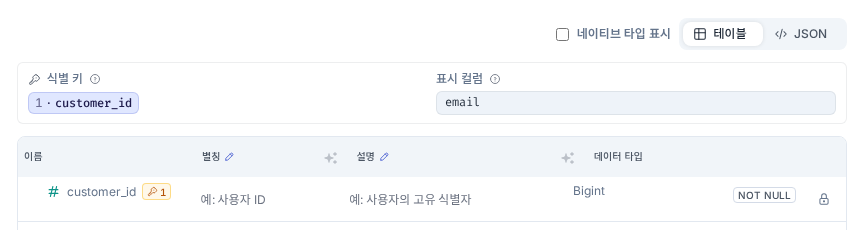
This is where you define the properties that the entity will have. The attribute structure determined here must match the column structure of the reference dataset (backing dataset) containing the actual data.
- Name: Property name.
- Type: Data type (Text, Integer, Float, Boolean, Date, Timestamp, etc.).
- Identity key: Whether it is an identification key that distinguishes each data piece by piece (multiple columns can be specified together).
- Display Column: This is the column that will be displayed as the main name on the screen (select only one from the entire schema).
- NULLable: Whether the value can be empty (NULL is allowed).
An identity key is required to save an entity. After creating an entity, you cannot delete or rename an existing property, change its type or nullability, or change the identity key.
To change one of these fields, delete and recreate the entity. Before deletion, review pipelines and relationships that reference it. After recreation, map the dataset and load data again. Deleting the entity does not delete its source dataset.
Load data
After defining an entity, upload a CSV, JSON, or Parquet file from the toolbar on the Data tab. In a pipeline, connect a dataset to a code node and connect the code output to the entity.
Pipeline fields are not mapped automatically. Make the code output's column names and types match the entity schema.
View rows on the Data tab
On the Data tab of the entity details panel, review loaded data page by page.

- Column order: Identity key, display column, then remaining properties.
- Pagination: Shows 20 rows per page.
- Toolbar: Refresh, upload, download, open in Graph Explorer, or initialize the table.
Initialize table immediately deletes all loaded rows in the selected table while retaining the entity or relationship type. Review the affected rows and dependencies and enter the resource name in the dialog before continuing.
If relationship rows reference the entity, select Delete entity rows and connected relationship rows. Initialization is blocked when relationship dependencies cannot be checked; ask an operator to review the backend table state.
To remove every entity and relationship type from the current model, do not repeat Initialize table. Use Reset ontology data, then review the target preview, model-name confirmation, operation lock, and progress before starting.