Create and edit AI code
D.Hub's pipeline code editor includes an AI coding assistant. If you explain the desired logic in natural language, the code will be created automatically, and you can also select the existing code and have it modified.
AI code generation
When writing new code from scratch, we use the AI code generation feature.
How to use
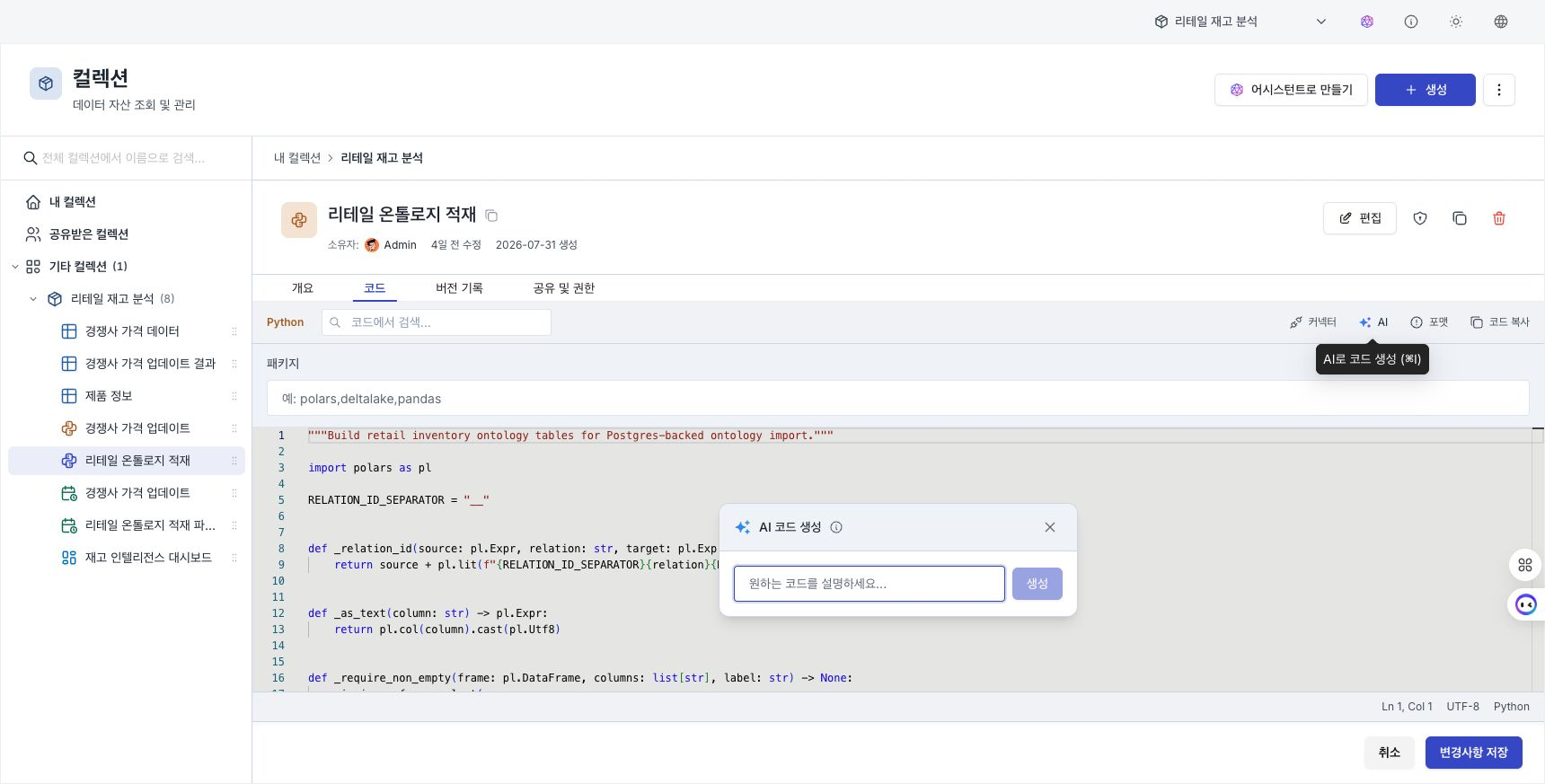
- Open the code node editor for your pipeline.
- Click the AI button on the toolbar or press the shortcut key
Cmd+I(Mac) /Ctrl+I(Windows). - When the prompt input window appears, explain the desired logic in natural language.
- When you press the Generate button, AI will write the code and show you a preview of the generated code.
- If you are satisfied with the result, press Insert to apply it to the editor, otherwise press Cancel to close it. You can also close the widget with
Esc.
In non-editable (read-only) editors, you will see a Copy button instead of Insert, allowing you to copy the generated code to the clipboard.
Supported languages
Python (polars)
D.Hub's Python code node processes data with polars (fast dataframe processing library).
AI-generated code automatically follows the pipeline's input and output specifications.
- Defined as the
run(input, *, options=None, contexts=None)function. The input data is passed asinput(Polars DataFrame), andoptionsandcontextsare always passed by the execution engine. - The processing results are returned as a dictionary in the form of
{"output": DataFrame}. - Generate efficient code using polars’ Expression API.
Example prompt:
- "Filter only rows where 'status' is 'active' from the input data."
- "Find the sum of the 'amount' column by date and sort the results in descending order."
- "Join the two input data frames based on the 'id' column"
SQL
Supports standard SQL grammar and automatically maps input table names.
Example prompt:
- "Count total monthly sales in the sales table."
- "Join the customer table and the order table, and view only customers who have had orders within the last 30 days."
Inline AI editing
Use inline AI editing features to fix or refine code you've already written.
How to use
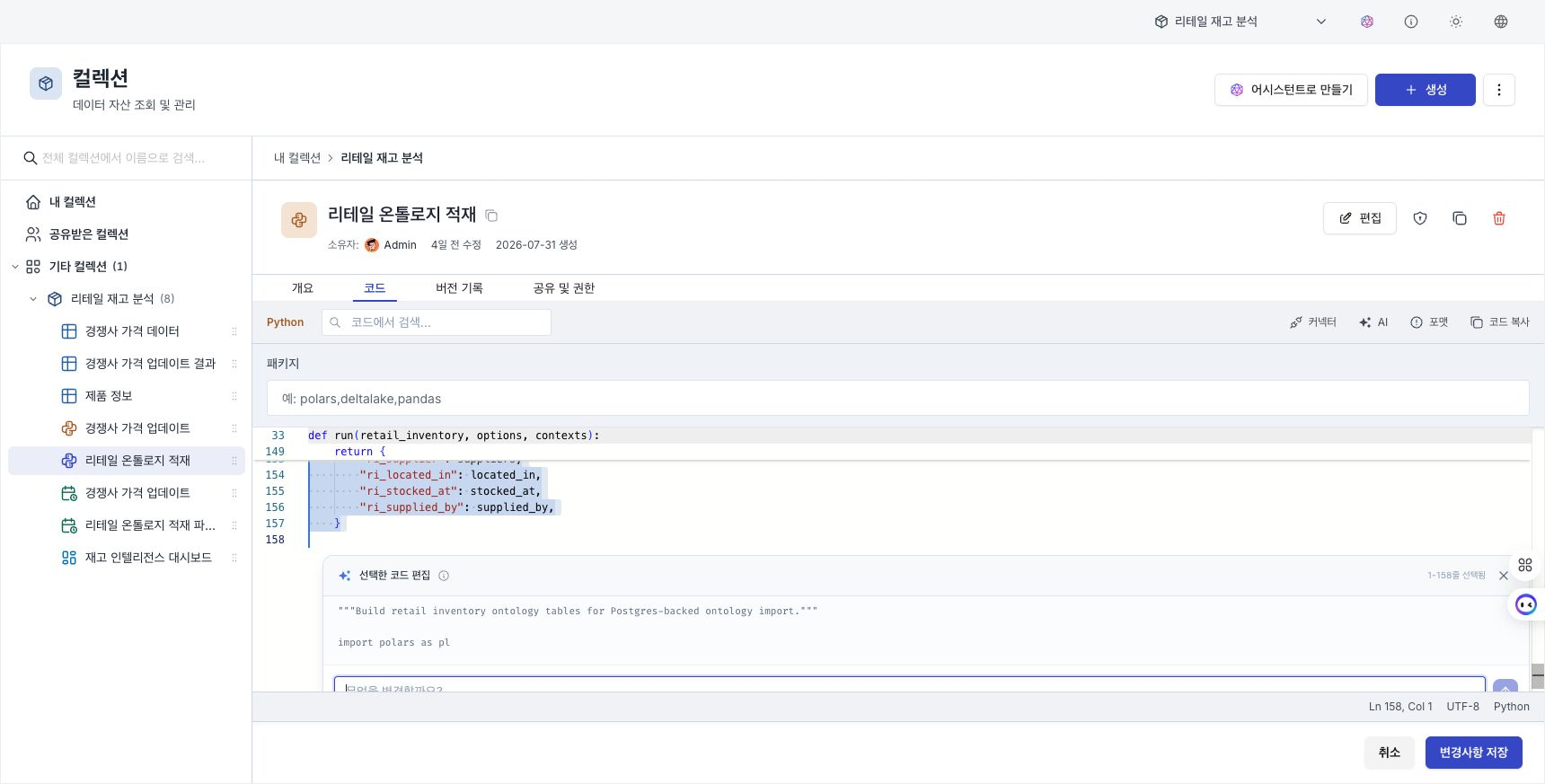
- In the editor, drag the code area to be modified to select it.
- Click the AI Edit button (✨ icon + sign
⌘I/Ctrl+I) that appears below the selection area, or pressCmd+I/Ctrl+Ito open the inline editing window. - The selected code and selection range (line number) are displayed at the top of the edit window. Enter correction instruction in the prompt input window (
What would you like to change?). - The AI-suggested code will be displayed as a Generated Code preview.
- After checking the preview, apply with Insert or close with Cancel. You can also close it with
Esc.
Example of use
| request type | Prompt example |
|---|---|
| Variable name improvement | “Change variable names to be more intuitive” |
| Add error handling | "Add null value processing logic to this part" |
| Performance Optimization | "Convert this loop to polars Expression" |
| Add Comment | "Add explanatory comments to each step" |
| Modify logic | "Change the filter condition from 'active' to 'completed'" |
Available contexts
Code generation and editing use your request, the selected language's runtime contract, the current editor content, and the line containing the cursor. Selected code is also included when you use inline editing.
The schema of a connected dataset and the pipeline node graph are not included automatically. State required column names, data types, and input and output formats in the prompt, then review generated code before running it.
The more specific the prompt, the more accurate the code will be.
Less specific: “Process my data”
More specific: "Filter only the most recent 7 days' data based on the 'created_at' column in the input data, and calculate the sum of 'amount' by 'category'."
Shortcut key summary
| Action | Mac | Windows/Linux |
|---|---|---|
| AI code generation / inline editing | Cmd+I | Ctrl+I |
Frequently Asked Questions
Q: AI generated code is not running.
- Try specifying the input/output type more specifically in the prompt.
- Make sure the dataset is properly connected to the node. AI references the schema of the connected dataset.
Q: Inline editing doesn't work.
- You must first select the code area and then press
Cmd+I/Ctrl+Ito activate the inline editing mode. - When nothing is selected, it operates in code generation mode.
Q: How do I specify table names in SQL mode?
- AI automatically maps the names of pipeline input nodes to table names. Simply mention the table in natural language at the prompt.
Precautions
- Review AI-generated or edited code in the preview before selecting Insert or running it. It can contain unexpected logic.
- Break complex business logic into steps and review each result.
- Code generation fails if there is no active Assistant Model or the model cannot be reached. An administrator registers a model and selects the active model under System → Settings → Assistant Models. See Assistant models for setup instructions.