Global Search
Global search is an integrated search that scans the entire D.Hub at once. No matter which collection you're in, you can find data assets, ontologies, agents, and even sidebar menus and each page with a single search.
The search for the user manual (docs site) you are currently viewing is separate from this. To find a page or title within this manual, type Search at the top of the left sidebar or press the ⌘K / Ctrl+K shortcut keys. For detailed usage, please refer to Search usage instructions in the introduction.
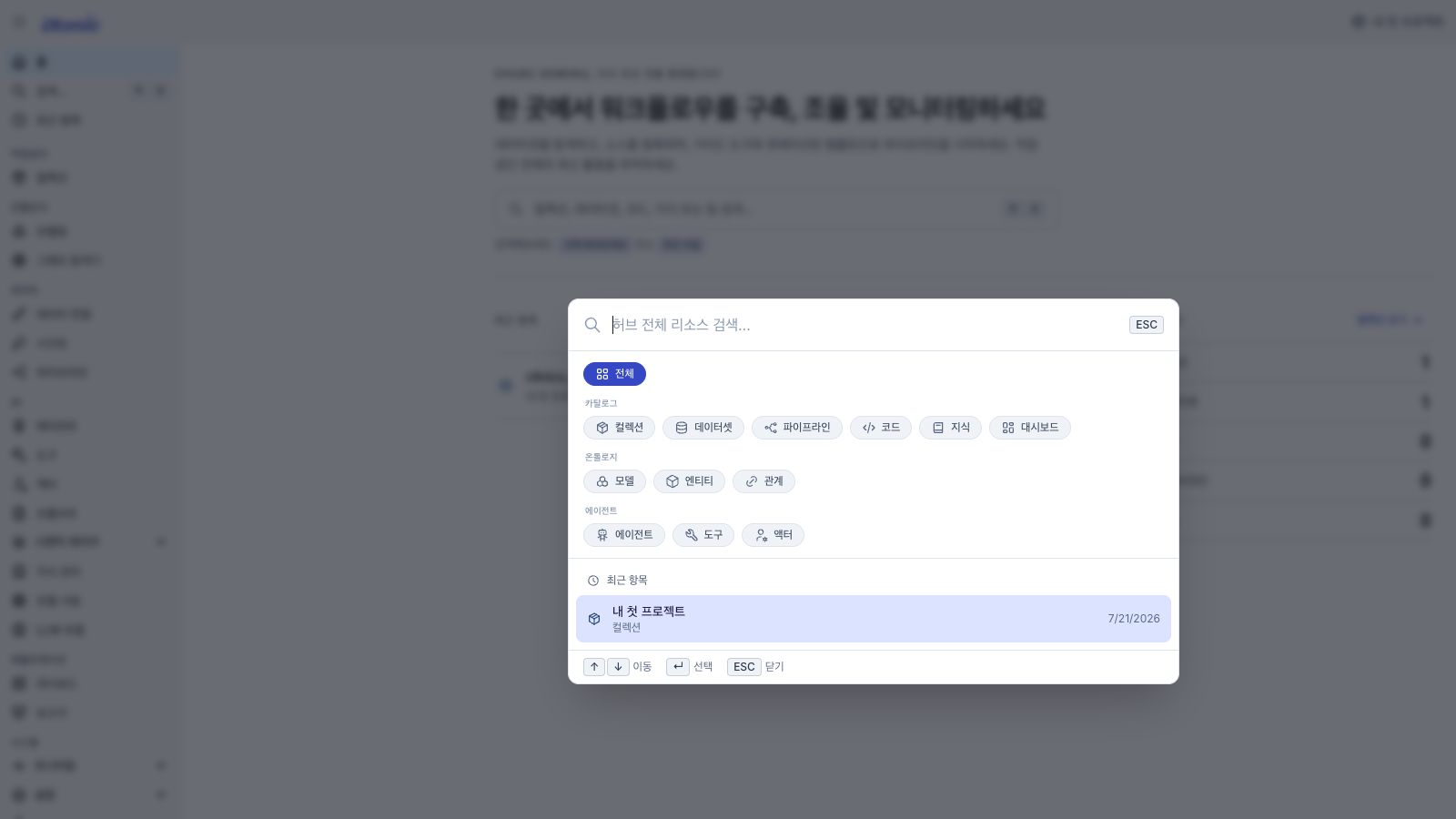
How to open
You can open Global Search in three ways:
- Keyboard shortcut:
⌘K(macOS) orCtrl+K(Windows) - Sidebar first menu
Search…: Enter the menu at the top of the sidebar (just below the home page) from any page. Even if you close the sidebar, the same icons remain visible. - Search button on home screen: This is the large search button in the introductory area at the top of the home screen. Opens a search bar identical to the sidebar menu.
The sidebar menu name is followed by an ellipsis (…), such as Search… (Search…). This is a sign that indicates that when you click it, a search window will pop up rather than moving to another page.
The search input bar that was previously located at the top center of the screen has been removed. This allows the page title and tool area at the top of the screen to be wider.
Search target
| Category | What's Included |
|---|---|
| Shortcut | Sidebar menus and pages, such as Pipeline Builder, Graph Explorer, Data Sync, Run Status, and Settings |
| Catalog | Collections, datasets, pipelines, code, knowledge, dashboards |
| Ontology | Ontology models, entities, relationships |
| Agent | Agent, Tool, Actor |
Jump to
This is the area above the asset search results, allowing you to jump directly to the sidebar menu or each page. In the search bar, it appears as the title Shortcuts.
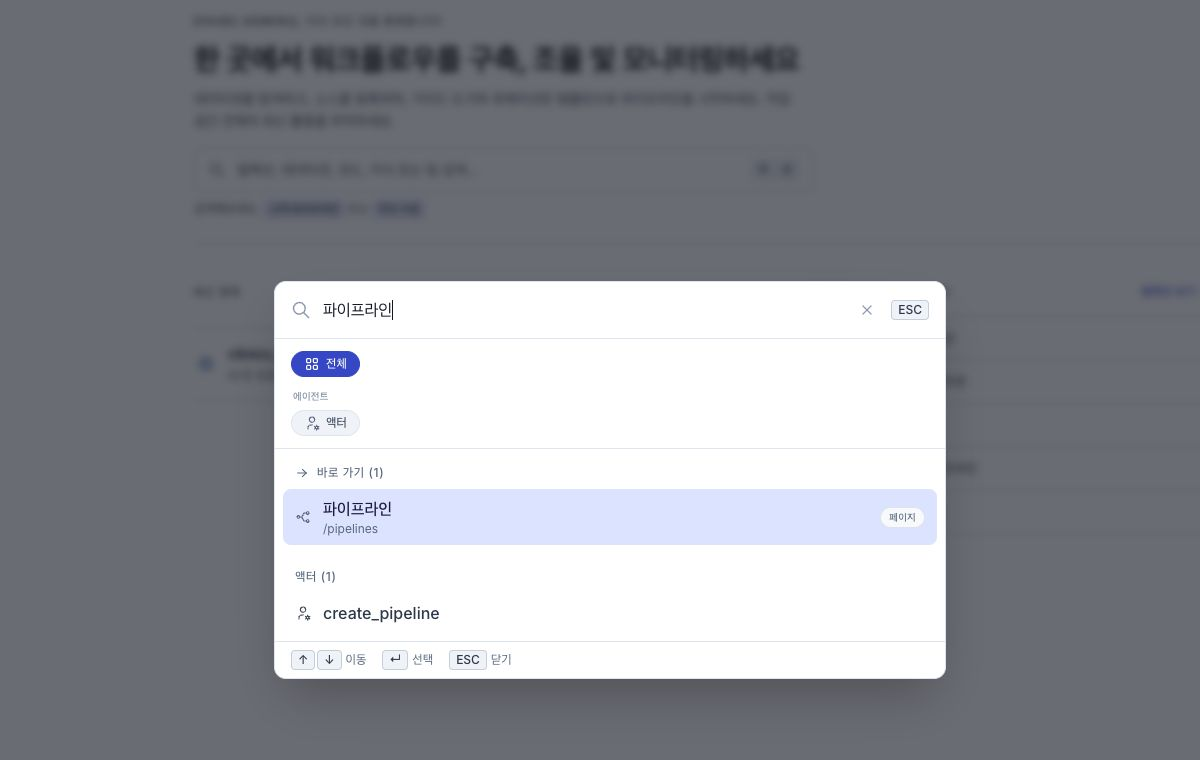
- If displayed: If the search term matches the name, keyword, or address of the sidebar menu or page, up to 5 items will be displayed.
PageBadge: Shortcut items have aPagebadge on the right to distinguish them from assets at a glance.- Appears immediately: The shortcut area appears immediately even if asset results are being loaded.
- Some items are conditionally exposed: Administrator-only settings, System Status, and Model Serving are shown according to the current user's permissions.
- Independent of filters: The shortcut area remains even if you filter by asset type. This is because the menu must be accessible at any time.
Items that fit better are placed at the top. It understands both Korean and English keywords (e.g. "pipeline" ↔ "pipeline", "graph" ↔ "graph"), so you can search in either direction to find it.
Filter asset results: Filter tags
At the top of the search bar are filter tags by type group that allow you to filter results by asset type. It moves separately from the shortcut area.
- All: All types
- Catalog Bundle:
Collection / Dataset / Pipeline / Code / Knowledge / Dashboard - Ontology Bundle:
Model / Entity / Relationship - Agent Bundle:
Agent / Tool / Actor - The icon for each filter tag is the same as the icon for the corresponding asset type, making it easy to align with the results list.
- Some filter tags are accompanied by descriptive text (e.g. collection, entity).
- The filter tag currently selected is displayed in highlight color.
- When you enter a search term, only the type of tags with results remain, and
Allwill always be displayed.
Configure asset results
- Bundled by Type: Asset results are grouped by type. The bundle title will look like
Catalog · Collection,Dataset,Ontology · Entity. - Maximum 5 cases per type: Shows up to 5 cases per type. Select filter tags of that type to see more results.
- Shortcut to Ontology: Clicking on an entity result takes you directly to the entity editing screen for that model.
- Auxiliary description under name: Below the result name, the affiliated collection (dataset, code, pipeline, knowledge, agent, tool, actor) or description (collection, dashboard, entity) is shown. Relationships show both connected items together in the form of
Source → Target, so you can recognize assets from other teams with context. - Show alias if the asset has an alias: If the asset has an alias, it shows the alias, otherwise it shows the original name.
Keyboard navigation
↑/↓: Move shortcuts and asset results up and down with one cursor.Enter: Move to the currently selected item.Esc: Close the search window.
Screen before search and recent search
If you open the search bar before entering a search term, Recent Items (data assets such as your home screen, up to 6) and Recent Searches appear in a tour. Go to ↑ / ↓ and click Enter to open it directly.
- When you select a search result or shortcut, the search term you entered at that time is saved in Recent Searches.
- Up to 5 recent searches are saved in your browser.
- Click on a recent search word to search again with that search term.
Relationship to home screen recent items
Recent Items on the home screen summarizes only your data assets (collections, code, pipelines, and knowledge). A full list of ontology entities and agents can be found at Recent Items Page, and the type classification method is the same as the asset results of the global search.
Tips
- Search multiple items at once: Assets are searched through their aliases, names, and descriptions (some types are collection names they belong to, and relationships are both items linked to tags). Asset results are grouped by type, with a maximum of five per type, and are not sorted by suitability (sorting by suitability only applies to shortcuts).
- Search only my permissions: Assets you do not have access to will not appear in the results.
- Fastest usage: Open with
⌘K→ enter search term → pressEnterto go directly to the first shortcut or first asset result.