Node connection
On the pipeline canvas, connect a node's output handle to the next node's input handle. Check the direction of each edge and any branch conditions to build the data flow.
Create edge (connection)
Connections between nodes are made by dragging from the output connection point to the input connection point.
-
Hover over the output connection point on the right side of the preceding node.
-
Press and hold the connection point, and drag it to the input connection point.
-
Drop it on the input connection point on the left side of the following node.
-
An edge is created and data flow between the two nodes is established.
-
On the code node's Options tab, check the input and output keys and the read and write modes.
-
Save and run the pipeline to confirm that the connections are valid.
Data flow configuration
Typically, connect nodes so that data flows from datasets, entities, or relations through code to output assets. Use entity and relation nodes as inputs or outputs, just like datasets.
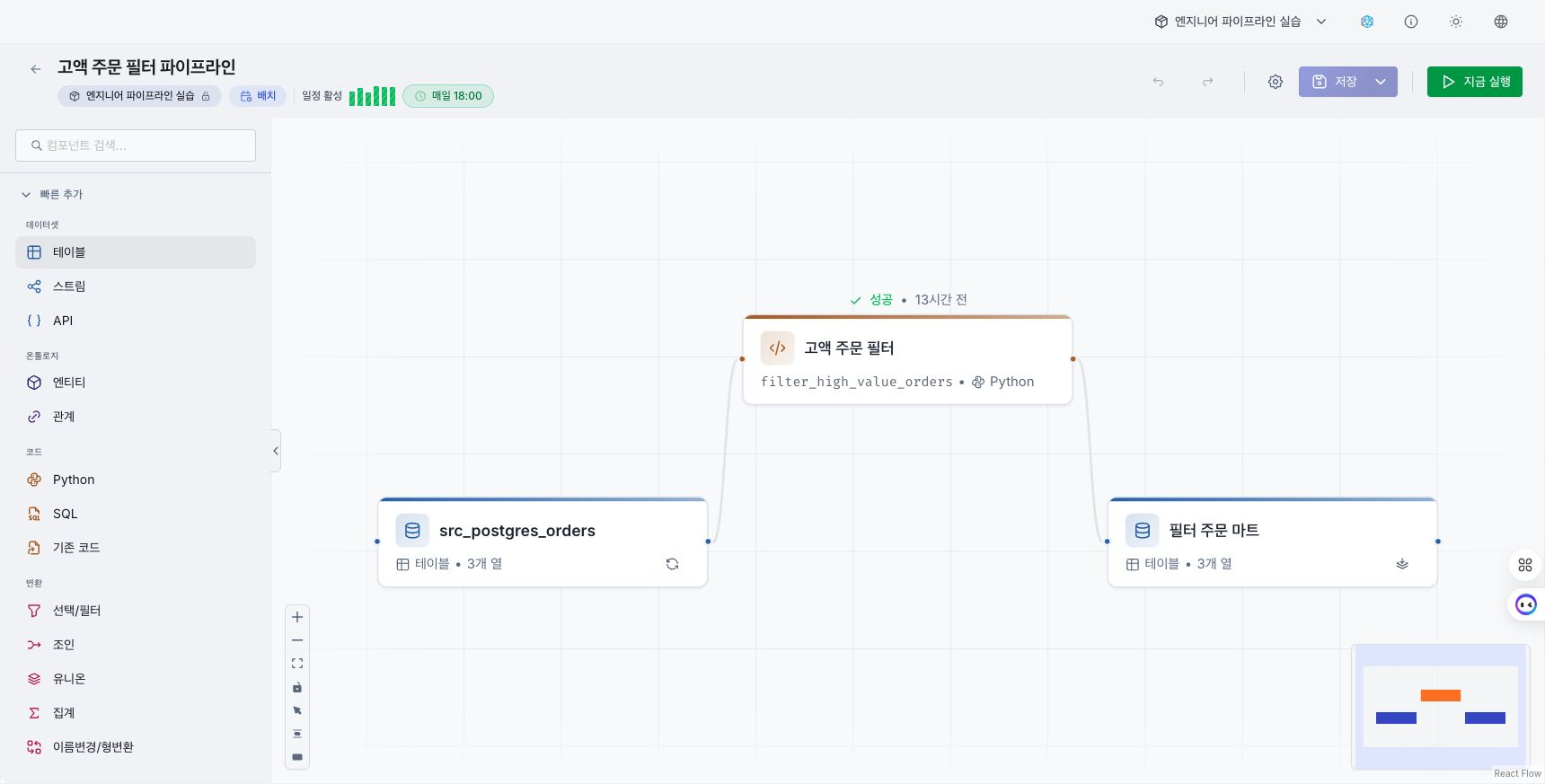
Recommended connections
| Source node | Target node | Data flow |
|---|---|---|
| Dataset / Entity / Relation | Code | Reads data as input to the code node. |
| Code | Dataset / Entity / Relation | Writes the processing results of the code node. |
| Code | Code | Passes intermediate processing results to the next code node. |
The editor does not automatically block direct dataset-to-dataset connections, connections between an event step and a dataset, or cyclic connections. A visible edge alone does not guarantee an executable configuration. Put a code node in between for data transformations, and design the pipeline as a one-way acyclic structure. See Pipeline errors to review execution results and step errors.
Input and output settings
When you connect a code node to a dataset, entity, or relation node, the input and output connections appear on the code node's Options tab. Connecting does not compare schema types or map fields automatically.
On the Options tab, specify the following for each input and output:
- Read mode (input): Select one of Incremental / Full.
- Write mode (output): For a dataset, select one of Append / Overwrite / Overwrite partitions. For an entity or relation, select one of Upsert / Insert / Overwrite.
If you select Overwrite partitions, enter a column name in Partition columns and press Enter. You must specify at least one column before you can save. Review write modes per output and how empty results are handled before you choose.
Step Options
At the top of the Options tab, the Step Options JSON field appears separately from the input and output connections. The JSON object you enter is passed as options at run time. In code, read it through the options parameter of the run function.
- The value must be a JSON object. If the format is incorrect, an error is displayed and the value is not saved.
- If you leave the field blank or
{}, it will run without step options.
Reuse of existing resources and duplicate names
Select an existing dataset, entity, or relation in the input/output selector of the Options tab to connect it. If the pipeline already has a node of the same type and same name, the Save as new name window opens. Nodes of the same type must use different table names within a pipeline.
- The window suggests a new name that does not overlap (e.g.
orders→orders_copy). - When you check the name and select Duplicate, the original stays intact, and a copy with the new name is created and used for this connection.
- The name must start with a lowercase letter, and only lowercase letters, numbers, and underscores can be used.
Multiple input/output
Connect multiple dataset nodes to one code node.
Multiple input example
- Connect multiple datasets as input to one code node to perform a join or merge.
- The code node references each input as a separate variable.
Multiple output example
When you connect multiple output datasets to one code node, each connection appears on the Options tab.
Edge management
Delete connection
- Hover over an edge and click the × button that appears to remove it immediately.
Change connection
To change an existing connection to another node:
- Delete the existing connection.
- Reconnect to the new target node.
Check connection status
After saving, check in Run the pipeline that each step runs in the expected order. Even when an edge has been created, execution configuration errors can remain.
All input and output connections appear on the code node's Options tab.
| Item | Description |
|---|---|
| Inputs | Shows the assets that provide data to the code node and their read mode. |
| Outputs | Shows the assets that receive the code node's results and their write mode. |