Ontology Builder
Ontology Builder is a workspace for visually defining and managing entities and relationships.
Screen Layout
[Screenshot] Ontology Builder
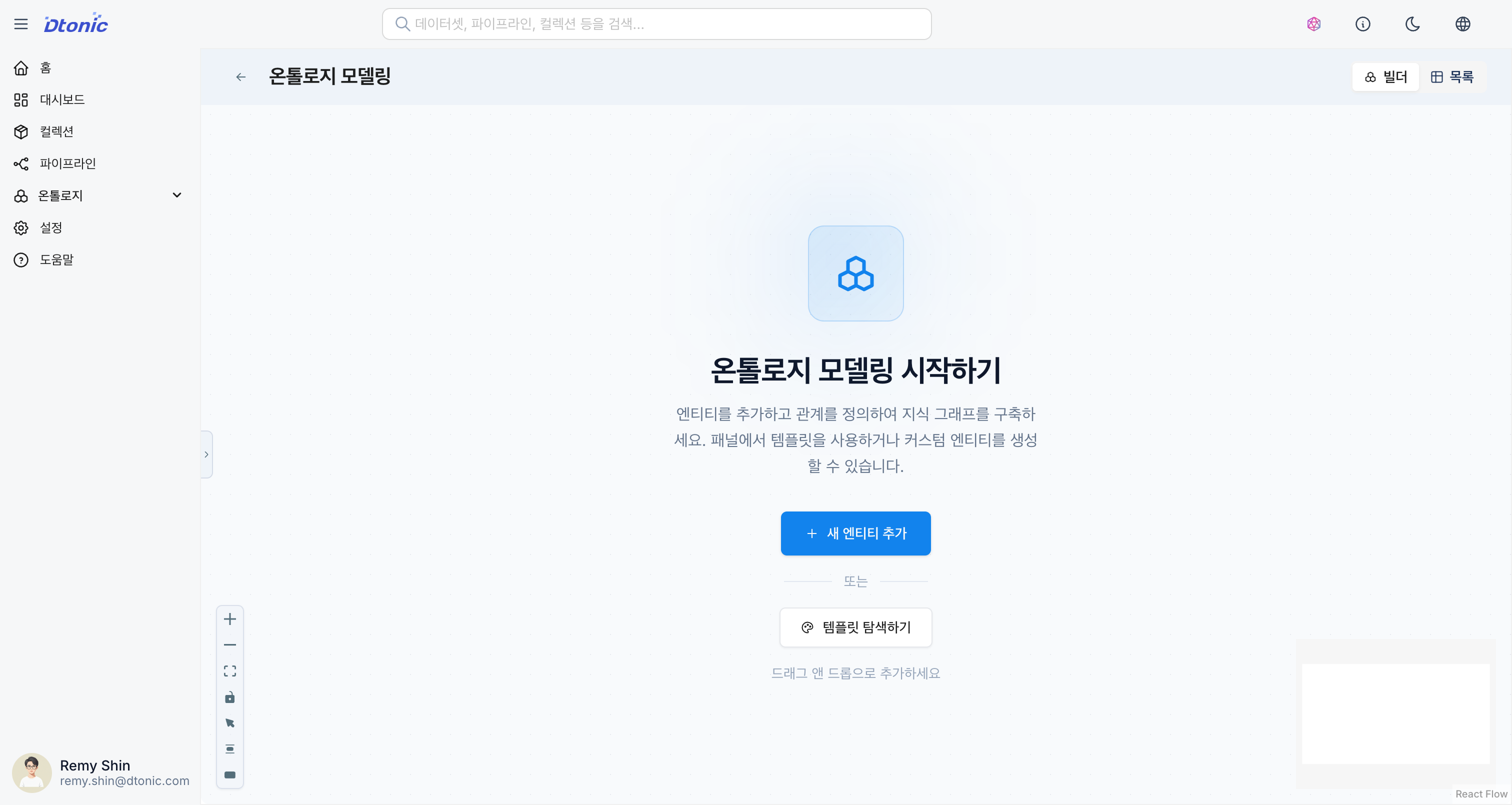
1. View Mode
You can switch between two view modes from the top header.
- Graph: A visual canvas view with nodes and links. Best suited for understanding and designing structures.
- Table: A list view showing entities and relationships. Useful for managing a large number of items or viewing properties in detail.
2. Navigation Panel
Located on the left side, it provides Templates for creating entities.
- You can quickly create entities by dragging and dropping predefined templates such as Person, Organization, Product onto the canvas.
3. Canvas
The main workspace where you can freely place and connect entity nodes.
- Move: Drag nodes to adjust their positions.
- Connect: Drag from a node's handle (dot) and drop it onto another node to open the relationship creation modal.
- Zoom: Use the mouse wheel or control buttons.
- Auto Layout: Use the auto-arrange feature from the top menu.
4. Inspector
Located on the right side, it allows you to edit the detailed information of the selected entity or relationship.
5. Search
Press Ctrl/Cmd + F to open the search dialog and quickly find entities or relationships.
6. Validation
The validation panel displays errors or warnings in the ontology definition. It detects missing required properties, invalid relationship definitions, and other issues in advance.
Creating Entities
- Using Templates: Drag a desired template from the left panel onto the canvas.
- Manual Creation: Right-click on an empty area of the canvas or click the + Entity button at the top.
- Configuration: Define the name, description, properties (columns), and save.
Setting Up Relationships
- Hover over the connection handle on the border of the source entity.
- Click and drag to the target entity, then release.
- In the Create Relationship dialog, enter the relationship name (e.g.,
PURCHASED,WORKS_FOR) and save.
Dataset Mapping
You can connect entities to actual data and load them into the graph database.
How to Configure Mapping
- Select the entity to map.
- Click the Data Source tab in the properties panel.
- Select Dataset: Choose the D.Hub dataset to connect.
- Field Mapping: Map each entity property to a column in the dataset.
Mapping Example
| Entity Property | Dataset Column |
|---|---|
id | customer_id |
name | customer_name |
email | email_address |
Running Sink
Once the mapping configuration is complete, click the Sink button to load the data into the graph database.
- Full Sync: Loads all data from scratch.
- Incremental: Updates only the changed data.
AI Auto-Generation
You can use the AI-based automatic description generation feature for entities and relationships. Select an entity or relationship, then click the AI button to automatically generate a description based on the name and properties.
Export/Import
You can export ontology definitions to a file or import them from an external file.
- Export: Saves the current ontology's entities, relationships, and property information to a file.
- Import: Loads an external ontology definition file and applies it to the current workspace.
Self-Reference Relationships
An entity can define a relationship with itself. For example, this is used when a MANAGES relationship on a Person entity references the same Person entity.
Table View
In table view, you can manage entities and relationships in a list format.
Entity Table
- Search: Search by entity name.
- Sort: Click column headers to sort.
- Batch Edit: Select multiple entities for batch editing or deletion.
Relationship Table
- Source/Target Filter: Display only relationships connected to a specific entity.
- Relationship Type Filter: Display only relationships of a specific type.
Keyboard Shortcuts
| Shortcut | Action |
|---|---|
Delete / Backspace | Delete selected item |
Ctrl/Cmd + Z | Undo |
Ctrl/Cmd + Shift + Z | Redo |
Ctrl/Cmd + S | Save |
Ctrl/Cmd + A | Select all |
Space (hold) | Panning mode |
Click the ? icon at the top to view the full list of keyboard shortcuts.