Managing Widgets
This guide explains how to add widgets to the dashboard canvas and arrange them to build your desired layout.
Adding Widgets
[Screenshot] Widget library panel
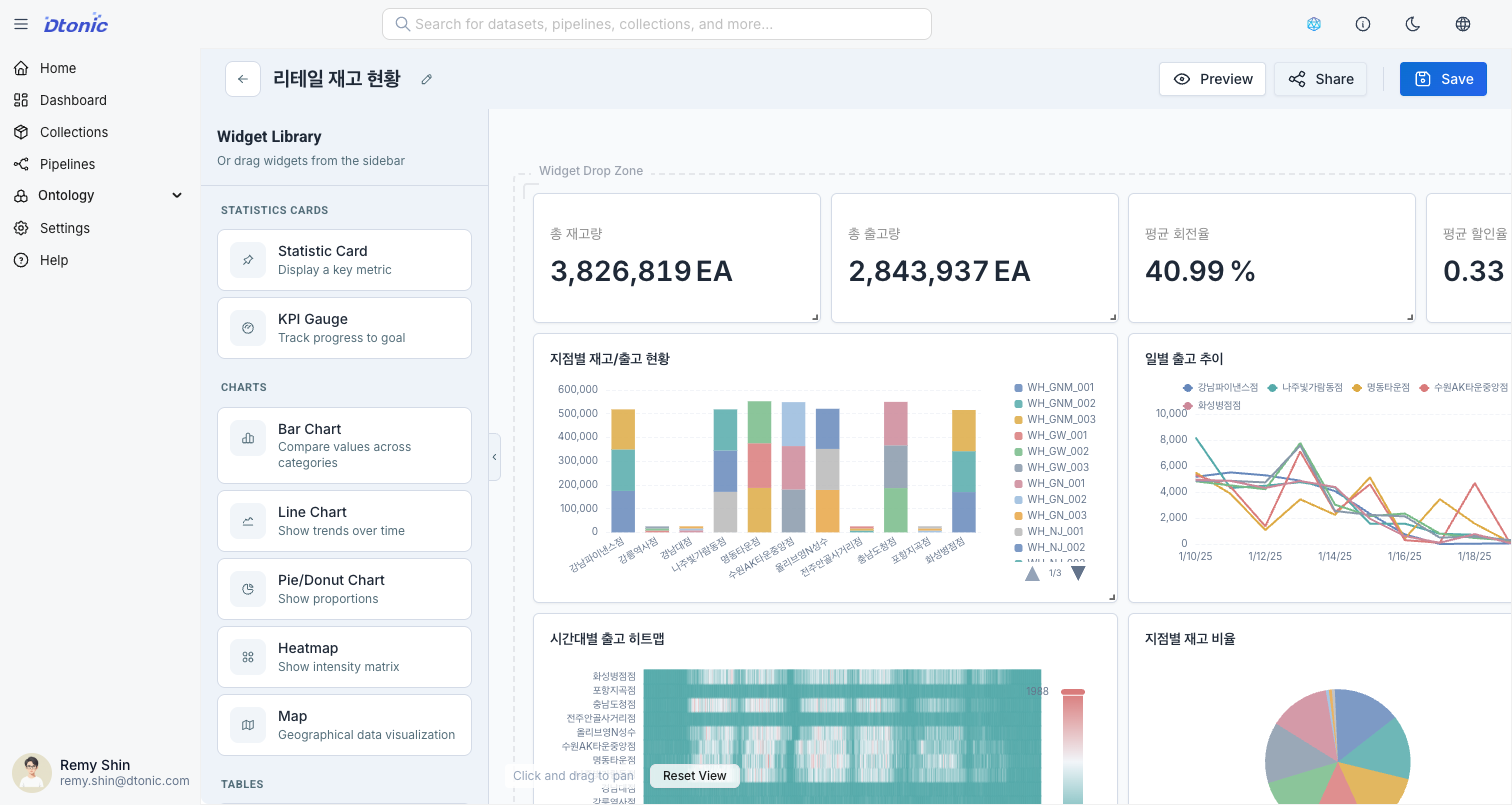
- Open the Widget Library panel on the left.
- Select the desired widget type.
- Drag the widget onto the canvas or click to add it.
Widget Types
The D.Hub dashboard provides 9 widget types across 4 categories.
Statistics
Statistic Card
A widget that highlights key performance indicators (KPIs).
- Use cases: Emphasizing a single metric such as total revenue, active users, conversion rate
- Configuration options:
- Prefix (e.g., $, ₩)
- Suffix (e.g., %, cases)
Gauge
Visualizes the achievement rate of the current value relative to a target.
- Use cases: Goal achievement rate, server utilization, progress status
- Configuration options:
- Min/Max values
- Target value
Charts
Bar Chart
A chart suitable for comparing data across categories.
- Use cases: Revenue by category, monthly order count comparison
- Configuration options:
- Enable Stacked mode
Line Chart
A chart that visualizes trends in time-series data.
- Use cases: Daily visitor count, traffic trends by time of day
- Configuration options:
- Show Points
Pie Chart
A chart that visualizes proportions relative to the whole.
- Use cases: Market share, category composition ratio
- Configuration options:
- Chart type: Pie or Donut
- Show legend
- Show percentage values
Heatmap
Represents value intensity using colors at the intersection of two dimensions.
- Use cases: Traffic by hour and day of week, revenue by region and category
- Configuration options:
- Color scale: Sequential or Diverging
Map
Visualizes location-based data on a map.
- Use cases: Revenue by region, store locations, sensor distribution
Tables
Data Table
Displays detailed data in tabular form.
- Use cases: Detailed transaction history, user lists, log data
- Configuration options:
- Rows per page (5, 10, 20, 50)
- Enable sorting
- Enable search filter
Controls
Date Range Selector
A control widget that manages the viewing period for dashboard widgets.
- Use cases: Dynamically change the date range for the entire dashboard or connected widgets
- Configuration options:
- Default range: Last 7 days, Last 30 days, Custom
- Allow custom range
- Date display format (YYYY-MM-DD, MM/DD/YYYY, DD.MM.YYYY)
Widget Placement and Resizing
- Move: Drag the widget header to move it to the desired position.
- Resize: Drag the handle at the bottom-right corner of the widget to resize it.
- Auto Layout Adjustment: When you move a widget, other widgets are automatically rearranged to minimize empty space.
Widget Settings
[Screenshot] Widget settings panel
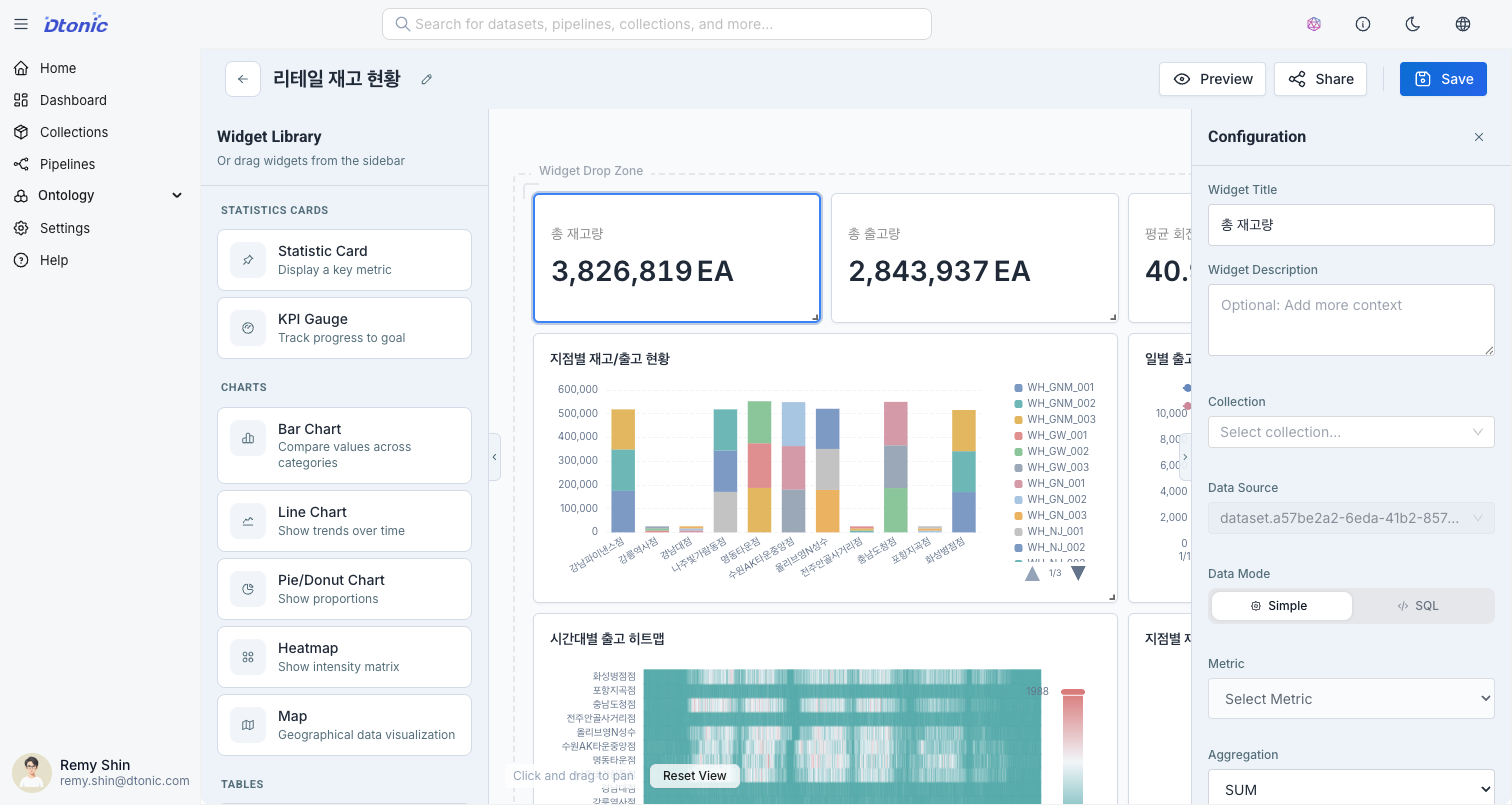
When you select a widget, the Settings Panel on the right is activated.
1. General
- Title: Enter the title to display at the top of the widget.
- Description: Enter an additional description for the widget.
2. Data
- Data Mode: Select Simple or Query mode
- Data Source: Select the dataset to connect
- Field Mapping: Specify X-axis, Y-axis, and value fields
For more details, refer to the Data Configuration documentation.
3. Style
- Depending on the chart type, you can adjust visual elements such as colors, legend visibility, and axis settings.
Widget Actions
The following actions will be available through the context menu in the widget header:
- Duplicate: Quickly create a widget with the same settings
- Delete: Delete the selected widget
- Lock: Lock the widget to prevent accidental movement