Creating and Managing Dashboards
You can manage all created dashboards from the dashboard list page.
Creating a Dashboard
- Click Dashboard in the sidebar menu to navigate to the list page.
- Click the + Create New button in the upper right corner.
- A blank canvas is created, and you can immediately start designing by adding widgets.
- Once you have finished adding and configuring widgets, click the Save button.
Managing the Dashboard List
[Screenshot] Dashboard list page
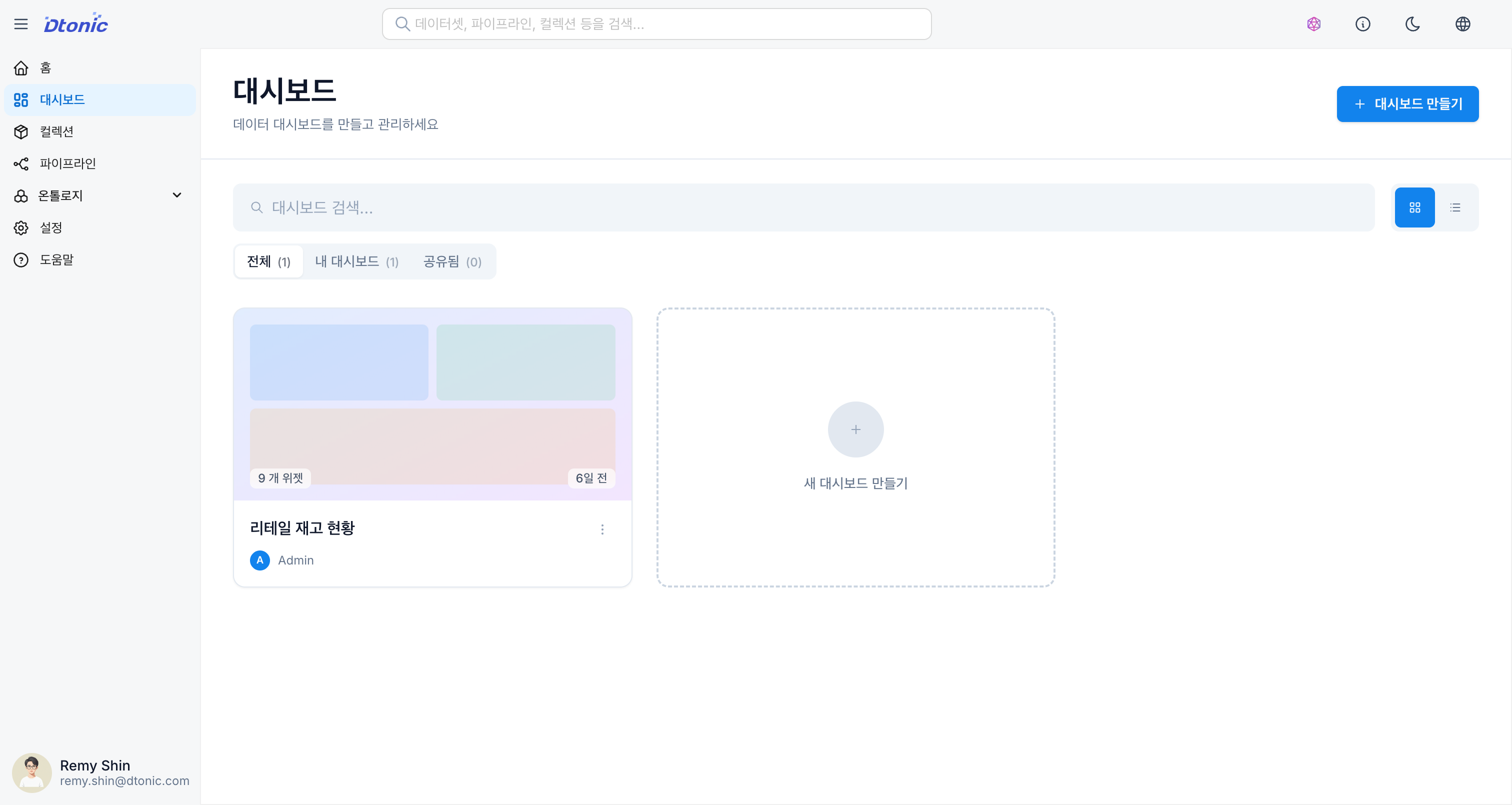
- Search and Filter: Search by dashboard name or filter using the 'All', 'My Dashboards', and 'Shared' tabs.
- View Mode Toggle: Choose between card view (grid) or table view (list), whichever you prefer.
- Action Menu: Access the following actions through the
...menu on each dashboard card:- View: Preview the dashboard in read-only mode.
- Edit: Open the dashboard in edit mode.
- Duplicate: Copy an existing dashboard to use as a starting point for a new one.
- Share: Share the dashboard with other users. (Coming soon)
- Delete: Permanently delete the dashboard.
Dashboard Preview
[Screenshot] Dashboard preview
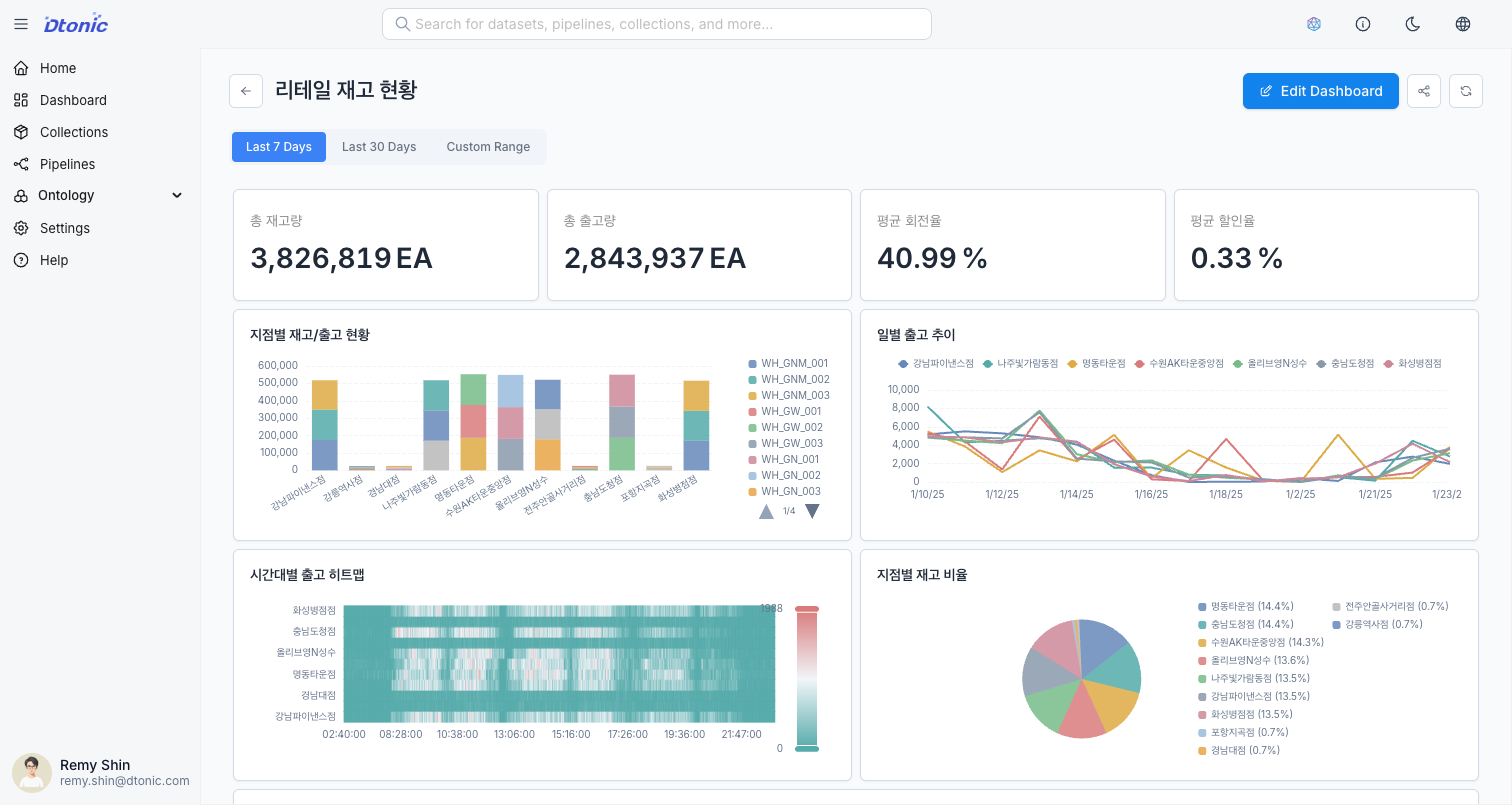
The preview is a read-only mode optimized for viewing and analyzing data without editing widgets.
Preview Features
- Date Range Filter: Change the viewing period using date presets at the top (Last 7 days, Last 30 days, Custom).
- Data Refresh: Click the refresh button to fetch the latest data immediately.
How to Access Preview
- Click a card in the dashboard list.
- Or click the Preview button from edit mode.
Editing a Dashboard
To modify an existing dashboard:
- Click the
...menu on the desired dashboard in the list → Edit. - Or click the Edit button from the preview.
- Add, modify, or delete widgets, then click the Save button.
Dashboard Settings
Coming Soon
The following options will be available through the settings icon at the top of the dashboard edit mode:
- Title: Change the dashboard name
- Description: Add a description for the dashboard
- Auto-refresh Interval: Set the data refresh cycle (e.g., 30 seconds, 1 minute, 5 minutes)
- Default Date Range: The date range applied by default when accessing the preview