Data Configuration
This guide explains how to connect real data to widgets and visualize it. The D.Hub dashboard supports two data modes.
Data Sources
The D.Hub dashboard queries data through an analytics database. Datasets registered in D.Hub are automatically synchronized as analytics tables, enabling fast analytical queries.
Simple Mode
[Screenshot] Simple mode data configuration screen
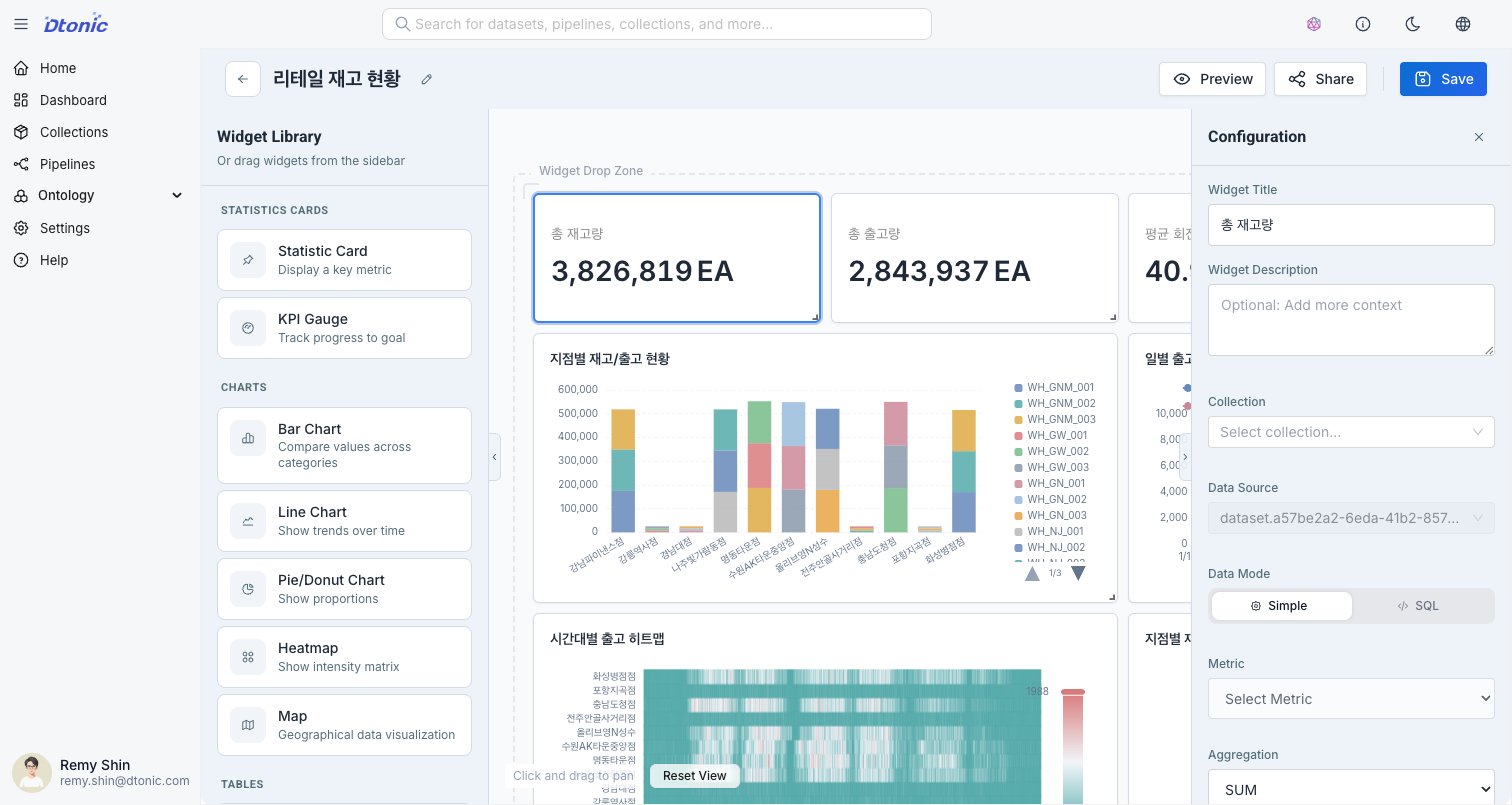
Visualize data by selecting datasets and fields from the UI without writing any code.
Configuration Steps
- Select Data Source: Choose the dataset to connect.
- Configure Metrics:
- Value Field: Select the data field to visualize. (e.g.,
price,count) - Aggregation Method: Choose from
SUM,AVG,COUNT,MIN,MAX.
- Value Field: Select the data field to visualize. (e.g.,
- Group By: Select the field to group data by. (e.g.,
category,date)- X-axis/Y-axis: Specify the fields to map to axes depending on the chart type.
Supported Aggregation Functions
| Function | Description | Example |
|---|---|---|
SUM | Sum | Total revenue |
AVG | Average | Average order amount |
COUNT | Count | Number of orders |
MIN | Minimum | Lowest price |
MAX | Maximum | Highest price |
COUNT DISTINCT | Distinct count | Number of unique customers |
Query Mode
[Screenshot] Query mode SQL editor screen
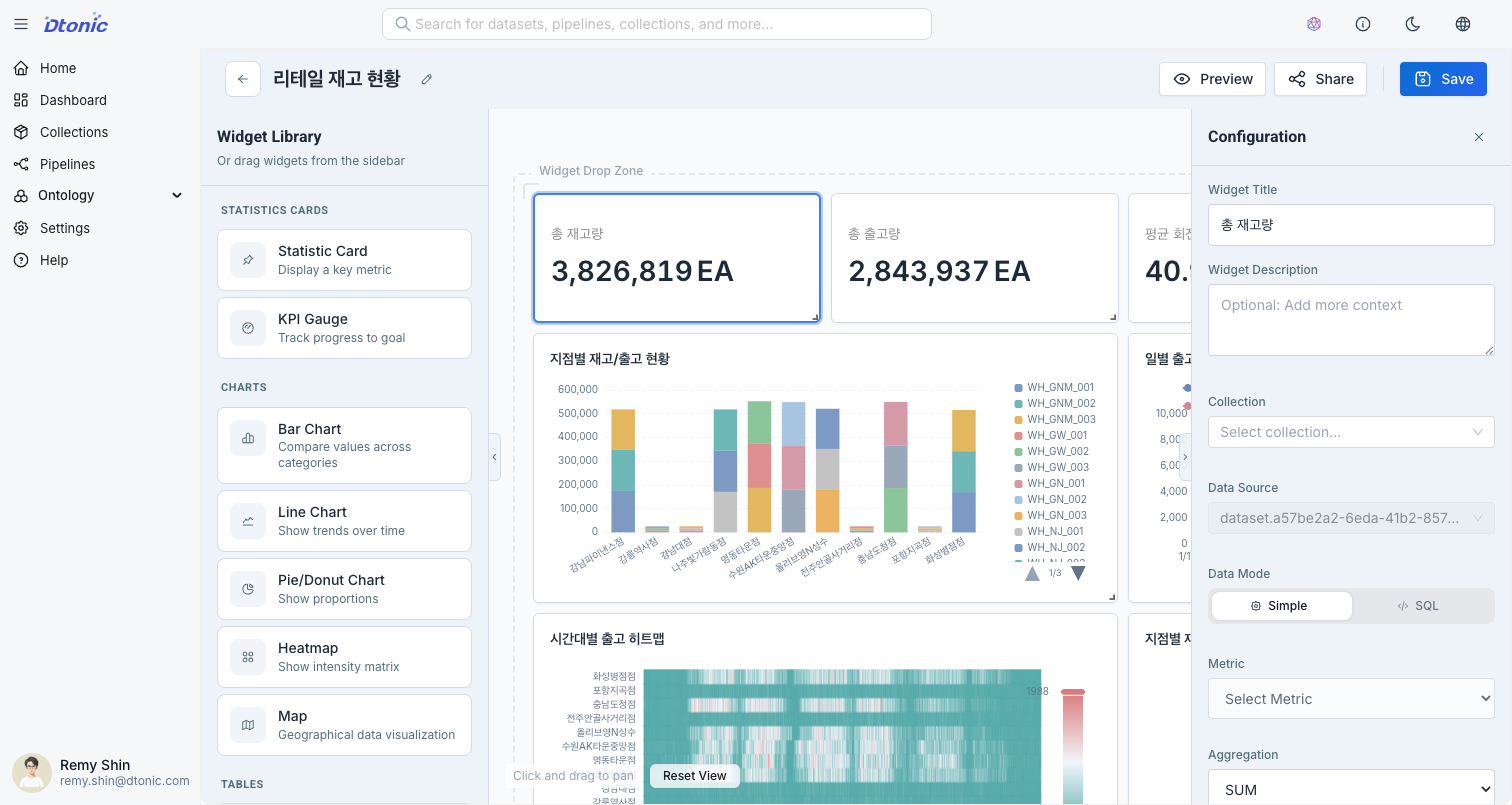
Use this mode when complex data processing is required by writing SQL queries directly. It uses the analytics database SQL syntax.
Basic Usage
- Change the Data Mode to
Query. - Write a query in the SQL Editor.
- Click the Test Query button to preview results. The execution time and number of rows returned are displayed.
- Map the result columns to chart properties such as X-axis and Y-axis.
- Generate Query: Automatically generates a basic SQL query based on the selected dataset and widget type.
Query Examples
-- Total revenue by category
SELECT
    category,
    SUM(amount) as total
FROM sales_data
GROUP BY category
ORDER BY total DESC

-- Daily order trends
SELECT
    toDate(order_date) as date,
    COUNT(*) as order_count,
    SUM(amount) as revenue
FROM orders
GROUP BY date
ORDER BY date

-- Traffic analysis by hour
SELECT
    toHour(timestamp) as hour,
    COUNT(*) as visits
FROM page_views
WHERE toDate(timestamp) = today()
GROUP BY hour
ORDER BY hour
Useful SQL Functions
For the full SQL function reference, see Reference > SQL Query Guide.
| Function | Description | Example |
|---|---|---|
toDate() | Date conversion | toDate(timestamp) |
toHour() | Hour extraction | toHour(timestamp) |
today() | Today's date | WHERE date = today() |
yesterday() | Yesterday's date | WHERE date = yesterday() |
toStartOfWeek() | Start of week | toStartOfWeek(date) |
toStartOfMonth() | Start of month | toStartOfMonth(date) |
formatDateTime() | Date formatting | formatDateTime(date, '%Y-%m') |
Date Range Filter
Adding a Date Range Selector widget allows you to apply a time filter to all widgets across the dashboard.
Configuration Steps
- Add a Date Range widget from the widget library to the canvas.
- Specify the date field in each widget's data settings.
- When a date range is selected in the date range selector, all linked widgets are automatically filtered.
Using Date Filters in Query Mode
In query mode, you can apply the date range using the $from and $to variables:
SELECT
    toDate(order_date) as date,
    SUM(amount) as revenue
FROM orders
WHERE order_date >= $from AND order_date <= $to
GROUP BY date
ORDER BY date
Data Refresh
- Auto Refresh: You can specify the auto-refresh interval in the dashboard settings.
- Manual Refresh: Click the refresh button at the top of the dashboard to update data immediately.