Adding and Connecting Nodes
This guide explains how to add nodes that make up a workflow and connect data flows between them.
How to Add Nodes
1. Quick Add
[Screenshot] Adding nodes (Quick Add panel)
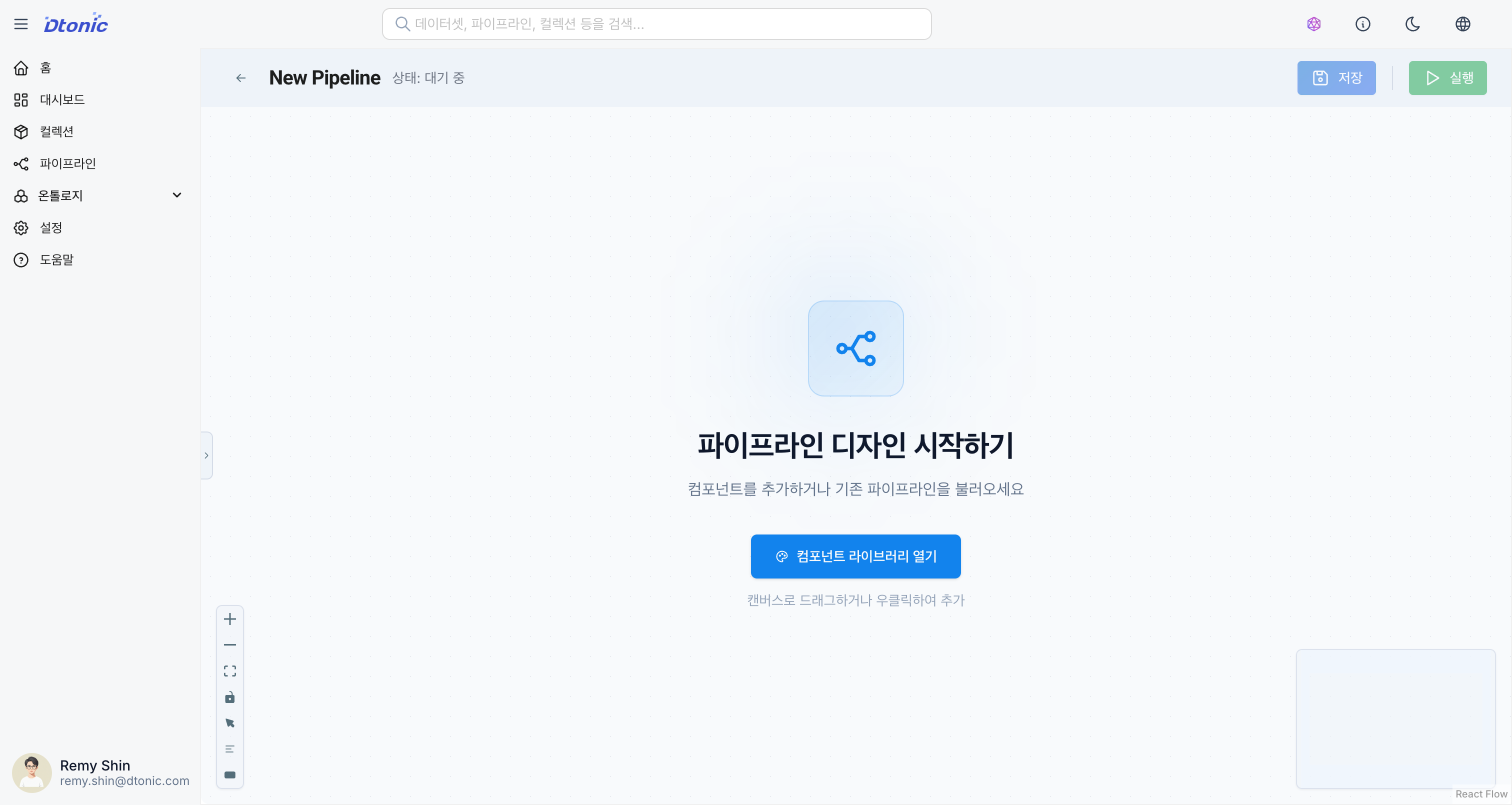
Drag and drop the desired node type from the Quick Add section in the left panel onto the canvas.
2. Import from Collections
Find and drag existing datasets or code from the Collections tree in the left panel. This is the best way to improve reusability.
3. Context Menu
Right-click on an empty area of the canvas to open the menu, then select Add Dataset or Add Code.
Right-clicking on a node provides the following options:
| Menu Item | Description |
|---|---|
| Edit Node | Edit the node (open Inspector) |
| Duplicate Node | Duplicate the node |
| Add Result Dataset | AI automatically creates and connects an output dataset node |
| Delete Node | Delete the node |
4. Keyboard Shortcuts
Use the following shortcuts for quick actions:
- Add dataset node:
Ctrl(Cmd) + Shift + D - Add code node:
Ctrl(Cmd) + Shift + C
Node Types
Dataset Node
Serves as the source or sink for data.
| Type | Description | Use Case |
|---|---|---|
| Delta Lake | Delta Lake table | Batch data processing, version control |
| Kafka | Kafka topic | Real-time streaming data |
| DDS | DDS interface | Real-time distributed system integration |
| REST API | HTTP endpoint | External API calls |
Delta Lake Node Settings
- Table Name: Delta Lake table path
- Schema: Column definitions (auto-inference available)
- Partition Key: Column used for data partitioning
- Write Mode: Append, Overwrite, Merge
Kafka Node Settings
- Topic: Kafka topic name
- Broker: Kafka broker address
- Serialization Format: JSON, Avro, Protobuf
- Consumer Group: (When used as a source node)
Code Node
Performs logic to transform or process data.
| Type | Language | Use Case |
|---|---|---|
| Python | Python 3.x | General-purpose data processing, ML model application |
| SQL | SQL | Data transformation, aggregation, joins |
Python Node Settings
- Script: Write Python code
- Package Dependencies: List of required pip packages
- Input Variables: Input dataset mapping
- Output Variables: Output dataset mapping
import pandas as pd

df = input_dataset.read()

df['total'] = df['price'] * df['quantity']
df = df[df['total'] > 1000]

output_dataset.write(df)
SQL Node Settings
- Query: Write SQL query
- Input Table Alias: Reference input datasets as tables
- Output Schema: Define the result schema
SELECT
    category,
    SUM(amount) as total_amount,
    COUNT(*) as order_count
FROM orders
WHERE order_date >= '2024-01-01'
GROUP BY category
ORDER BY total_amount DESC
Connecting Nodes
Connect nodes to define the data flow.
- Hover the mouse over the right handle (Output) of the upstream node.
- Click and drag to the left handle (Input) of the downstream node.
- A connection line (Edge) is created, establishing the data dependency.
Connection Rules
- Dataset node → Code node: Read data (source)
- Code node → Dataset node: Write data (sink)
- Code node → Code node: Pass intermediate results
When connecting a Code node and a Dataset node, the input/output variables in the code may be automatically mapped to the dataset ID. (Verifiable in the Inspector's Options tab)
Node Management
- Move: Drag nodes to change their position.
- Duplicate: Select a node and choose Duplicate Node from the right-click menu, or use
Ctrl+D. - Delete: Select a node and press the
Deletekey, or choose Delete Node from the right-click menu. - Auto Layout: Select from 6 layout algorithms in the Auto Layout dropdown on the toolbar:
| Layout | Description |
|---|---|
| LR | Left-to-Right |
| TB | Top-to-Bottom |
| DAG | Directed Acyclic Graph layout |
| Force | Force-directed auto layout |
| Circular | Circular arrangement |
| Grid | Grid arrangement |
- Group Selection:
Shift+ drag to select multiple nodes at once.