Login
You must log in to access D.Hub. User authentication is required for safe data management.
Login screen
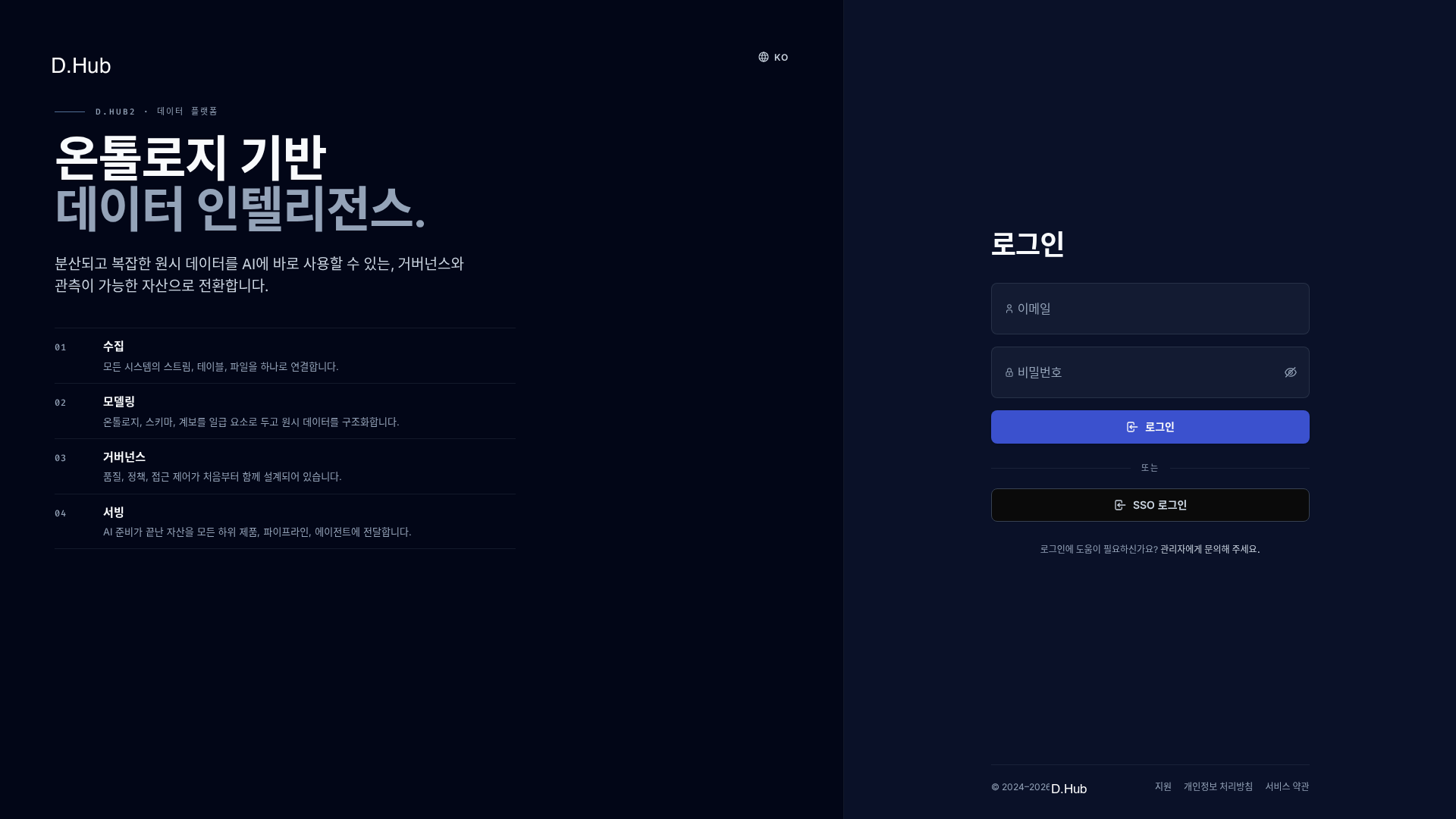
The login screen is divided into an introduction area on the left and a login form on the right. You can return to the introduction screen before logging in by clicking the logo in the upper left corner. For more information, please refer to Introduction.
How to log in
- In the Email input field, enter the email address issued by your organization.
- Enter your password in the Password input field.
- Click the Login button to go to the home screen.
If your email or password does not match, an error message will appear in the login form. For security purposes, we do not tell you whether your email address or password is incorrect, so please check both values again.
Account and Password
- Account Issuance: Accounts are issued by the organization administrator. If you have not yet received a login email, please contact your administrator.
- Password Rules: Acceptable password conditions follow your organization's policies. If an organization uses SSO, password rules and change cycles are also managed by the organization's authentication system (SSO provider). For security purposes, we recommend a sufficiently long password that contains a mix of upper and lower case letters, numbers, and special characters.
- Password change/reset: If you have forgotten your password or need to reset it, ask the administrator.
Sign in with your organizational account (SSO)
The method of logging in to multiple services at once with one organizational account used at work, school, etc. is called single sign-on (SSO). If your organization uses integrated login, a SSO Login button will appear on the login screen.
Authentication systems that can be integrated are Microsoft (Azure AD / Entra ID) and Keycloak. Which system you're actually connected to is determined by your organization settings, and is displayed on the login screen as a single button: SSO Login.
How to log in:
- Click the SSO Login button on the login screen.
- Go to your organization's login screen and authenticate.
- When authentication is complete, the waiting screen is displayed for a moment and then moves to the home screen.
When SSO login is not possible
If there is a problem during SSO authentication, you will be taken to the information screen. If your account is not yet activated (waiting for administrator approval, etc.) or you do not have access, you will see a message informing you of the situation and a Try again / Sign in with a different account button.
Logout
To finish your work and exit the system:
- Click the user profile area at the bottom of the sidebar.
- Select Logout from the pop-up menu.
- Log out and return to the login page.
Troubleshooting
- Login Failed: If an error message appears, check your email and password again. If you still can't log in, contact your administrator.
- Account Inaccessible: If your account has been disabled by an administrator, you will not be able to log in. In this case, ask your administrator to activate your account.
- SSO Error: Check the message displayed on the guidance screen and follow the buttons provided (try again, log in with a different account). If your account is not yet activated, ask your administrator to activate it.